









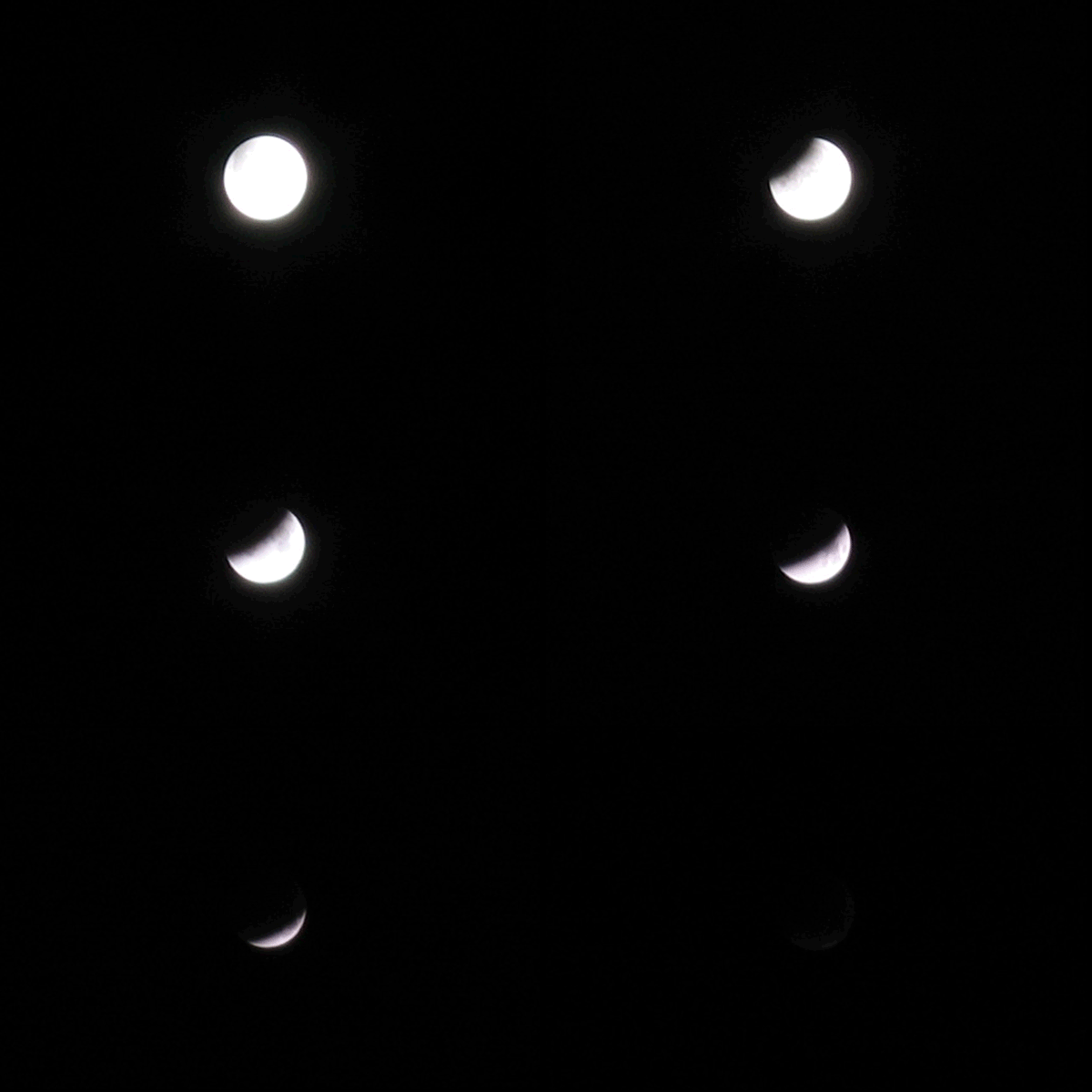
Sometimes you want to tell a story that takes a while to unfold. One of the beauties of digital photography is that you are not limited by how many shots are on the roll of film, now you can shoot until your camera's card is full. With the high capacity cards available now, you can shoot a very large amount of high resolution photos and barely fill your card.
In this project, we'll use Windows Movie Maker, which comes bundled with the operating system on many computers. If you have a Mac or Ubuntu machine, keep looking. iMovie surely has a process similar to this, and I haven't found a good way to work with movies on Ubuntu. Add your thoughts in the comments if you know of good software for other other platforms. All the windows machines in my classroom run on XP, I have heard that Moviemaker is a bit harder to find in Vista.
Making movies and sharing them online is a great way for students to sum up what they have learned from doing a project. By using the video description, students have a place to park a written explanation of what the project helped them learn and what the photos depict. They can write the text in any word processor and then add it to the video description when it is uploaded. If they need to alter it later, they can just edit the notes by logging in and making the changes.
Supplies
Something to photograph as it changes, such as flowers opening, something getting built, claymation, whatever tells your story will work fine.
Tools
Digital camera with a tripod mount
Tripod
USB cable
USB flash drive or external hard drive for video storage
Flash card reader
Windows computers
Windows Movie Maker
Youtube/Vimeo/Flickr or other account for video hosting
Concepts
Storytelling
Communications systems
Working with computer software
Multimedia software
Uploading files
Time frame
Shooting the pictures could take anywhere from a few minutes to hours, depending on the subject. The tree removal pictures that formed the video above took about a half hour to shoot. Converting the pictures to a video takes about 20 minutes or so, but in a class settting it will likely be more time the first few times. Uploading the video to Youtube, Vimeo, or other hosting service can take a few minutes or several hours, depending on your internet connection or other network issues.
Mastery objective
Students and participants will know how to shoot photos and edit them for a time lapse video with a digital camera so that they can convert these pictures into a short video for upload to the internet.
Process
Check out these screenshots to get an idea of what to expect from the software interface.
Shoot your pictures
Arrange your camera and tripod so that the subject will remain in view for the duration of your shoot. If your camera has a time lapse setting, use it. My previous camera had this feature easily accessible, but I haven't found it on my current camera. The photos for the tree removal above were taken by pushing the shutter button a couple times a minute. When using my old camera, I usually set it to shoot every 30 seconds.
Transfer your photos to the computer
Connect the camera to the computer. I generally don't use the import photos wizard, but rather go to My Computer, find the drive with the pictures, then transfer them manually. I usually use a flash card reader and copy the pictures into a directory with the date and a description of the situation of the shoot. Put your pictures in a directory that contains only this project.
Open Windows Movie Maker
In Windows, you can go to the Start menu, choose All Programs, then look for the icon with the film reel and Windows Movie Maker. After you have used the program, the icon for it moves into the recent apps part of the Start menu. You may also want to drag the icon to the desktop for a shortcut, or ask your network admin to add the shortcut.
Import the pictures
Right click on the white space between the picture files in the directory holding all of your photos for the project. Choose Arrange Icons By, then Picture Taken on. This will sort your pictures so they are in sequential order. Select all your photos. Drag them into the Collection area of Movie Maker. You can add them one at a time, but it is easier to arrange your screen so you can see both Movie Maker and your directory with the pictures and drag the selected photos over to the Collection area. It may take a bit for the shots to import, depending on how much RAM the computer has.
Set your sequence up as a movie
Open the Options dialog from the Tools menu in Movie Maker. Set the transitions to 1 second or less. Select all of the pictures, and drag them down to the timeline. You can also set up titles and captions for the start or end of the movie. The control for Titles and Captions is under the Tools menu. If you are working with young kids, then you probably won't want them to put their full names on the video. First name and last initial works fine in many cases.
Export the movie
Under the File Menu, look for Save Movie File. You will be prompted as to the video quality. Depending on your video's destination and your internet connection, you may want the highest quality, or you may sacrifice some quality for faster upload time. Once the file has been exported and uploaded, you probably won't make a lot more versions of it. Settle on the highest quality your upload times will handle and live with it.
Share the video
The students in your maker classroom can share their wonderful experiences in learning how things work while creating original projects. They can upload the video to Youtube, Vimeo, Flickr and other services. They should add tags and a description. The more information added to the video, the better it will fit in with videos on similar content.
Make sure the videos can be found
Having a list of the addresses will be helpful to you. Once the videos are up online, have students email you the link to the video. Collect the addresses for the videos and park links to them on a wiki page, web page, blog or other location online. Your students can reach out over great geographic distances to collaborate with fellow students worldwide, In addition to helping them connect with their friends and family, these online videos can help serve as a record of their work and thinking which may be useful in their college and employment applications.
More


I frequently use avisynth in conjunction with MeGUI (links below) to encode multiple pictures into a video. avisynth is a frameserver which can read from multiple sources, including individual pictures. MeGUI is a tool which will do the video encoding. Here's a sample avisynth script :
ImageSource(file = "e:/tmp/lapse/IMG_%04d.jpg", start = 3054, end = 5049, fps = 30)
LanczosResize(800, 600)
ConvertToYV12()
Save this in a text file, and feed it to MeGUI. Links :
http://sourceforge.net/projects/avisynth2/
http://sourceforge.net/projects/megui/
In addition to CHDK it's a super easy and cheap way to make awesome time lapse movies.
Reply to this comment
You can also do that with Picasa wich is available to Windows,Linux and Mac, you just select the desired pictures and go to create -> movie
Reply to this comment
Hunted for a way to do this on the Mac, there's no software because Quicktime just does it. You run Quicktime Player 7, and choose Open Image Sequence... and it will convert a folder full of images into a movie.
Note that for Snow Leopard users, the new Quicktime doesn't have this feature yet but the old version is still there.
Reply to this comment
I love the program Stopmotion on Ubuntu. It has every feature that you will ever need for stopmotion or time lapse movies.
Reply to this comment
hard to understand: (
Reply to this comment
I've been making timelapses for several years now using an intervalometer on a EOS 20D as well as a Canon Powershot with CHDK. I find that for ease of processing Ubuntu takes the cake, that is once ou have it setup. I use a process with MEncoder, convert, and of course a bash script to copy, resize, watermark, and render into any number of types of movies.
The basics of this process are here, but I haven't yet finished the documentation of my script and process.
http://alex.polvi.net/2008/10/22/makers-faire-timelapse-using-chdk-and-mencoder/
Reply to this comment
I have done a number of time lapse videos, using a common webcam, with the help of two bits of windows freeware.
The first is the Microsoft "Powertoy" "Timershot" - it can be set to take a web shot at timed intervals (fastest rate 1 frame/sec). The result is a directory of .jpg's, that include a timestamp as part of the filename.
The second item is jpgvideo from ndrw.co.uk Reads all those files, and encodes the result as a video.
Both are pretty simple, but the combo does work pretty well... The weak link in my setup is clearly the webcam, (especially the color balance when used outdoors). You will still need an editing program, for titling, etc.
examples produced:
Teens building a trebuchet
http://video.google.com/videoplay?docid=-1804813561401133840
Ancient Greek Ballista assembly
http://www.metacafe.com/watch/859607/mista_balista_a_modern_steel_and_compoisite_full_sized_anc/
Adults building a Piano throwing trebuchet
http://www.metacafe.com/watch/476765/building_the_piano_mover_from_hell_a_modern_trebuchet/
Reply to this comment
MovieMaker in Vista is located in Start > Windows Tools.
Reply to this comment
In Linux, I use mogrify to resize my photos, then mencoder to make them into a movie. My latest set of instructions is here:
http://www.cibomahto.com/2009/06/sunrise/
Also, my current camera has a timelapse feature built in, but before this one I have used both CHDK and a homemade intervalometer with success :-).
Reply to this comment
ffmpeg -f image2 -i myphoto%02d.jpg -r 12 -s 320x240 mymovie.avi
Where myphoto... is a sequence such as myphoto00.jpg, myphoto01.jpg, myphoto02.jpg
Reply to this comment
I would say picasa is the best since they have it out for mac now . takes minutes to just load your pictures and select your frame rate ...
Reply to this comment
