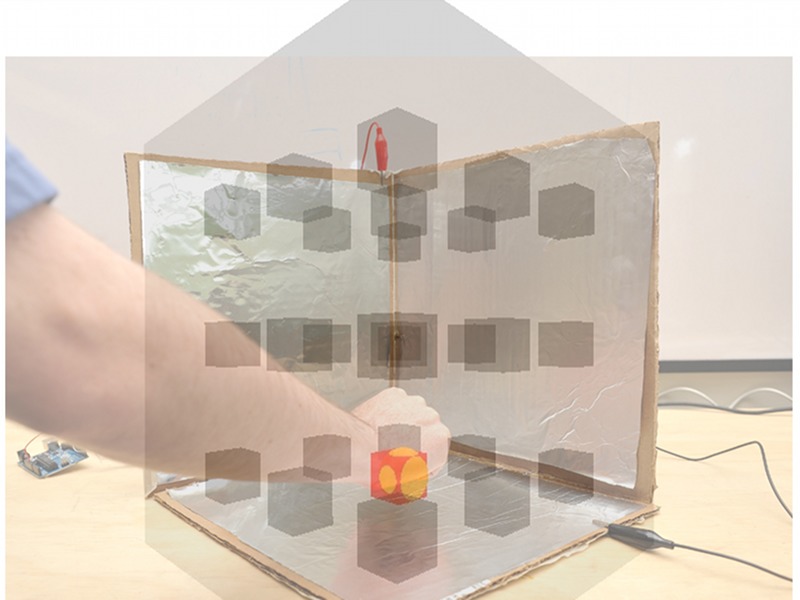
In this project, we’ll take a very simple idea — the length of time it takes a capacitor to charge — and make something rather amazing with it: a 3D interface that can track the position of your hand. The original implementation of this project comes from media artist Kyle McDonald.
For this project we'll need some cardboard squares (mine are approximately 12" square, but anything from about 8-12" is fine), alligator clips, an Arduino, shielded wire, aluminum foil, spray glue, and some wide tape. (3) 10KΩ and (3) 220KΩ resistors are also required (not shown).
Additionally, we'll need a soldering iron to connect the resistors to the cable.
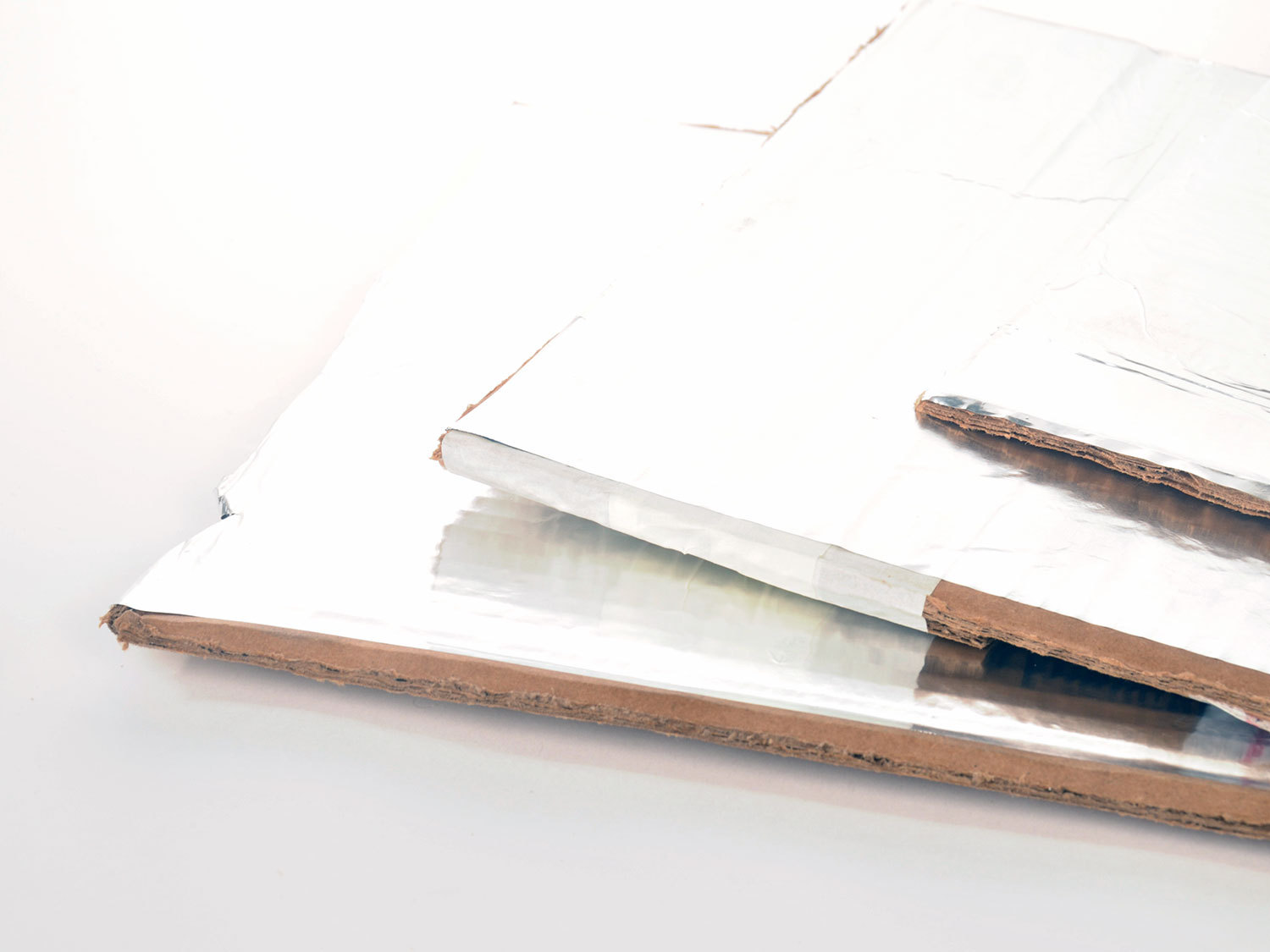
Spray the glue onto the cardboard and smooth the foil onto one side. Work slowly and try to leave a small gap around the edge of the foil. It is important that the foil plates do not touch each other when we tape the three sides together. In a pinch you can use a glue stick.
I cut a small notch in the inside edge of the rightmost plate to make it easier to connect the alligator clips later on (see second photo).
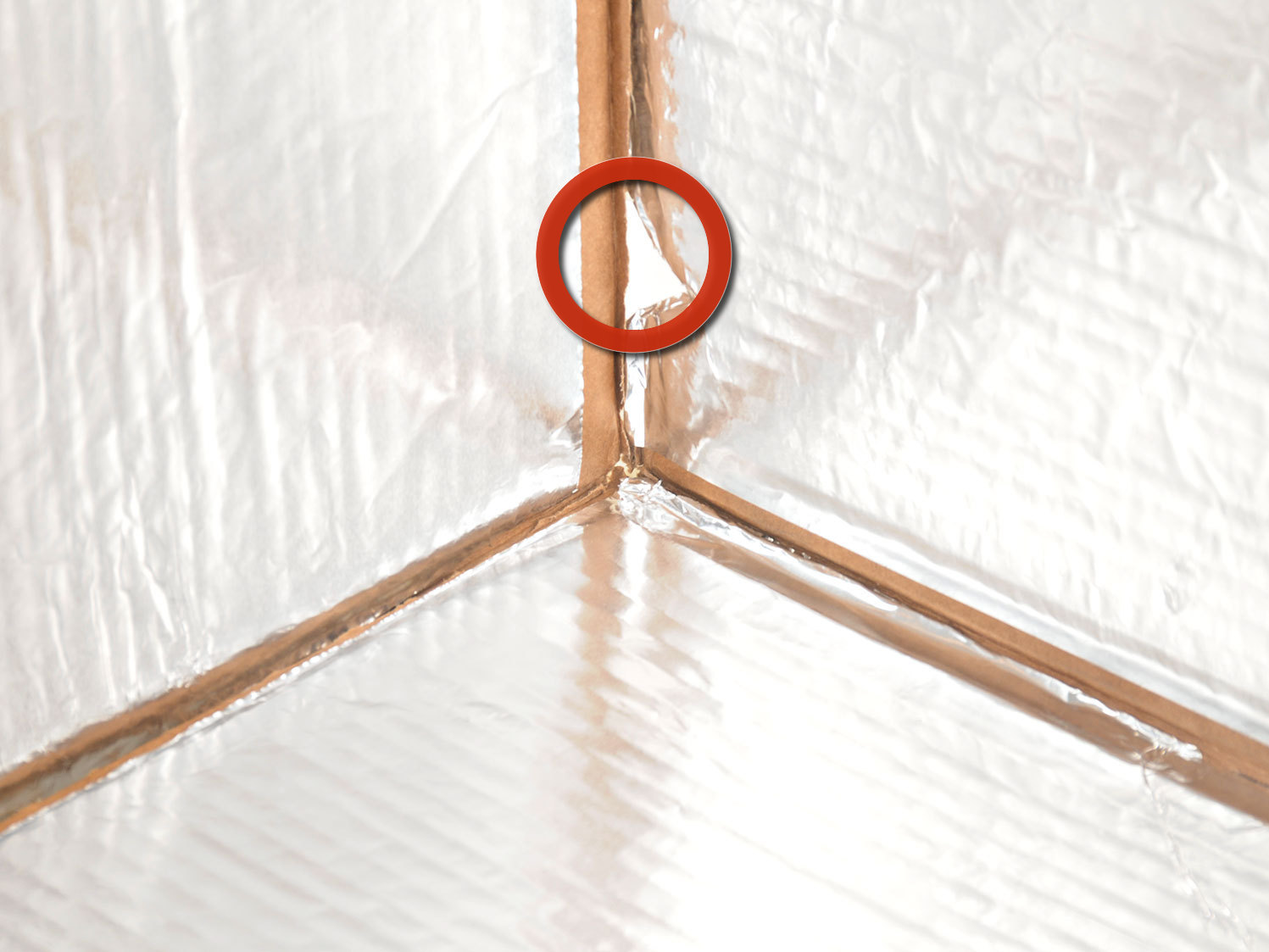
Using tape, assemble the plates to form one half of a cube (see the third photo).
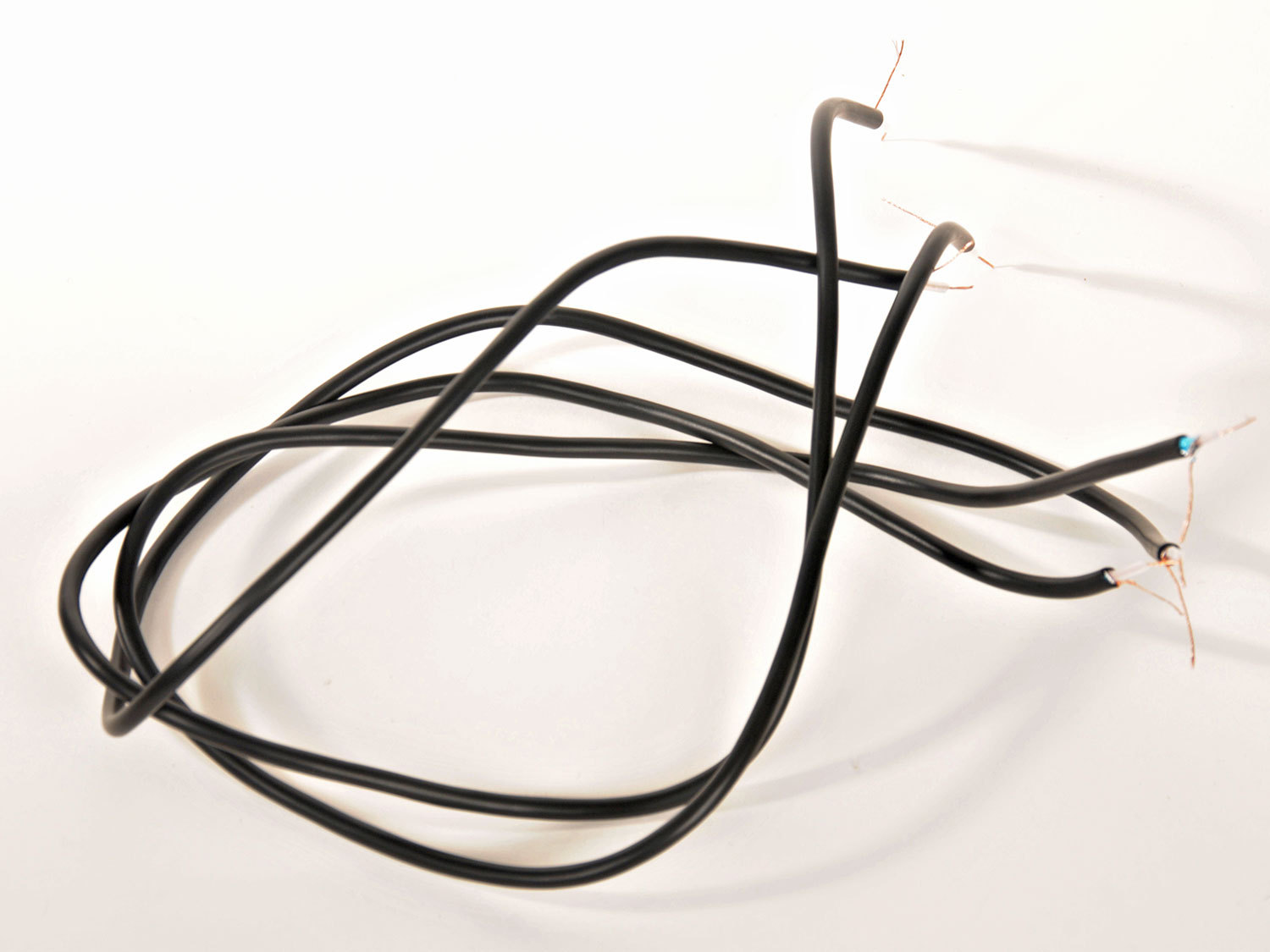
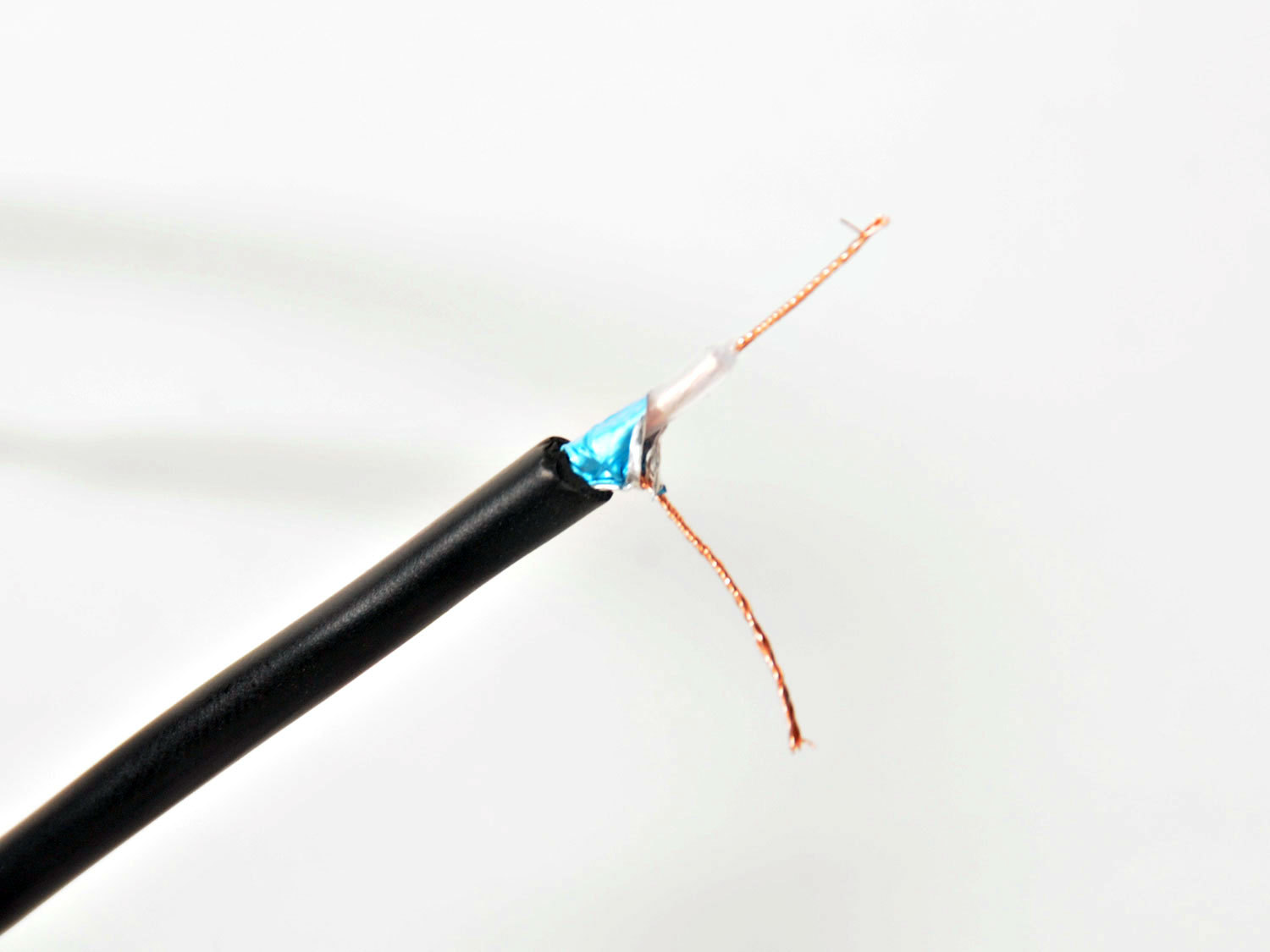
Next we need to prepare the wiring. I bought a 6' shielded audio cable for this. It is important to use shielded wire so that the cable itself doesn't act as an antenna and skew the sensor readings.
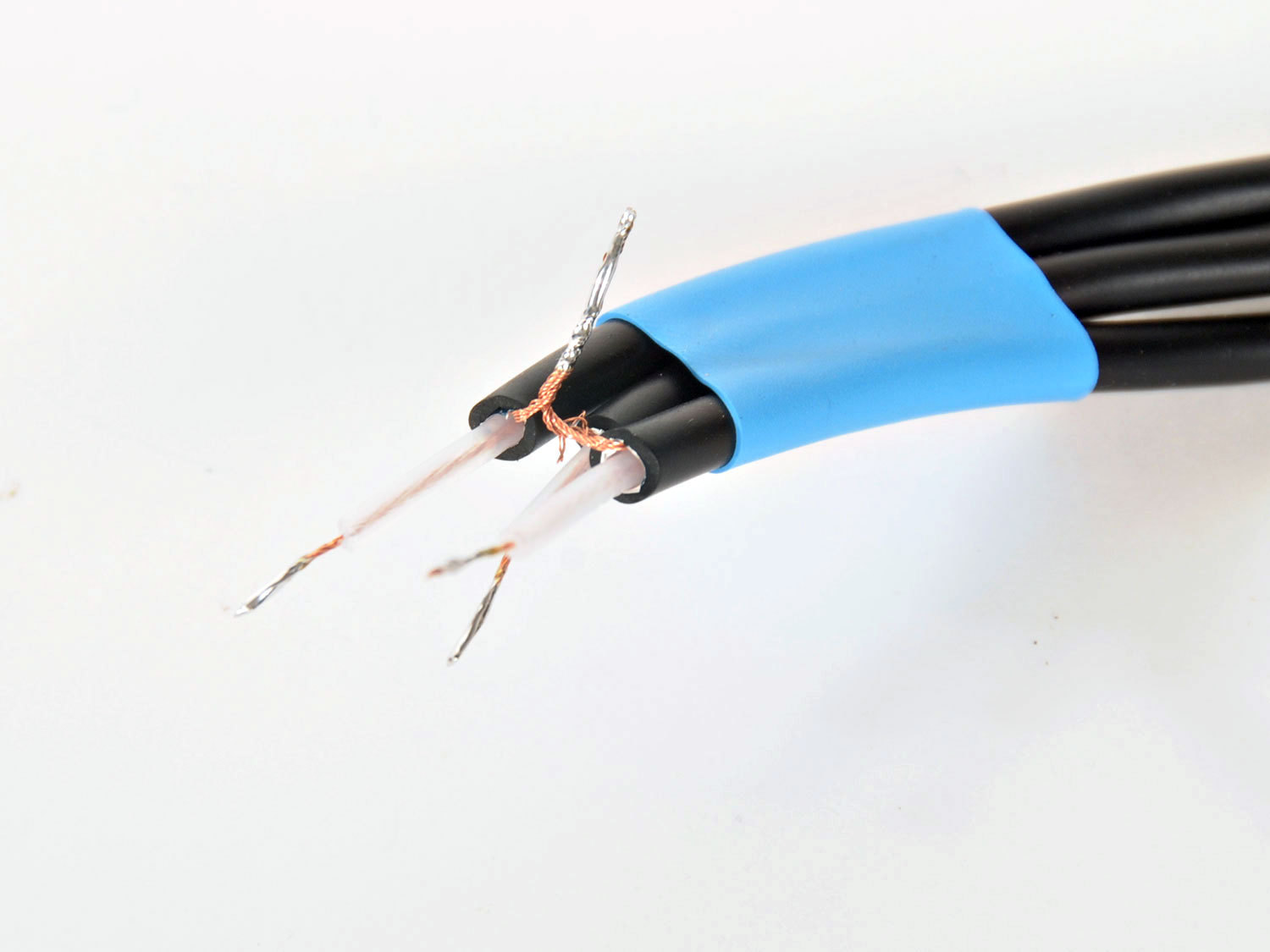
Cut the wire into 3 pieces of equal length (2' or so) and strip off the outer and inner insulation (second photo).
On one end, trim off the shielding wire and connect just the inner signal wire to an alligator clip (third photo).
On the other non-alligator end of the cables, twist together the 3 shield wires and solder them. The shield will be connected to the 5V pin on the Arduino. This will minimize the antenna effect of the cable on the circuit.
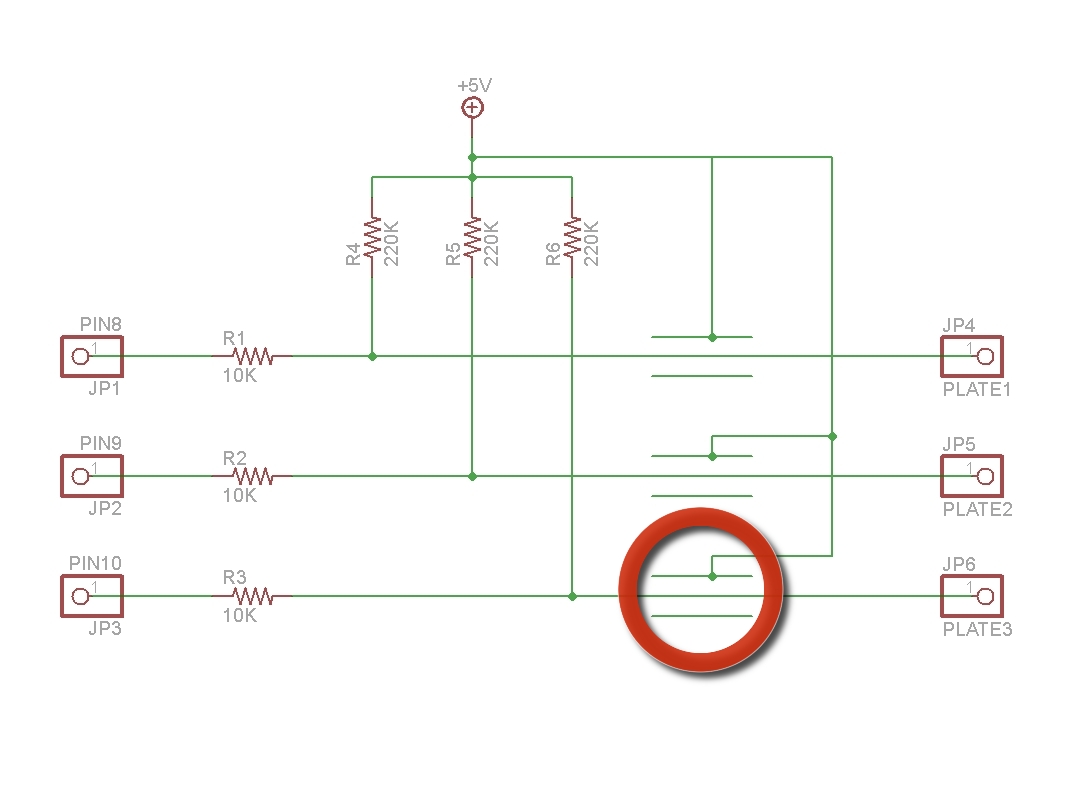
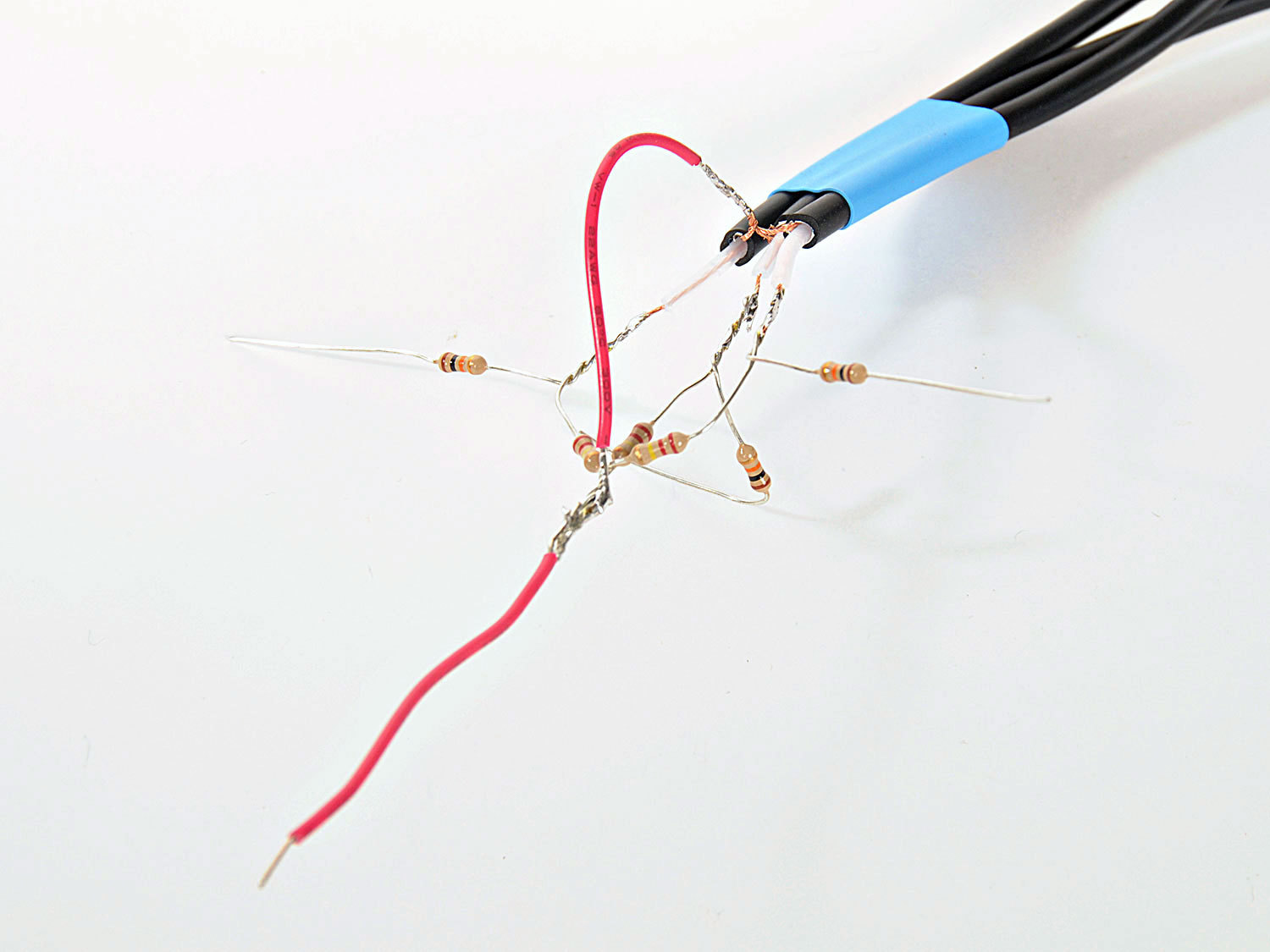
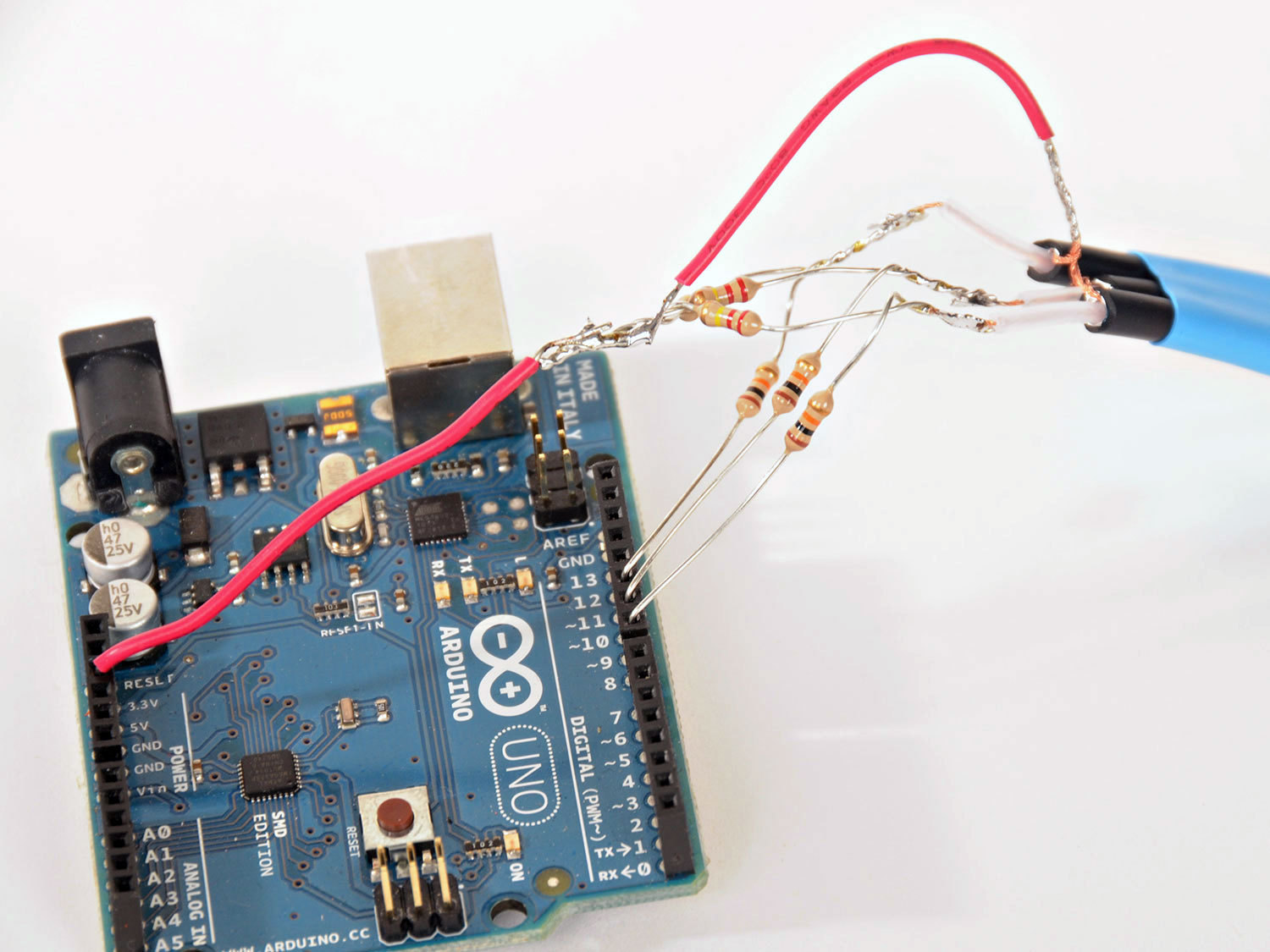
Referring to the schematic, connect the resistors to the three inner wires of the cables as shown and connect this to the ends of the three wires. The 220KΩ resistors all connect between the inner wire of the cable and 5V. The 10KΩ resistors will each be connected between the end of the cable and a pin on the Arduino. The circled area indicates that this wire should be shielded, with the shield connected to +5V.
Use a small piece of jumper wire to make the connection between the shield wires and the 5V output pin on the Arduino, as shown in the third photo.
In the picture, I have used some blue heat shrink tubing to hold the three wires together. You could also just tape the wires together.
Connect each of the 10KΩ resistors to pins 8,9, and 10 respectively. Connect the red wire to the +5V pin on the Arduino.
Attach each of the alligator clips to a foil plate. The clips should be attached in the following order: pin 8=left plate (x), pin 9=bottom plate (y), pin 10=right plate (z). Make sure that each clip is making good electrical contact with the foil and is only touching one plate.
When troubleshooting, check the connection between the plate and the pin with a multimeter to make sure the alligator clip is making a good electrical contact.
From the Arduino IDE, upload the sketch to the Arduino. Keep the USB cable connected to the Arduino, then install and load the Processing sketch.
It is important that your computer is plugged into the wall for this to work properly. If the circuit isn't connected to earth ground (at least indirectly though your computer) you may find that your computer itself will affect the circuit.
The next thing to be done is calibrate the software. With the Processing sketch running, hold down the left mouse button. Then move your hand from the far outer diagonal corner (i.e., the invisible corner of the cube closest to you) to the inner corner. Don't touch the foil, just move your hand through the space defined by the cube. Now release the mouse button. The path your hand traveled gives the software a chance to detect the range of motion your hand will make inside the cube.
Now move your hand around inside of the cube. There should be a sphere on the screen through which you can control and move to touch all 27 cubes inside the computer model. Pressing tab will change the color of the cubes.
This is the simplest form of capacitive sensing available. In the final section, we'll look at some alternative solutions and options to improve the system.
Step #6: Possible improvements.
Increasing the resistor values - the 220KΩ resistors form part of the RC network and it's worth experimenting with different values. Typical values are 200KΩ to 500KΩ. The responsiveness of the system will be affected by these values. You can also tweak the values in the "Normalize" tab of the Processing sketch to calibrate your particular configuration.
A more solid connection with ground. Since the Arduino is connected to the computer, and the computer is connected to the wall socket ground, this is generally good enough to provide a consistent reference to ground. If you have a house ground connection available you might want to connect this to the Arduino ground pin and see if that improves the response.
If you decide to connect anything to the house wiring, be very sure that it really is a ground. A good earth ground would be a water pipe.
The CapSense library is an excellent capactive sensing library for Arduino. The page includes some good information on configuring capacitive sensing circuits.
Terry Fritz (a well regarded Tesla Coil experimenter) put together a neat "vision" system for robotics called ThereminVision. It uses tuned oscillators and heterodyning to implement a theremin circuit. Definitely worth a look.
Conclusion
In this guide, we introduced the concept of capacitive sensing. Nearly all sensing of this kind depends upon how long it takes a capacitor to charge (known as the time constant). Placing an object within the electric field of a capacitor will affect the capacitance value and the corresponding time constant. See the RC time constant entry on Wikipedia for more information.
We hope you appreciate the cleverness of this project as much as we did and how relatively easy it is to get a very 21st century interface (however crude) out of some aluminum foil and a cardboard box! We'd love to hear of your experiences with the build (in the comment section below).
You have to have all 3 files in a folder called “TicTacToe3D”. Bring up TicTacToe3D in processing and run it. It should behave as described in the instructions.
The easiest way to download all of the files from GitHub is to click the “Downloads” link (upper right corner, about 3rd line from the top) then the “Download as Zip” button. That way you get all of the files in the right structure to load into the tools.
Serial serial;
int serialPort = 0; // << Set this to be the serial port of your Arduino – ie if you have 3 ports : COM1, COM2, COM3
// and your Arduino is on COM2 you should set this to '1' – since the array is 0 based
I am still struggling to get it to work properly though. Hope this helps
Although I don’t have the code with me right now I suspect it’s because the serial port you are using to connect to your Arduino is set incorrectly. IIRC there is an array that needs to point to the correct serial port. I think I made a comment in the code about it.
Rebooting is odd, but could be an indication of a short circuit that is pulling too much current from your USB port. Your Mac should be able to shut the USB port down in a case of a current overload, but maybe not in this case. I would try to troubleshoot by narrowing it down to getting a single plate working. Make sure your power to the Arduino is connected to the wall; they powering it from a separate wall wart first.
Either one is fine. The their behind the DIL version is that students who keep trying to drive motors directly from an Arduino pin can easily replace the chip when it fries (at least, when the pin fries). So, I guess the DIL version is more robust in that sense.
ya the processing runs fine but the TicTacToe3D sketch says theirs an error cannot find class normalize the processing program runs fine im pretty sure its in the code
OK two of the sketches have error Normalize and TicTacToe3D on normalize it says- (nested type normalize cannot hide an enclosing type) and TicTacToe3D says- (cannot find classs or type “Normalize”)
Display 0 does not exist, using the default display instead.
WARNING: RXTX Version mismatch
Jar version = RXTX-2.2pre1
native lib Version = RXTX-2.2pre2
[0] “/dev/tty.usbmodem3a21″
[1] “/dev/cu.usbmodem3a21″
[2] “/dev/tty.Bluetooth-PDA-Sync”
[3] “/dev/cu.Bluetooth-PDA-Sync”
[4] “/dev/tty.Bluetooth-Modem”
[5] “/dev/cu.Bluetooth-Modem”
and nothing happens on calibration (the ball drops into the centre but thats it)
Nice!,,, i cant get this working with processing but i really want to tweak the arduino code to feed into Max MSP as a musical interface kind of thing, any tips or code you can send my way just to get some useful reading from each axis???
Today, I am trying with processing v1.5.1 but, it still shows,
Display 0 does not exist, using the default display instead.
WARNING: RXTX Version mismatch
Jar version = RXTX-2.2pre1
native lib Version = RXTX-2.2pre2
And executes showing the boxes, but, doesn’t calibrates, shows just yellow ball at the top last corner and doesn’t shows any movement..
I am using ATmega328 (duemilanove), will it supports?
helpme..
Use Processing version 1.5.1 instead of the latest version. I can get the other cubes to show up when I do this. I’m having trouble calibrating though.
I get this in 64bit pc with processing 1.51 and arduino 1.5.2
Display 0 does not exist, using the default display instead.
WARNING: RXTX Version mismatch
Jar version = RXTX-2.2pre1
native lib Version = RXTX-2.2pre2
[0] “COM3″
Exception in thread “Animation Thread” java.lang.ArrayIndexOutOfBoundsException: 2
at TicTacToe3D.setup(TicTacToe3D.java:57)
at processing.core.PApplet.handleDraw(Unknown Source)
at processing.core.PApplet.run(Unknown Source)
at java.lang.Thread.run(Thread.java:662)
Can someone help me out on step #5, point 2: “From the Arduino IDE, upload the sketch to the Arduino. Keep the USB cable connected to the Arduino, then install and load the Processing sketch.” I was able to upload the sketch to the Arduino, but I don’t get the “install and load the Processing sketch” part. (I do have Processing) I have been stuck on this part for a while now. Help will be greatly appreciated.
I’m using Processing 1.5.1 and my Arduino is connected via COM3, but I’m getting the following error when running the TicTacToe3D program ArrayIndexOutOfBoundsException: 1. The Processing run screen appears, but it remains white. Any help would be appreciated, thanks.
Hi, I have done everything and I see TicTacToe3D screen with boxes and orange ball. but the problem is that the ball doesn’t move at all. It doesn’t react. Any advice? What could be a problem? Help me~
Can anyone please write me what program this does step by step, i realy need this for my school project. Please e-mail me to kasanickyfilip@gmail.com . I will be very gratefull.
#define resolution 8
#define mains 50 // 60: north america, japan; 50: most other places
#define refresh 2 * 1000000 / mains
void setup() {
Serial.begin(115200);
// unused pins are fairly insignificant,
// but pulled low to reduce unknown variables
for(int i = 2; i < 14; i++) {
pinMode(i, OUTPUT);
digitalWrite(i, LOW);
}
Hey!!
I did everything, but the box is not moving. what’s the problem??
Can anyone help me please??
I made 220K ohm by two 100k series with two 10k … do you think this is the problem?
im trying to do this with labview using an Ni daq, i really hope it works, I`ll do all the programing instead of downloading it since i wont be using the arduino But before I start, is the Al foil sensitive enough?? cause if it isnt, itll be hard to see the variations first off.
Thx
You have to have all 3 files in a folder called “TicTacToe3D”. Bring up TicTacToe3D in processing and run it. It should behave as described in the instructions.
The easiest way to download all of the files from GitHub is to click the “Downloads” link (upper right corner, about 3rd line from the top) then the “Download as Zip” button. That way you get all of the files in the right structure to load into the tools.
when i open the processing tic tac toe, it has the three other files tabbed but when i run it it shows a blank cube. Why is that?
I as well am having the same problem. Could someone please offer assistance. Thanks in advance
I found that changing the value of the comport in the following snippet of code from TicTacToe3D seemed to help bring up the image of the cube
“import processing.serial.*;
import processing.opengl.*;
Serial serial;
int serialPort = 0; // << Set this to be the serial port of your Arduino – ie if you have 3 ports : COM1, COM2, COM3
// and your Arduino is on COM2 you should set this to '1' – since the array is 0 based
I am still struggling to get it to work properly though. Hope this helps
and where is processing? sorry for the total noobage im just getting started! and thanks ill change the values!
You don’t need to use the analog ports as this is measuring the time taken to charge to “full” (HIGH) rather than measuring individual levels.
Processing is available from http://processing.org
I have the same error…
Download processing processing.org, if you have not found it already (step 5 first bullet above)
Although I don’t have the code with me right now I suspect it’s because the serial port you are using to connect to your Arduino is set incorrectly. IIRC there is an array that needs to point to the correct serial port. I think I made a comment in the code about it.
This is great!
Would this also work on another mc like AT89c51?
If yes, will major changes be required in the code?
i have the same do you found a solution ?
Hi Sean:
Take a look at the Arduino Leonardo; that will let you use this as a (very crude) mouse.
Hi
I opened the processing and appeared to me an empty box… is that normal
Hi Mohamed:
What error are you getting, exactly? Can you post the output here?
Rebooting is odd, but could be an indication of a short circuit that is pulling too much current from your USB port. Your Mac should be able to shut the USB port down in a case of a current overload, but maybe not in this case. I would try to troubleshoot by narrowing it down to getting a single plate working. Make sure your power to the Arduino is connected to the wall; they powering it from a separate wall wart first.
Either one is fine. The their behind the DIL version is that students who keep trying to drive motors directly from an Arduino pin can easily replace the chip when it fries (at least, when the pin fries). So, I guess the DIL version is more robust in that sense.
Thanks.
(Sorry for late reply, I didn’t found the “reply” button
im having the same problem!!! do i need a driver for the arduino or something?
The name Kyle must be cursed o_O
In the same boat as Alfred. Anyone got any ideas?
I think there may be a problem with the code and Processing 2.0. Can you try it with Processing 1.5?
I solved the previous problem. Make sure that you’re using the most STABLE interface of Processing:
1.5.1.
DO NOT use version 2.0.3.
@ Kyle Roberts:
Go to Terminal and type in the commands:
sudo mkdir…sudo chmod
This is for Mac, by the way.
I just fixed the problem… Try using a 32bit pc for it… i was using mac
It still sounds like you have some issues with the Processing installation. Have you tried running some other sketches? Do they run OK?
ya the processing runs fine but the TicTacToe3D sketch says theirs an error cannot find class normalize the processing program runs fine im pretty sure its in the code
OK two of the sketches have error Normalize and TicTacToe3D on normalize it says- (nested type normalize cannot hide an enclosing type) and TicTacToe3D says- (cannot find classs or type “Normalize”)
did you ever fix this? i get similiar errors…
Display 0 does not exist, using the default display instead.
WARNING: RXTX Version mismatch
Jar version = RXTX-2.2pre1
native lib Version = RXTX-2.2pre2
[0] “/dev/tty.usbmodem3a21″
[1] “/dev/cu.usbmodem3a21″
[2] “/dev/tty.Bluetooth-PDA-Sync”
[3] “/dev/cu.Bluetooth-PDA-Sync”
[4] “/dev/tty.Bluetooth-Modem”
[5] “/dev/cu.Bluetooth-Modem”
and nothing happens on calibration (the ball drops into the centre but thats it)
Nice!,,, i cant get this working with processing but i really want to tweak the arduino code to feed into Max MSP as a musical interface kind of thing, any tips or code you can send my way just to get some useful reading from each axis???
oh what you do is make sure you have all the codes: TicTacToe3D, Normalize, MoumentumAverage. all i one window
Would love to see that code if you can post it!
how could i do that?
Today, I am trying with processing v1.5.1 but, it still shows,
Display 0 does not exist, using the default display instead.
WARNING: RXTX Version mismatch
Jar version = RXTX-2.2pre1
native lib Version = RXTX-2.2pre2
And executes showing the boxes, but, doesn’t calibrates, shows just yellow ball at the top last corner and doesn’t shows any movement..
I am using ATmega328 (duemilanove), will it supports?
helpme..
ya i am having the same problem did you find any solution ?
dude just use older version of the software 1.5.1 (with java) and it worked
@Yash Kudale
Thanks for reply!
But, still I got the same error!
Use Processing version 1.5.1 instead of the latest version. I can get the other cubes to show up when I do this. I’m having trouble calibrating though.
Got this working but also having trouble calibrating — getting very limited range of movement on the display. Any tips on that?
I get this in 64bit pc with processing 1.51 and arduino 1.5.2
Display 0 does not exist, using the default display instead.
WARNING: RXTX Version mismatch
Jar version = RXTX-2.2pre1
native lib Version = RXTX-2.2pre2
[0] “COM3″
Exception in thread “Animation Thread” java.lang.ArrayIndexOutOfBoundsException: 2
at TicTacToe3D.setup(TicTacToe3D.java:57)
at processing.core.PApplet.handleDraw(Unknown Source)
at processing.core.PApplet.run(Unknown Source)
at java.lang.Thread.run(Thread.java:662)
also what do i fill in here:
int sen = 3; // sensors
int div = 3; // board sub divisions
I have an arduino processing 1.5.1. Do I have to download the processing that is on ‘www.processing.org’??
The processing is not working on 64 bit . Is there an updated version??
Which of the sketches do we add to the arduino breadboard. 3DInterface or TicTacToe3D
where is the code and the progeam
I am not able to download code…
How to do it???
I’m really impressioned and I would like to adapt the software to a pic, where can i find the source code? Thank you
Can someone help me out on step #5, point 2: “From the Arduino IDE, upload the sketch to the Arduino. Keep the USB cable connected to the Arduino, then install and load the Processing sketch.” I was able to upload the sketch to the Arduino, but I don’t get the “install and load the Processing sketch” part. (I do have Processing) I have been stuck on this part for a while now. Help will be greatly appreciated.
Hey guys, great tutorial. I can’t seem to find the Arduino Sketch though? The link is not working here, as in it is not even active…?
I am having the issue with normalize as well when I use this code: https://raw.github.com/Make-Magazine/3DInterface/master/TicTacToe3D/TicTacToe3D.pde How many different files of code do I need to copy into the Processing?
Note: I am using Processing 1.5.1
I’m using Processing 1.5.1 and my Arduino is connected via COM3, but I’m getting the following error when running the TicTacToe3D program ArrayIndexOutOfBoundsException: 1. The Processing run screen appears, but it remains white. Any help would be appreciated, thanks.
I have the same issue. Did you find a solution?
Hi, I have done everything and I see TicTacToe3D screen with boxes and orange ball. but the problem is that the ball doesn’t move at all. It doesn’t react. Any advice? What could be a problem? Help me~
Can anyone please write me what program this does step by step, i realy need this for my school project. Please e-mail me to kasanickyfilip@gmail.com . I will be very gratefull.
#define resolution 8
#define mains 50 // 60: north america, japan; 50: most other places
#define refresh 2 * 1000000 / mains
void setup() {
Serial.begin(115200);
// unused pins are fairly insignificant,
// but pulled low to reduce unknown variables
for(int i = 2; i < 14; i++) {
pinMode(i, OUTPUT);
digitalWrite(i, LOW);
}
for(int i = 8; i < 11; i++)
pinMode(i, INPUT);
startTimer();
}
void loop() {
Serial.print(time(8, B00000001), DEC);
Serial.print(" ");
Serial.print(time(9, B00000010), DEC);
Serial.print(" ");
Serial.println(time(10, B00000100), DEC);
}
long time(int pin, byte mask) {
unsigned long count = 0, total = 0;
while(checkTimer() < refresh) {
// pinMode is about 6 times slower than assigning
// DDRB directly, but that pause is important
pinMode(pin, OUTPUT);
PORTB = 0;
pinMode(pin, INPUT);
while((PINB & mask) == 0)
count++;
total++;
}
startTimer();
return (count << resolution) / total;
}
extern volatile unsigned long timer0_overflow_count;
void startTimer() {
timer0_overflow_count = 0;
TCNT0 = 0;
}
unsigned long checkTimer() {
return ((timer0_overflow_count << 8) + TCNT0) << 2;
}
Can someone send me all Arduino and Processing files ? I can’t download them,
Here is my email: andrey_europe_95hd@yahoo.com
I’ll be very grateful.
Hey!!
I did everything, but the box is not moving. what’s the problem??
Can anyone help me please??
I made 220K ohm by two 100k series with two 10k … do you think this is the problem?
It worked thanks god.
but the sensitivity is poor, it is not sensing my hands well.
is there any suggestions????????
please I want the link of the arduino sketch
have you got it? the arduino sketch?
I cant download the sketch for my arduino board, pls someone help me.
The sketches : http://www.mediafire.com/?chen1dt665jv563
thx a lot, i really appreciate it
You Welcome
im trying to do this with labview using an Ni daq, i really hope it works, I`ll do all the programing instead of downloading it since i wont be using the arduino But before I start, is the Al foil sensitive enough?? cause if it isnt, itll be hard to see the variations first off.
Thx
// What's Trending
Raspberry Pi Design Contest
Maker Faire: Day One
A Photo Tour of Maker Faire
Arduino Announces New Wireless Linux Board
Seventeen Sneaky Secret Hides
10 Things to Connect to Your Raspberry Pi
Radio Shack Unveils the New Delta Series Mini PC Board at Maker Faire
I Have a (Puzzling) Dream
// What's Shared
A better way to slice a pumpkin
DIY Nerf Darts
In the Maker Shed: Minty Boost USB Charger
100 Dollar Store Organization Ideas for Craft Rooms and Beyond
Mad’s Mouse House
Lace Princess Crowns
I Have a (Puzzling) Dream
Play the Rings of a Tree Trunk Like a Record
// Most Commented
DIY Hacks & How To’s: Get Emergency Power from a Phone Line
Resin Casting: Going from CAD to Engineering-Grade Plastic Parts
Ten Tips for Screws and Screwdrivers
Ten Tips for Better Measurement
Makers on TV: Big Brain Theory
Grow: A Portable CNC Router System
Tool Review: BioLite CampStove
Pitches with Prototypes: Solar Tracker
Trending Topics
Get our Newsletters
About Maker Media
Subscribe
to MAKE!
Get the print and digital versions when you subscribe