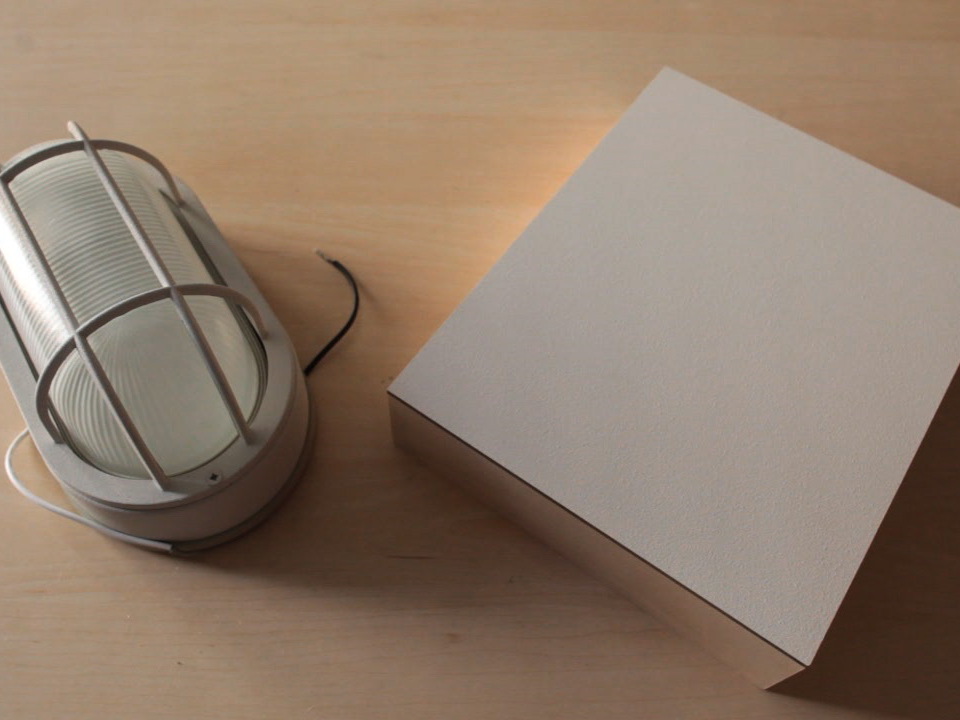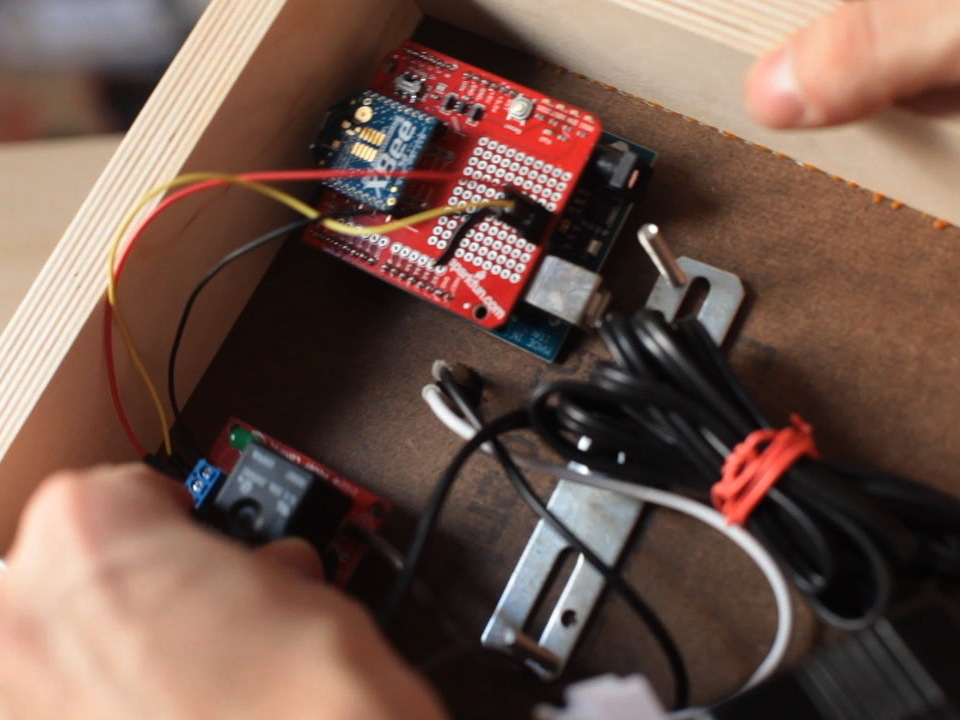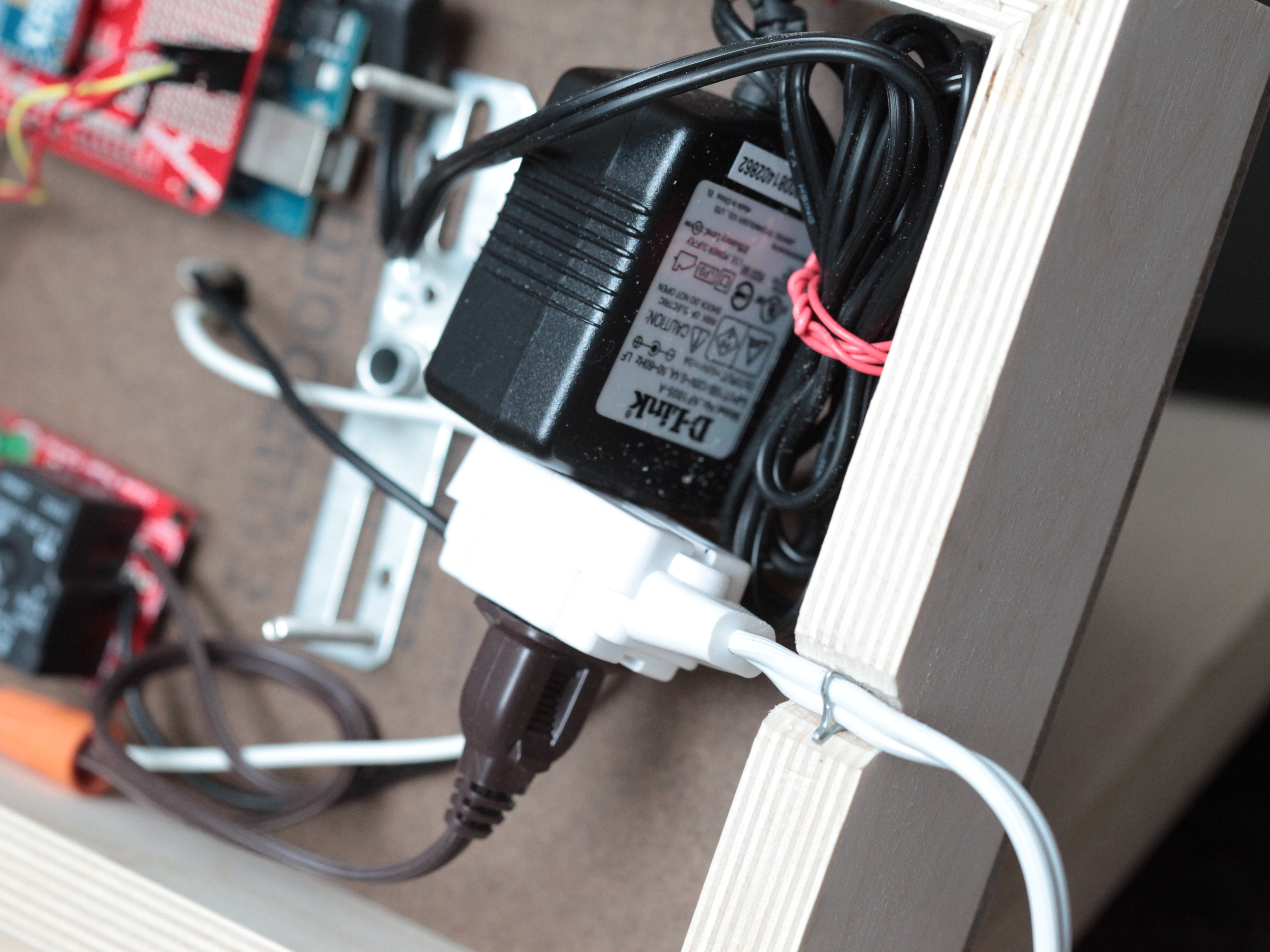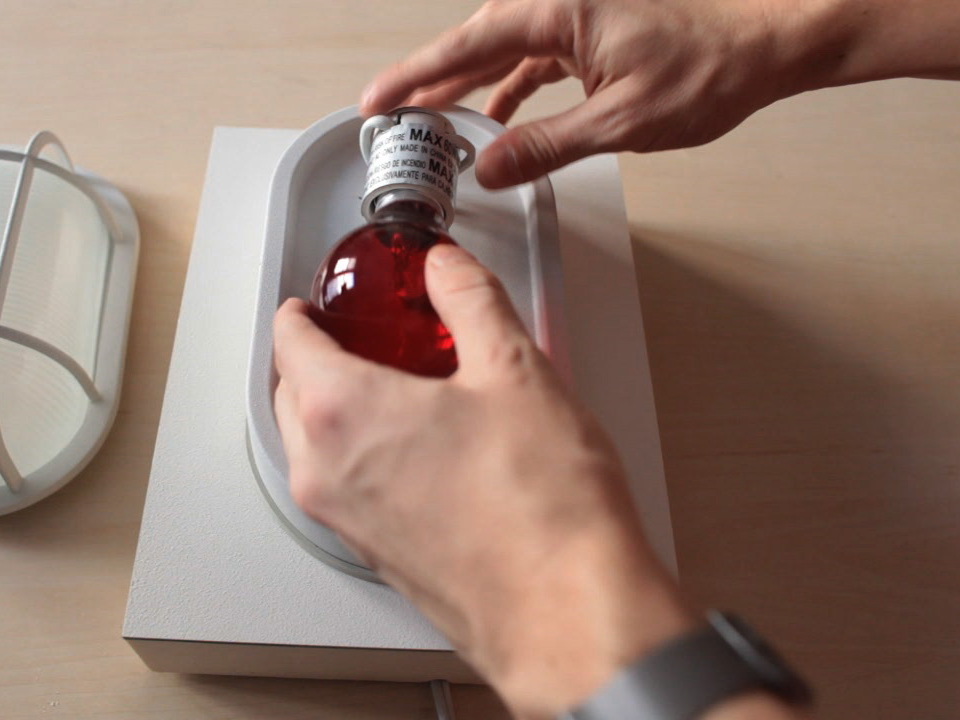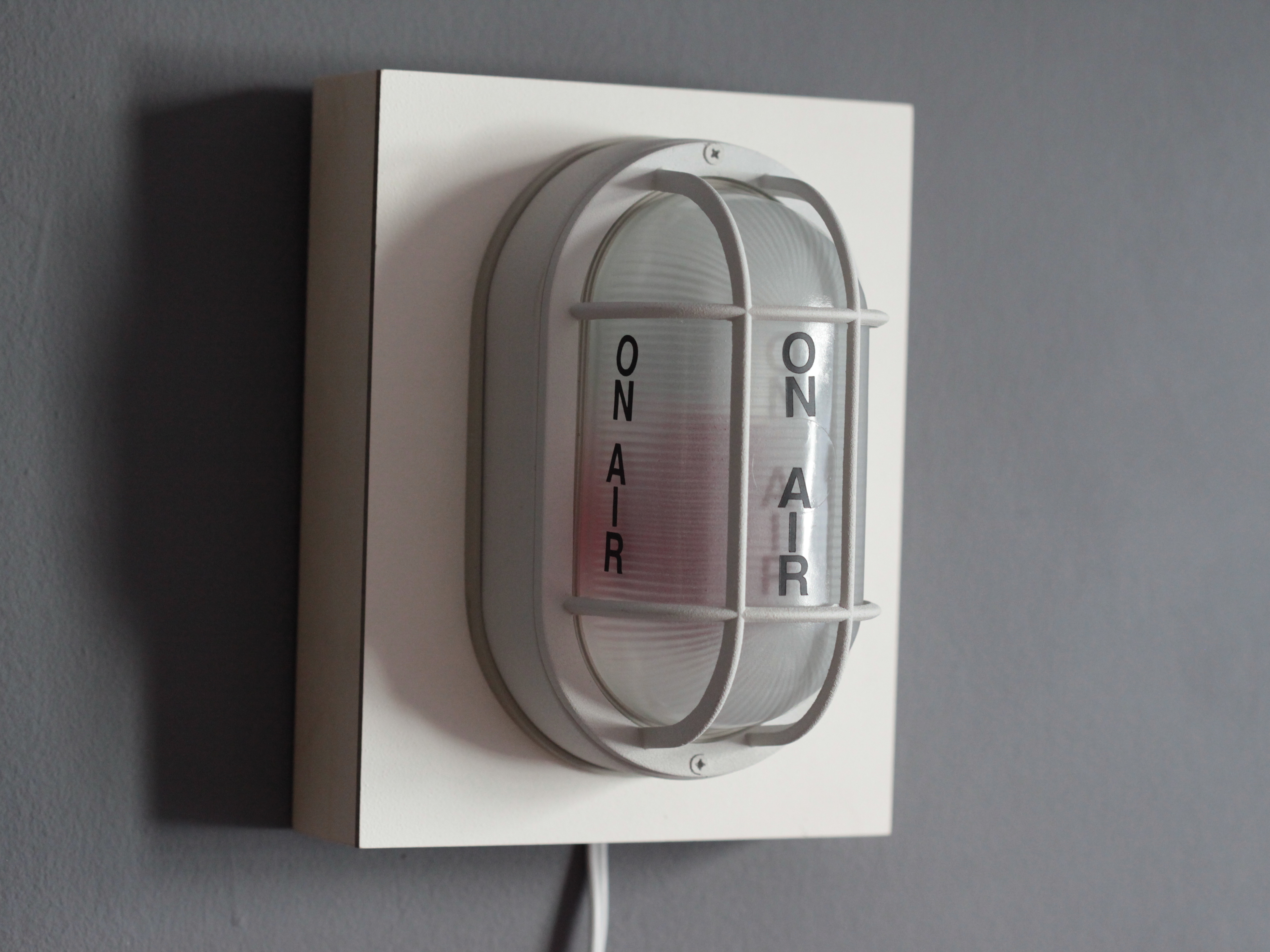
Now that anyone can broadcast video over the Web, it's time to learn how to build your own "Now Streaming" light that checks to see if you're streaming!
You may have seen those "On Air" lights at film, radio or television studios. Now that anyone can broadcast video over the internet, it’s time to learn how to build your own "Now Streaming" light that even wirelessly checks to see if you’re streaming!
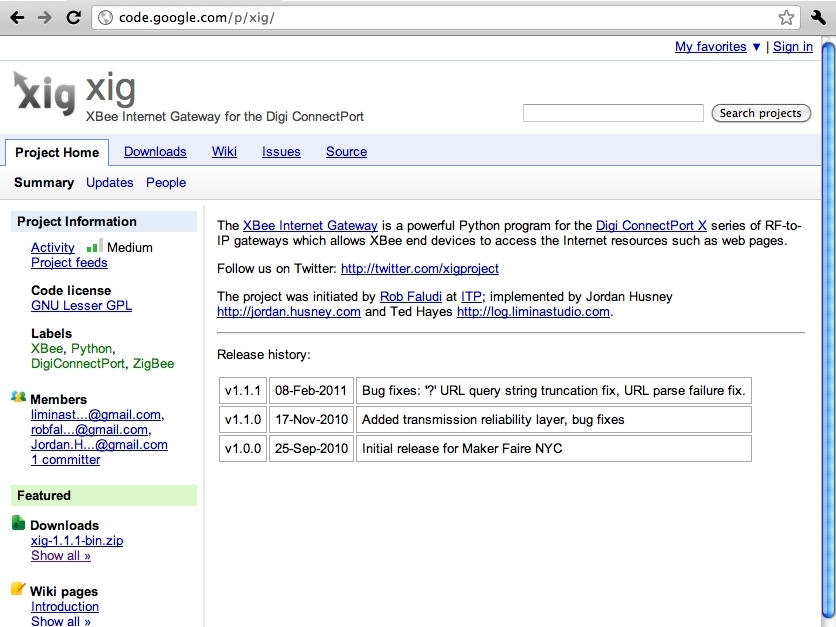
Download the XBee Internet Gateway software (https://code.google.com/p/xig/downloads/list).
Use an Ethernet cable to conenct the ConnectPort X2 to your router. Determine its IP address by using the software on the CD included with the ConnectPort or by checking your router's log for the MAC address.
The ConnectPort X2's MAC address is printed on the bottom of the unit.
Enter the ConnectPort's IP address into your web browser's location bar.
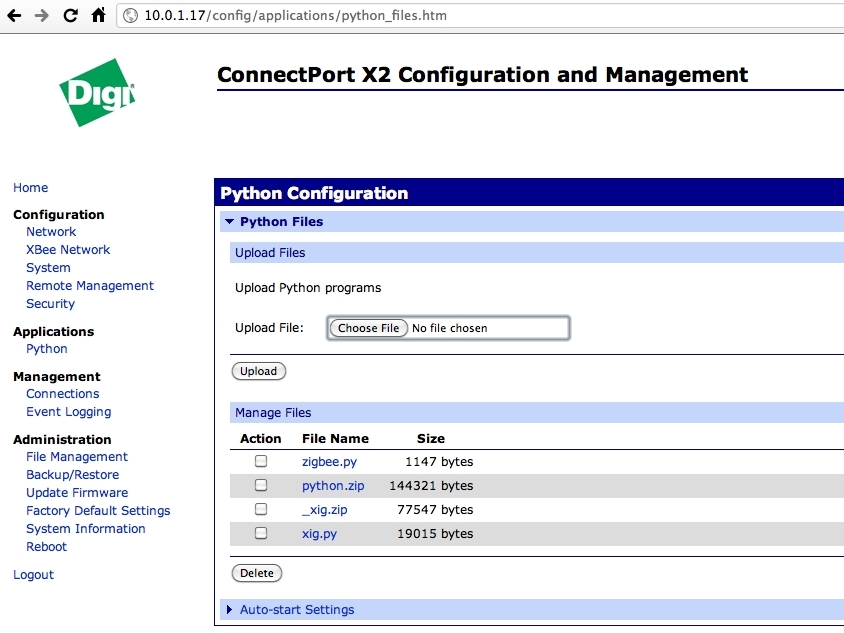
Under the Python menu, upload the two XBee Internet Gateway files: xig.py and _xig.zip.
Click "Auto-start settings" and add xig.py and enable it. Apply those settings.
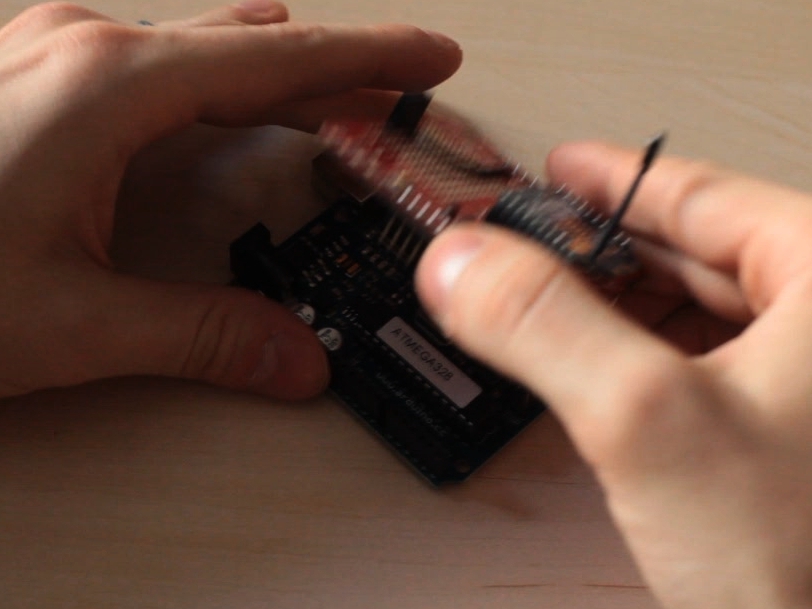
Attach the XBee to the USB adapter and launch a terminal program such as CoolTerm (http://freeware.the-meiers.org/).
Select the port that matches your USB adapter and select "Local echo" and click OK and then "Connect."
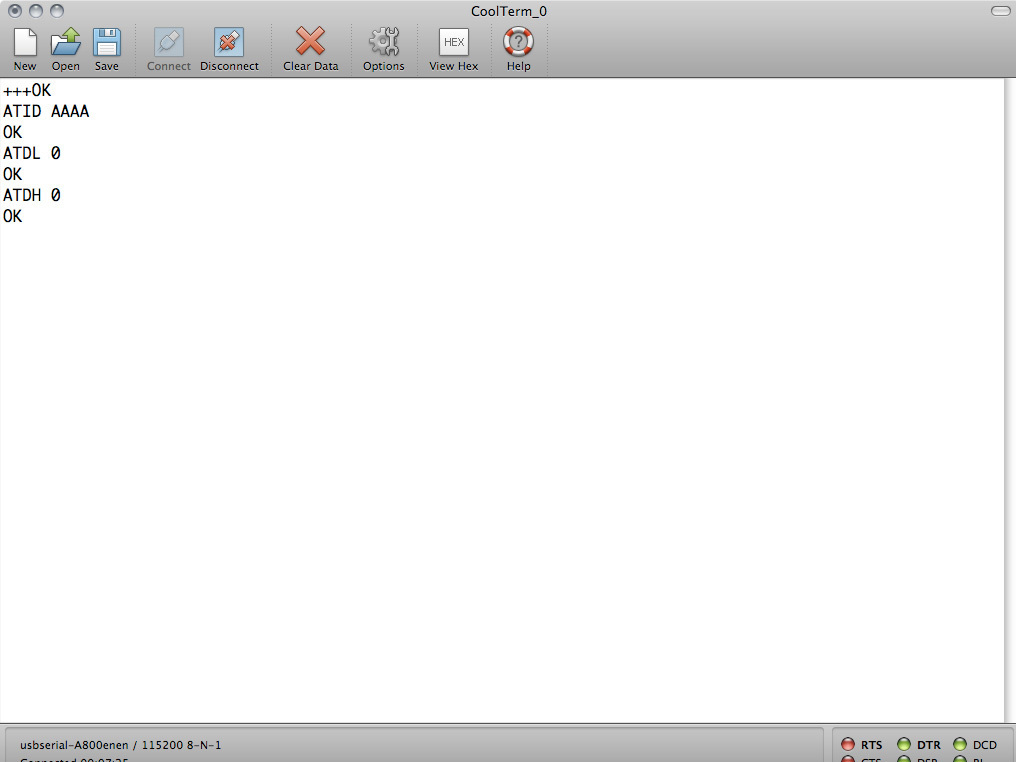
In the terminal window, type "+++" to enter command mode. The modem will respond "OK"
Command mode is active for 10 seconds after you type "+++" or hit enter after an AT command. If you take too long, type the plus signs again to go back into command mode.
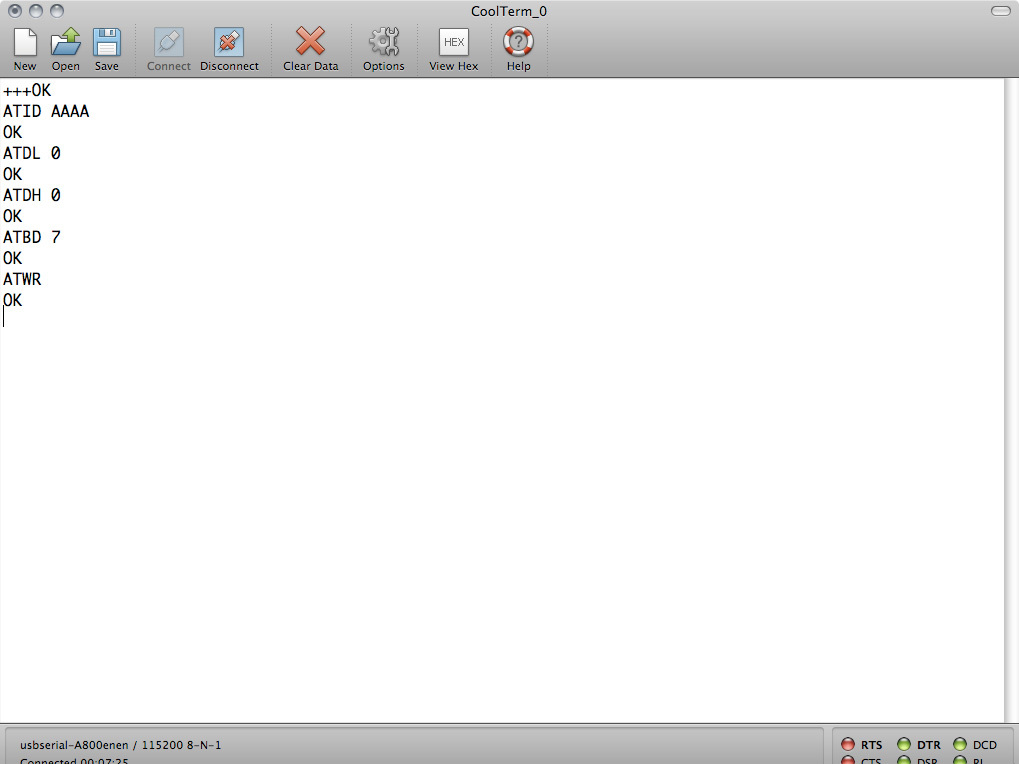
Type ATID AAAA to set the PAN ID to match your gateway. The modem will respond "OK".
Type ATDL 0 to set the low byte of the destination address to the ConnectPort X2, which is the coordinator of the network. Zigbee Network Coordinators always have the low address of 0. The modem will respond "OK".
Type ATDH 0 to set the high byte of the destination address to the ConnectPort X2, which is the coordinator of the network. Zigbee Network Coordinators always have the high address of 0 The modem will respond "OK".