Make: Projects

PIR Sensor Arduino Alarm

Build a motion-sensing alarm with a PIR sensor and an Arduino microcontroller.

PIR Sensor Arduino Alarm

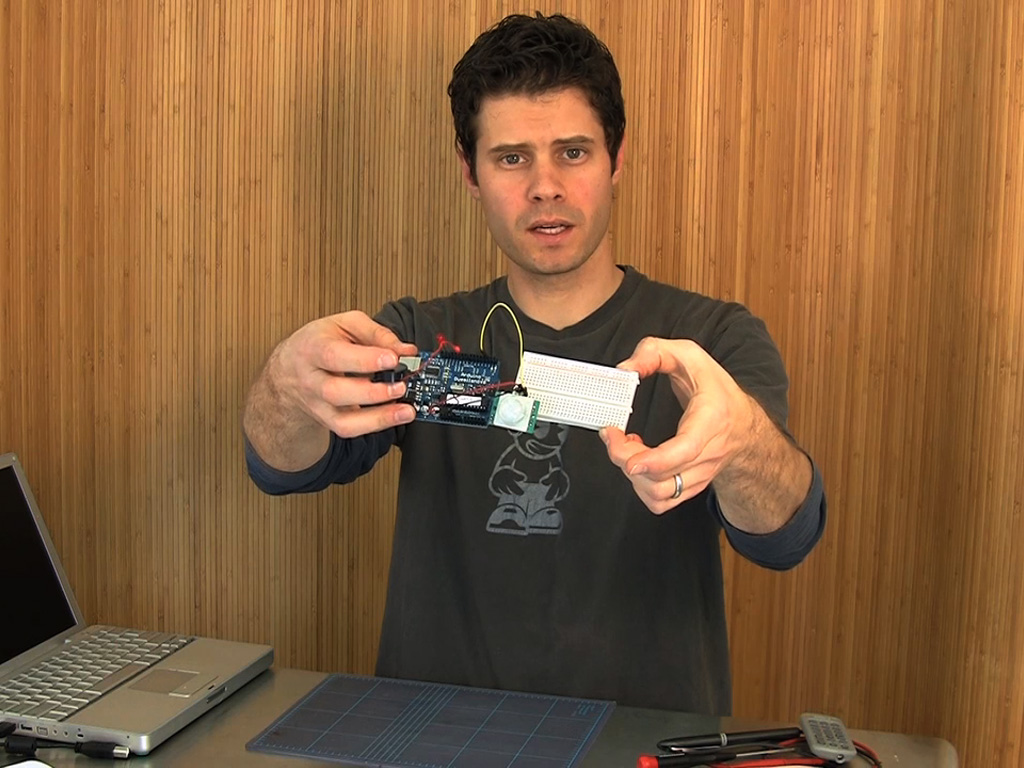
In this simple project, we’ll build a motion-sensing alarm using a PIR (passive infrared) sensor and an Arduino microcontroller. This is a great way to learn the basics of using digital input (from the sensor) and output (in this case, to a noisy buzzer) on your Arduino.

This alarm is handy for booby traps and practical jokes, and it’s just what you’ll need to detect a zombie invasion! Plus, it’s all built on a breadboard, so no soldering required!

Download the project code here.
Steps

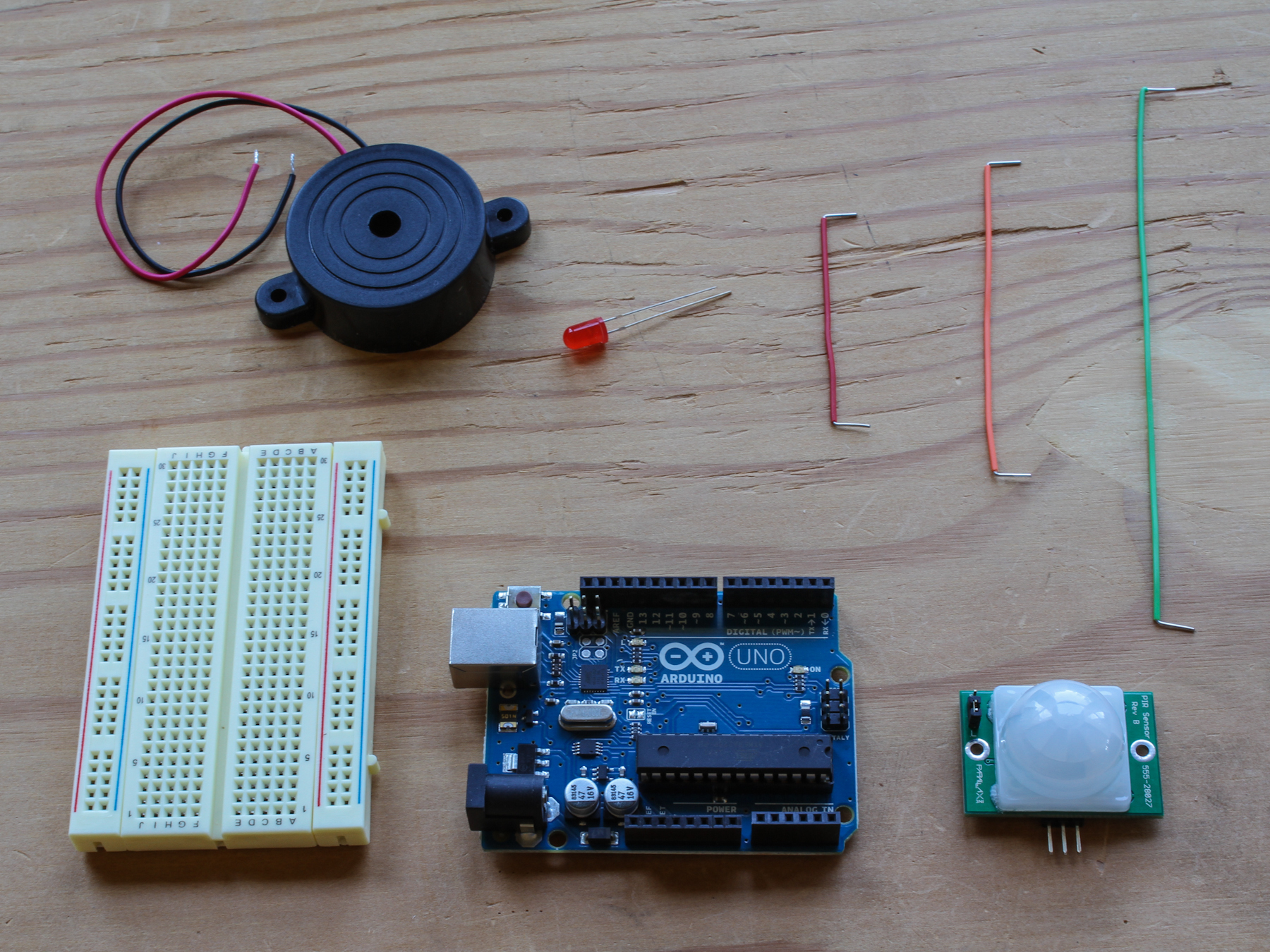
Step #1: Gather your parts.

Next
PIR Sensor Arduino Alarm
  • This project requires just a few parts, and because you're using a solderless breadboard and pre-cut jumper wires, you won't need any tools at all — except your computer and USB cable to connect the Arduino.

Step #2: Wire the Arduino to the breadboard.

Next
PIR Sensor Arduino Alarm
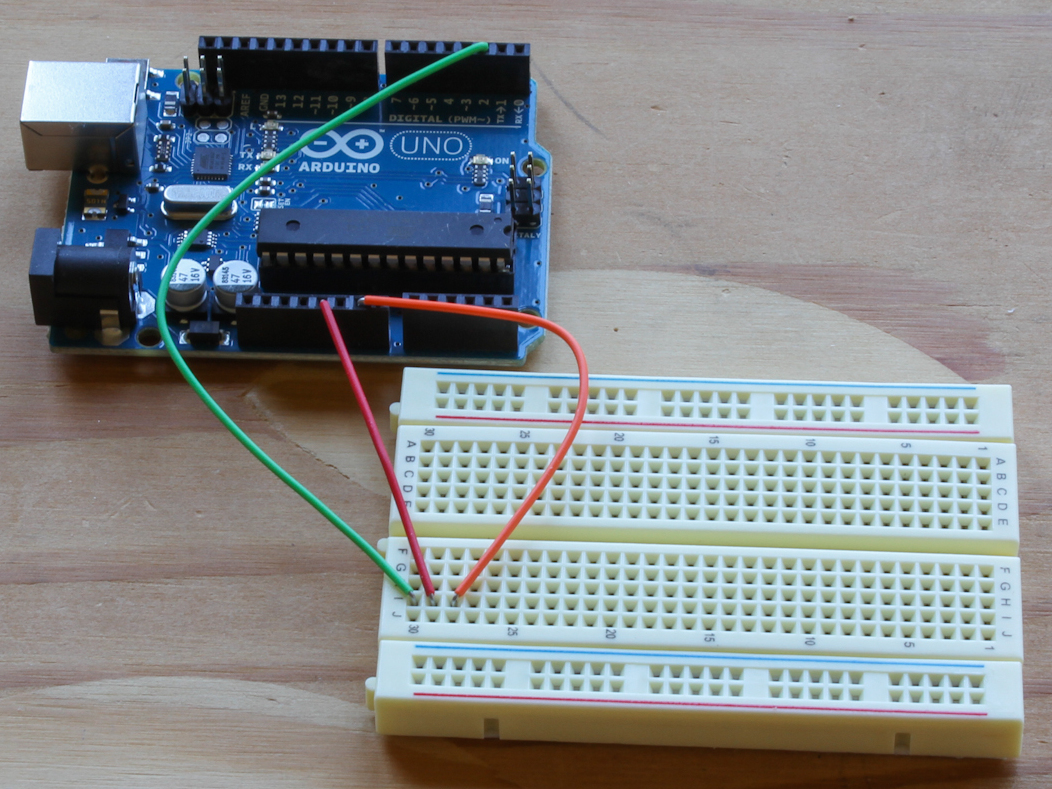
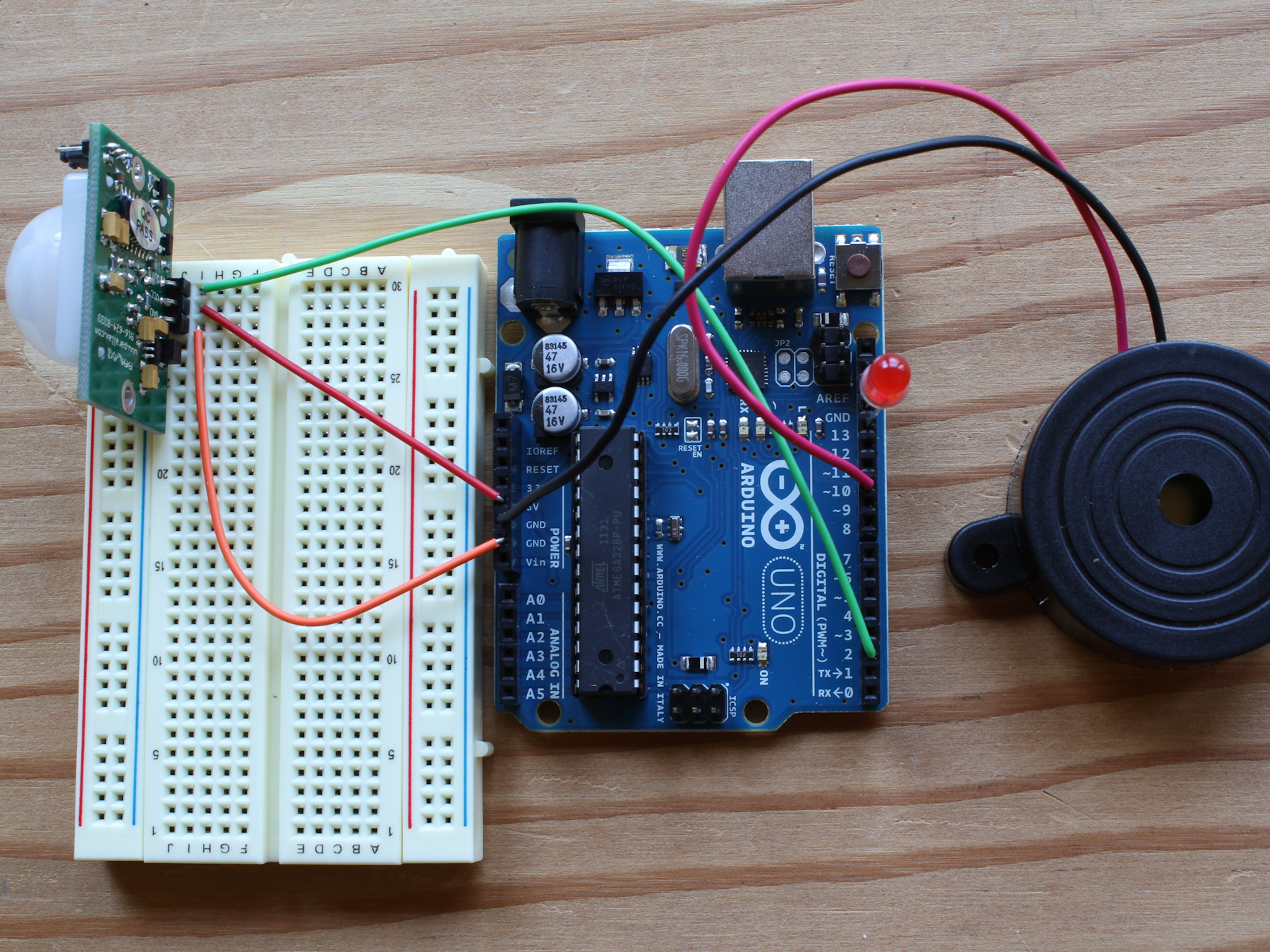
  • Connect digital input/output (I/O) pin 2 on the Arduino to row 1 on the breadboard.
  • Connect the 5V pin on the Arduino to row 2 on the breadboard, and connect a nearby ground (Gnd) pin to row 3.

Step #3: Connect your motion sensor.

Next
PIR Sensor Arduino AlarmPIR Sensor Arduino AlarmPIR Sensor Arduino AlarmPIR Sensor Arduino Alarm
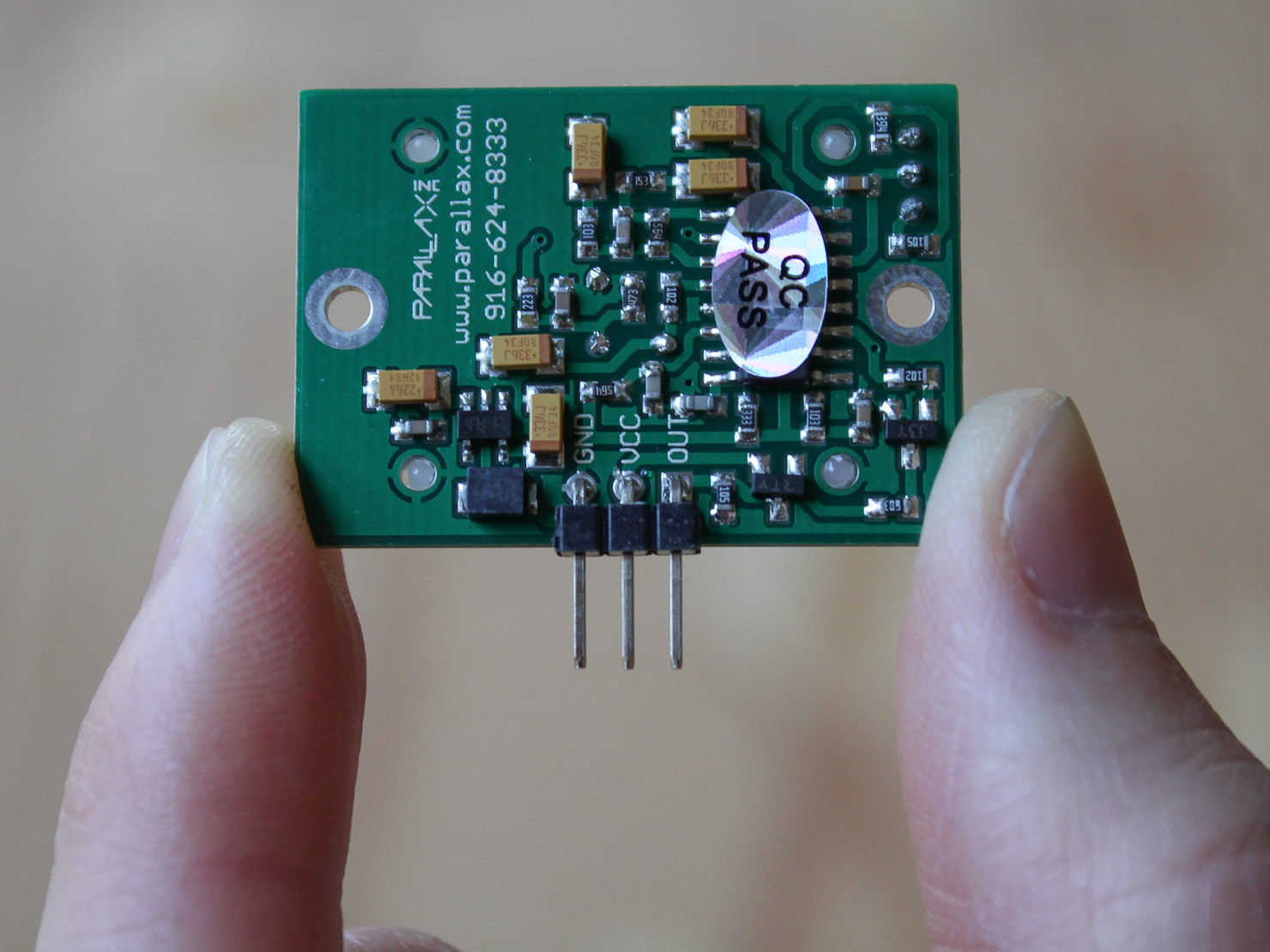
  • Find the Gnd (–), Vcc (+), and Out pins on the PIR sensor.
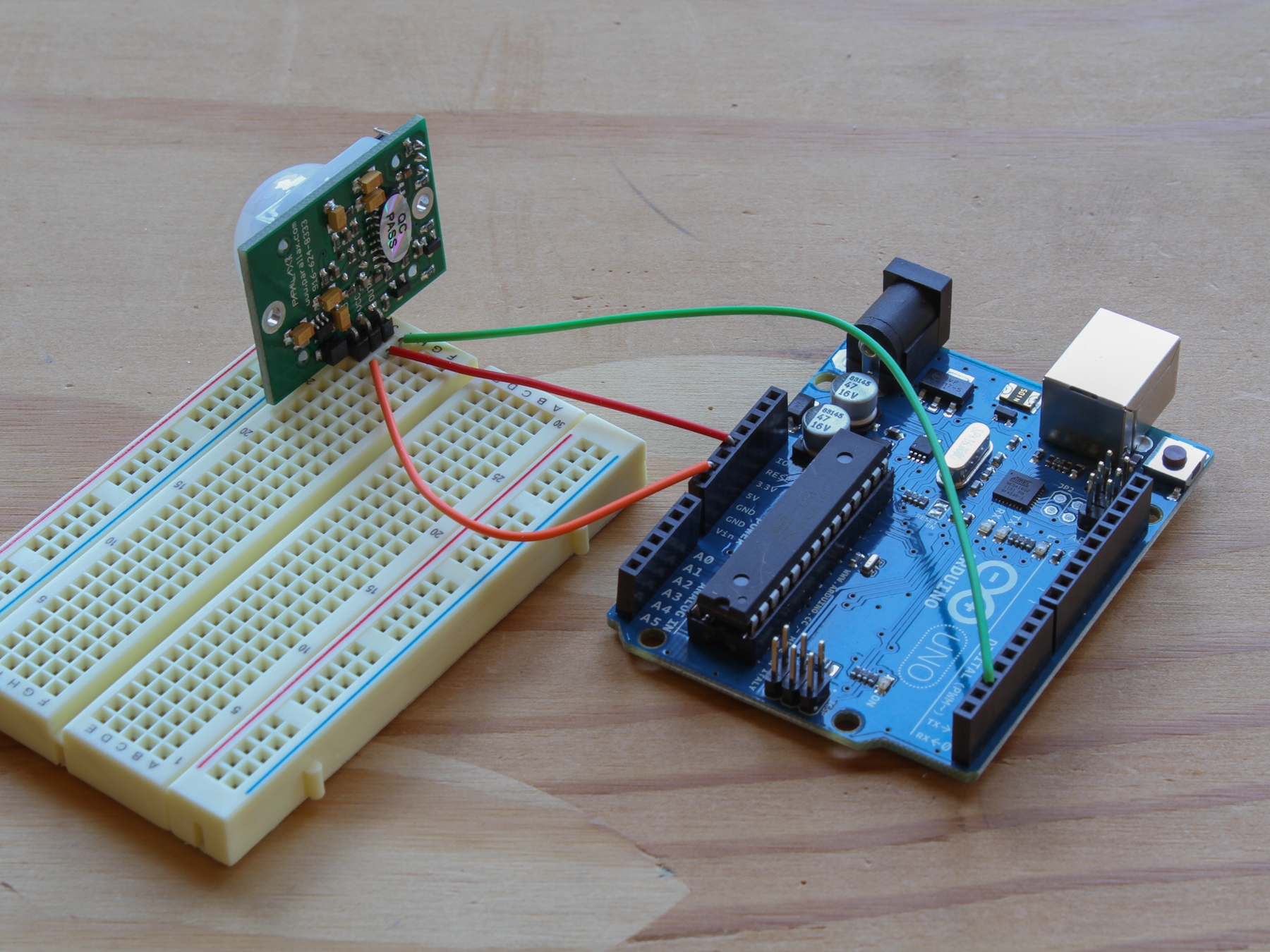
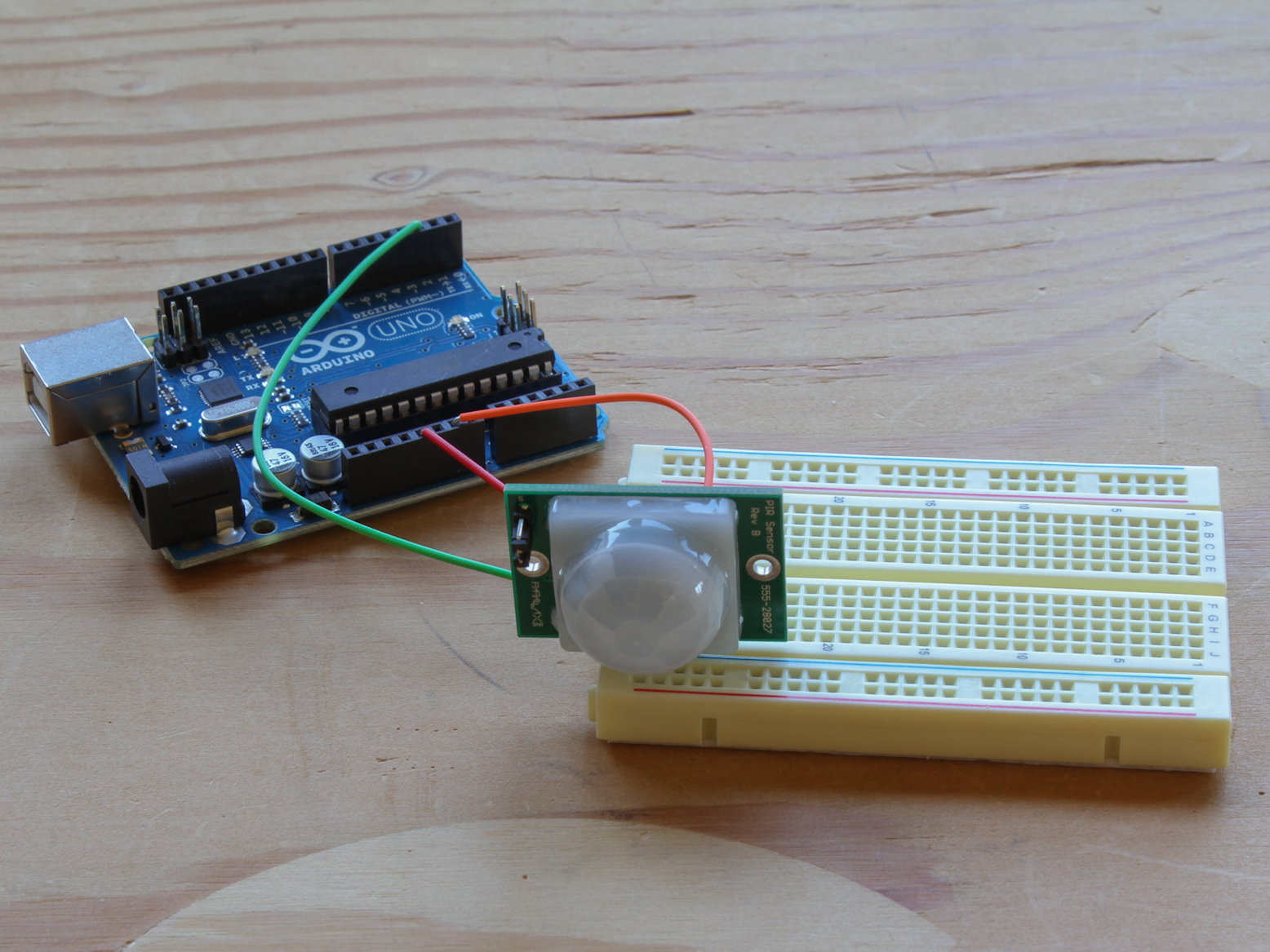
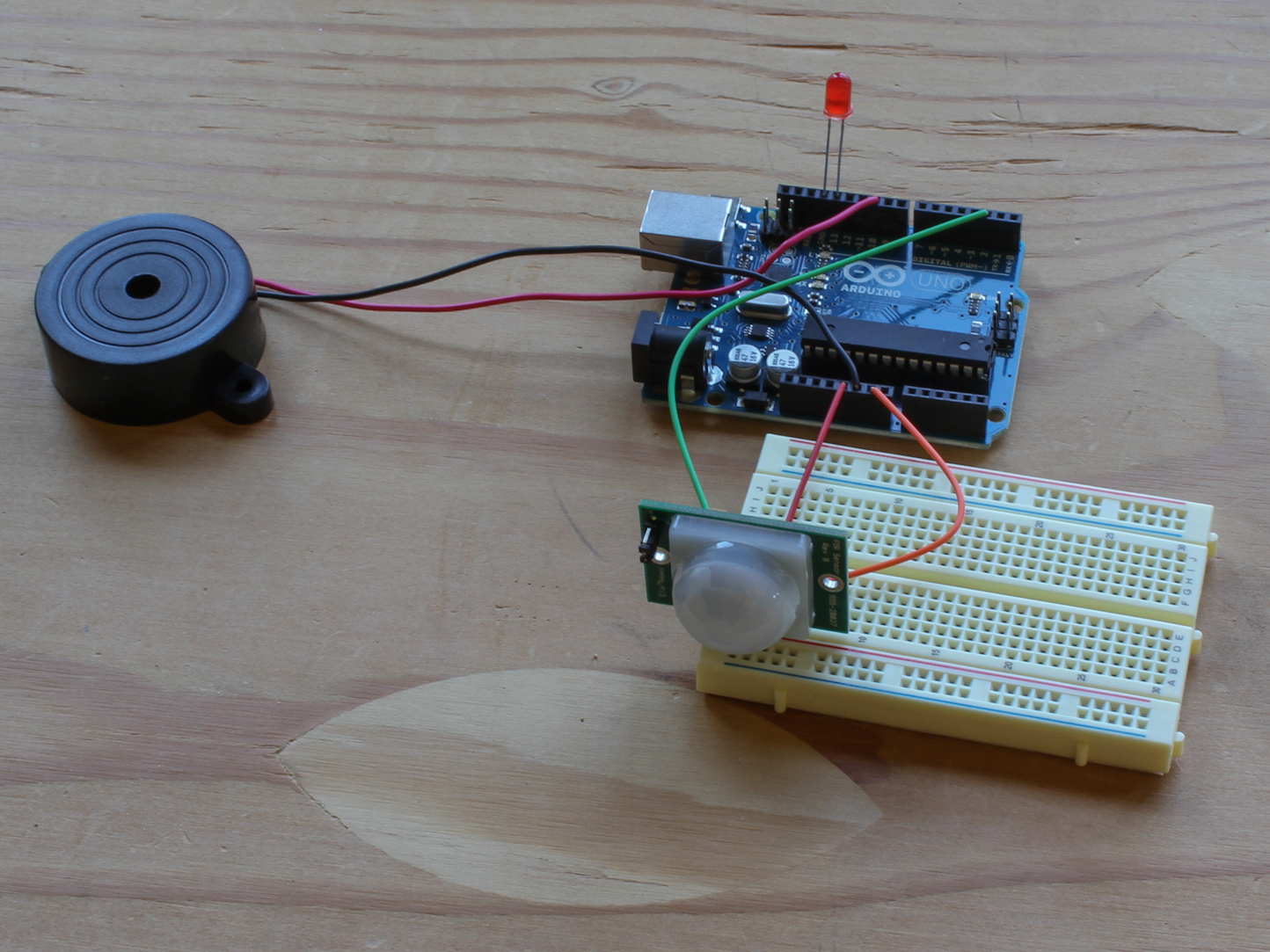
  • Plug the PIR sensor into the breadboard so that its (–) pin connects to the Gnd row, its (+) pin connects to 5V, and its Out pin connects to digital pin 2.
  • NOTE: If you have a different sensor than the one shown here, you may need to extend the sensor's pins with a stacking female header, wires, interconnect cables, etc. to fit.

Step #4: Plug in the LED.

Next
PIR Sensor Arduino AlarmPIR Sensor Arduino AlarmPIR Sensor Arduino Alarm
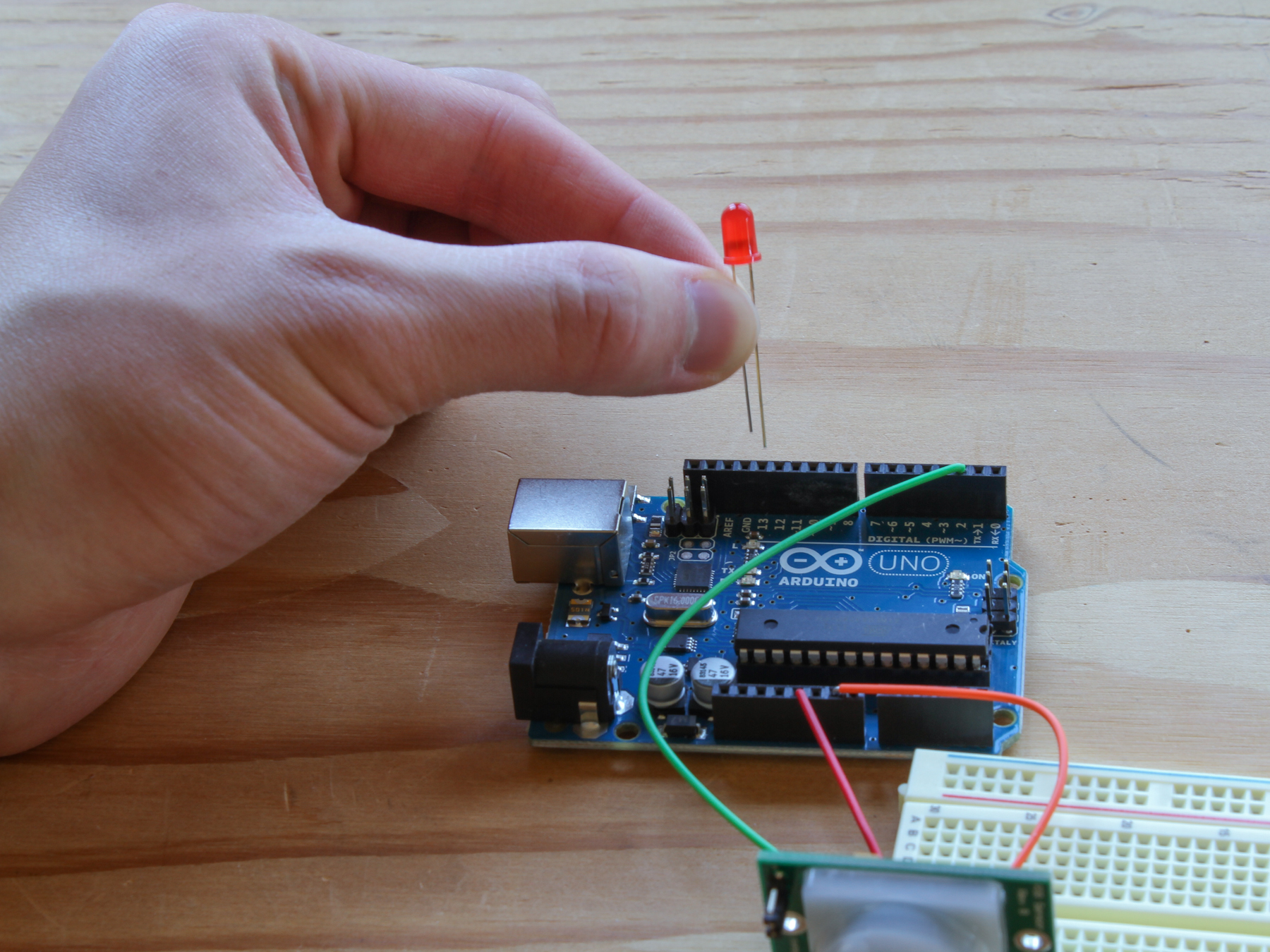
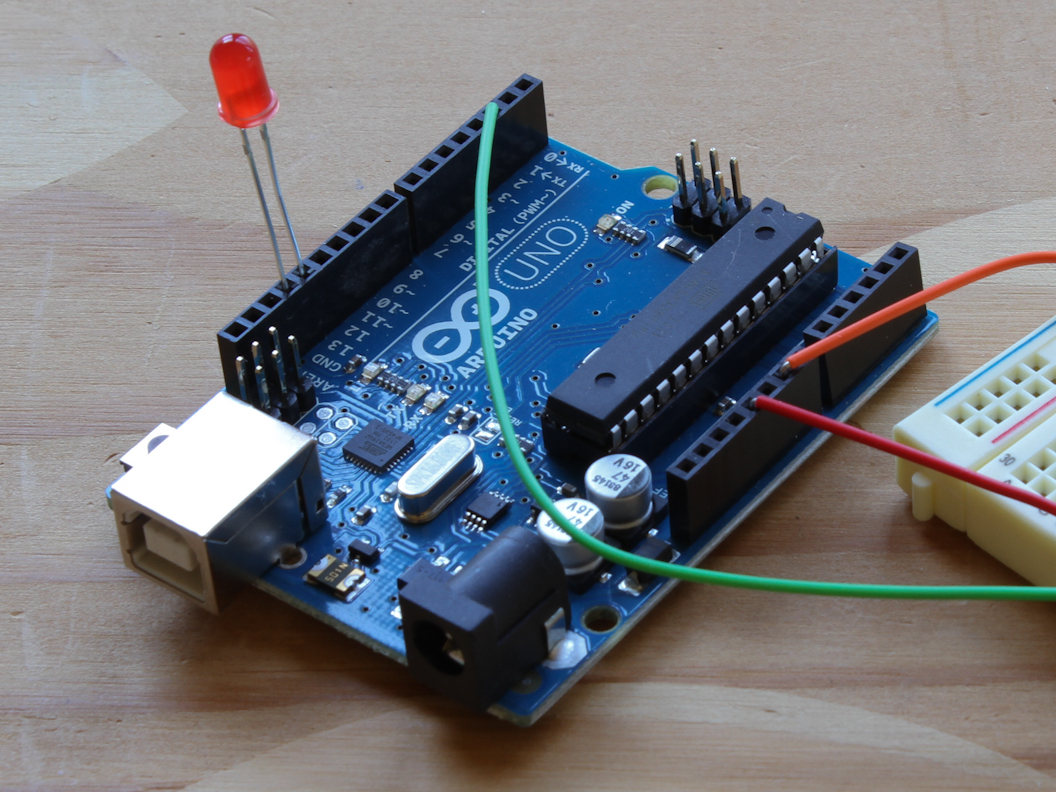
  • Plug the LED's anode (the longer leg) into digital pin 13 on the Arduino.
  • Plug the LED's cathode (the shorter leg, and/or the leg on the flattened side of the LED base) into the adjacent ground (Gnd) pin on the Arduino.

Step #5: Connect the piezo buzzer.

Next
PIR Sensor Arduino AlarmPIR Sensor Arduino AlarmPIR Sensor Arduino Alarm
  • Connect the buzzer's red wire to the Arduino's digital pin 10.
  • Connect the buzzer's black wire to the Arduino's Gnd pin (there's a spare one on the Power block of pins).
  • NOTE: These two wires can be reversed, as the polarity of the buzzer doesn't matter.

Step #6: Program the Arduino.

Next
PIR Sensor Arduino AlarmPIR Sensor Arduino AlarmPIR Sensor Arduino Alarm
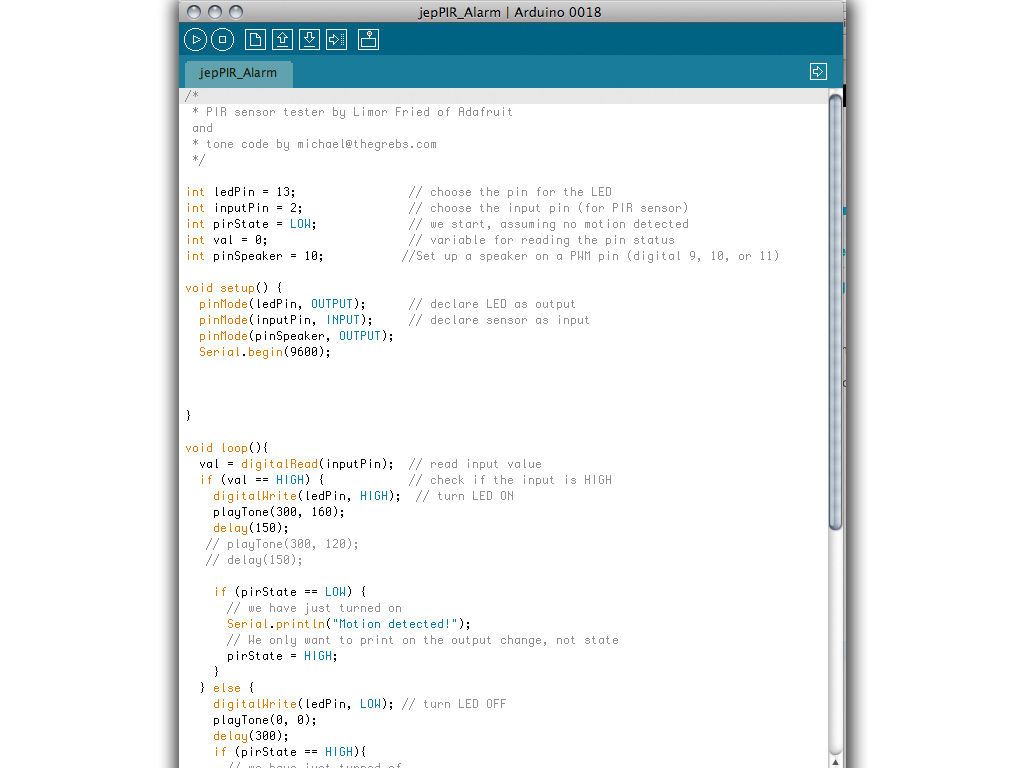
  • Launch the Arduino IDE software. You can download it for free here.
  • Plug the USB cable into your computer and Arduino.
  • Set the board and port settings for your Arduino board, in this case, an Arduino Uno.
  • Open the PIR Alarm sketch found at this link: https://raw.github.com/jedgarpark/Make_PIR_Sensor/master/MAKE_PIR_Sensor.pde (Arduino programs are called sketches.)
  • Upload the sketch to the Arduino.

Step #7: Test your alarm.

PIR Sensor Arduino AlarmPIR Sensor Arduino AlarmPIR Sensor Arduino Alarm
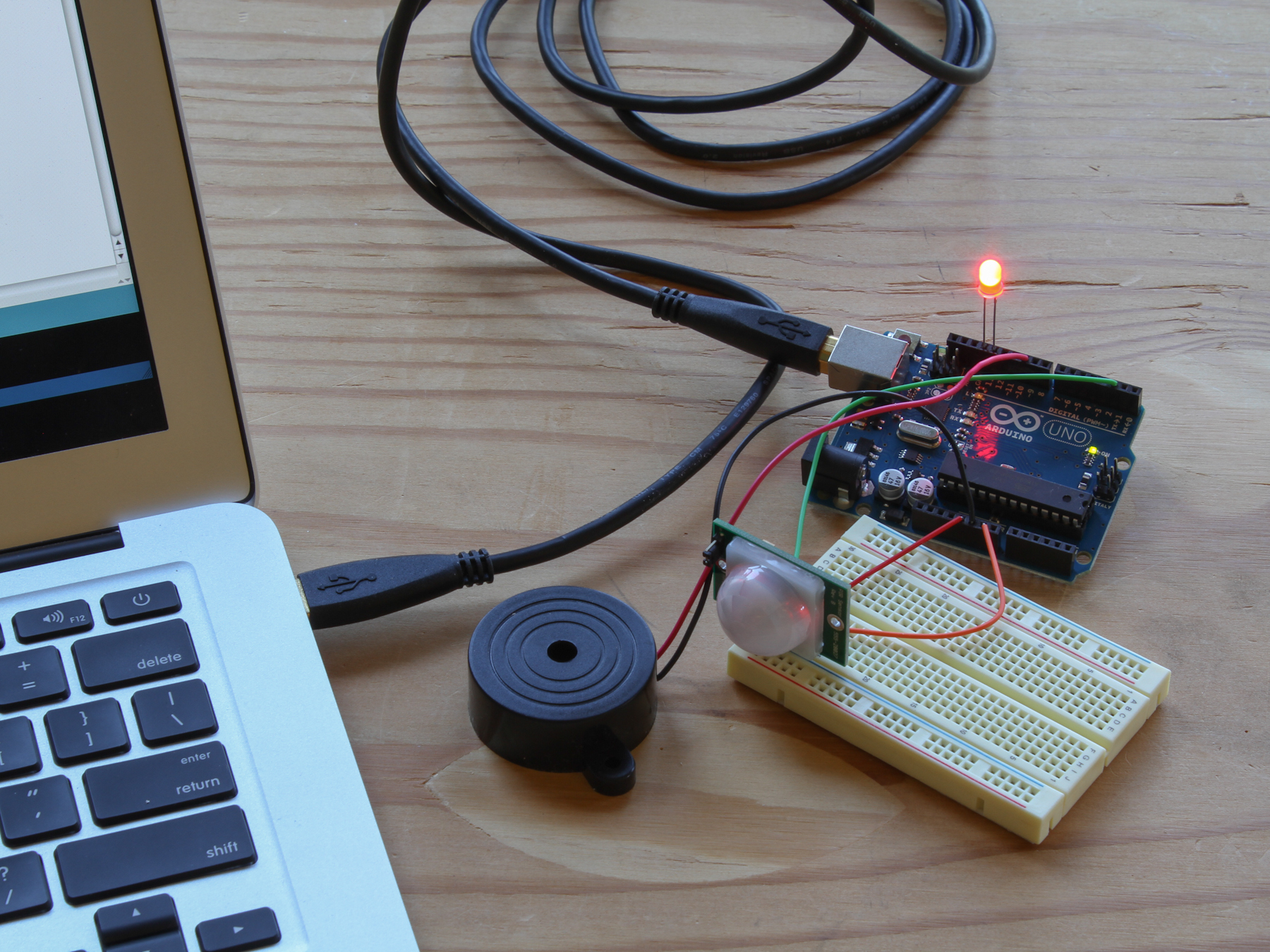
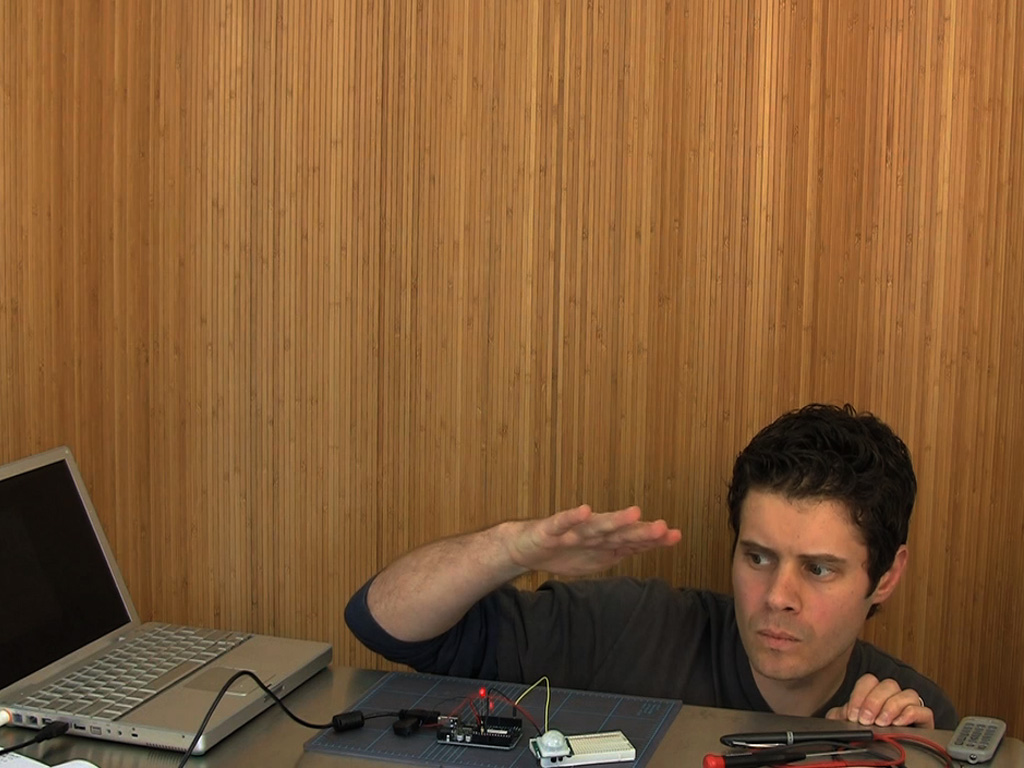
  • When you power up your alarm, the PIR sensor will glow an ominous red. Stand very still or leave the room while the alarm calibrates the infrared level reading for the room.
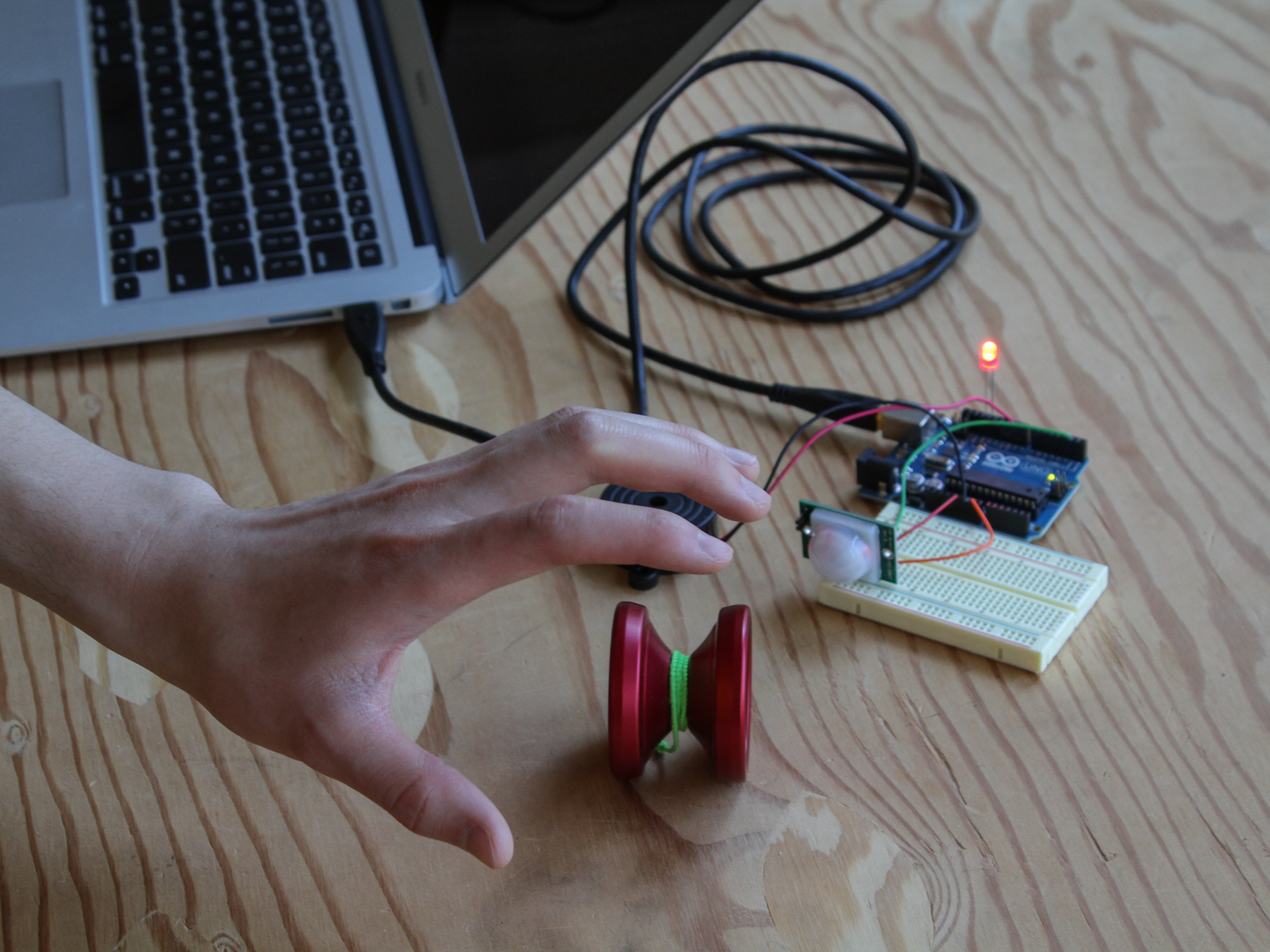
  • Now test it by moving: the buzzer will buzz and the LED will light up.
  • Be amazed! Your PIR Sensor Arduino Alarm can sense movement up to 20 feet away. No one will be stealing your yo-yo today.
  • NOTE: Might not be reliable for detecting the undead.

28 Responses to PIR Sensor Arduino Alarm

  1. Goli Mohammadi on said:

    It’s a PDF under Files at the top of the project. Have fun!

  2. John Edgar Park on said:

    Brandon, sorry for the huge delay, I didn’t see your comment until now. You can change the delay time upon startup to be longer if you need. Try adding a new line as the first one in the void setup that reads: delay(5000);
    That’ll give you five seconds before it begins.

  3. Jeremy dePrisco on said:

    I noticed when I took the code from the PDF, the formatting was off when it is copy/pasted into Arduino editor. Best to download the PDE which is on the right side of the page above.

  4. Nikko Canlas on said:

    Hi! Nice project! wanna try it too.. but the thing is, I don’t know where to download the code.. I can’t find it….. :(

  5. “Were Is The Code I Can’t Find It”?

  6. John Edgar Park on said:

    Sorry about that, we’re looking into what happened. It seems when the new formatting was introduced the code was no longer included.

  7. louis 0208 on said:

    Hi, nice project, im looking to do an attack sensor so its very similar to this, my components are fairly simialar, just wanted to know will they work if swtiched with the ones in the project youve used, im using a vibrations motor as the output, and a sharp PIR sensor for the input, any help or advice will be great and really appreciated.

  8. Robert on said:

    Hello, please send me the program?
    e-mail: robert-1406@hotmail.com

  9. The Sketch seems to have been removed from the page. Does anyone know where? I even did a search for “pdf” in the source code of this page without a result (sorry Goli Mohammadi).

  10. Is there code for this yet?

  11. Hello, send me the code? Please.
    elany7@gmail.com

  12. cant download this pir sensor sketch, whats the deal? someone let me know just how much of an idiot iam?

  13. John Edgar Park on said:

    Sorry for the delay in fixing the post. Here is the code, I’ll see about having it properly added to the project next.

    // Uses a PIR sensor to detect movement, buzzes a buzzer
    // more info here: http://blog.makezine.com/projects/pir-sensor-arduino-alarm/
    // email me, John Park, at jp@jpixl.net
    // based upon:
    // PIR sensor tester by Limor Fried of Adafruit
    // tone code by michael@thegrebs.com

    int ledPin = 13; // choose the pin for the LED
    int inputPin = 2; // choose the input pin (for PIR sensor)
    int pirState = LOW; // we start, assuming no motion detected
    int val = 0; // variable for reading the pin status
    int pinSpeaker = 10; //Set up a speaker on a PWM pin (digital 9, 10, or 11)

    void setup() {
    pinMode(ledPin, OUTPUT); // declare LED as output
    pinMode(inputPin, INPUT); // declare sensor as input
    pinMode(pinSpeaker, OUTPUT);
    Serial.begin(9600);
    }

    void loop(){
    val = digitalRead(inputPin); // read input value
    if (val == HIGH) { // check if the input is HIGH
    digitalWrite(ledPin, HIGH); // turn LED ON
    playTone(300, 160);
    delay(150);

    if (pirState == LOW) {
    // we have just turned on
    Serial.println(“Motion detected!”);
    // We only want to print on the output change, not state
    pirState = HIGH;
    }
    } else {
    digitalWrite(ledPin, LOW); // turn LED OFF
    playTone(0, 0);
    delay(300);
    if (pirState == HIGH){
    // we have just turned of
    Serial.println(“Motion ended!”);
    // We only want to print on the output change, not state
    pirState = LOW;
    }
    }
    }
    // duration in mSecs, frequency in hertz
    void playTone(long duration, int freq) {
    duration *= 1000;
    int period = (1.0 / freq) * 1000000;
    long elapsed_time = 0;
    while (elapsed_time < duration) {
    digitalWrite(pinSpeaker,HIGH);
    delayMicroseconds(period / 2);
    digitalWrite(pinSpeaker, LOW);
    delayMicroseconds(period / 2);
    elapsed_time += (period);
    }
    }

  14. JesstheBess on said:

    Would it be possible to just run this off a battery?

  15. Arjun patel on said:

    can you give me pir for 8051 controller

  16. Thanks this is simple and neat. My nine year old son wanted to “invent” a device that scared off the birds under our deck so they didn’t make nests. So we used these plans. Going to try an add a camera to snap pics of it scaring off birds. Though knowing these birds they’ll just make a nest on top of it.

  17. Ayupchap on said:

    Hi, I seem to have trouble running the code it says “Cannot find anything named LOW” I have copied the code over, any idea what might be wrong?

  18. arthur on said:

    is there a way you could switch the speaker with a servo easily?

  19. TommyTDesign on said:

    Great project!

    I was wondering if anyone could help me tweak the arduino sketch?

    What code could I insert to make it so that there is a 3 second delay between the PIR receiving a signal and the outputs?

Leave a Reply

Fill in your details below or click an icon to log in:

WordPress.com Logo

You are commenting using your WordPress.com account. Log Out / Change )

Twitter picture

You are commenting using your Twitter account. Log Out / Change )

Facebook photo

You are commenting using your Facebook account. Log Out / Change )

Connecting to %s

%d bloggers like this: