









Make: Projects

Print Your Head in 3D

Use digital photos and a 3D printer to make a mini plastic replica of your noggin.

Print Your Head in 3D

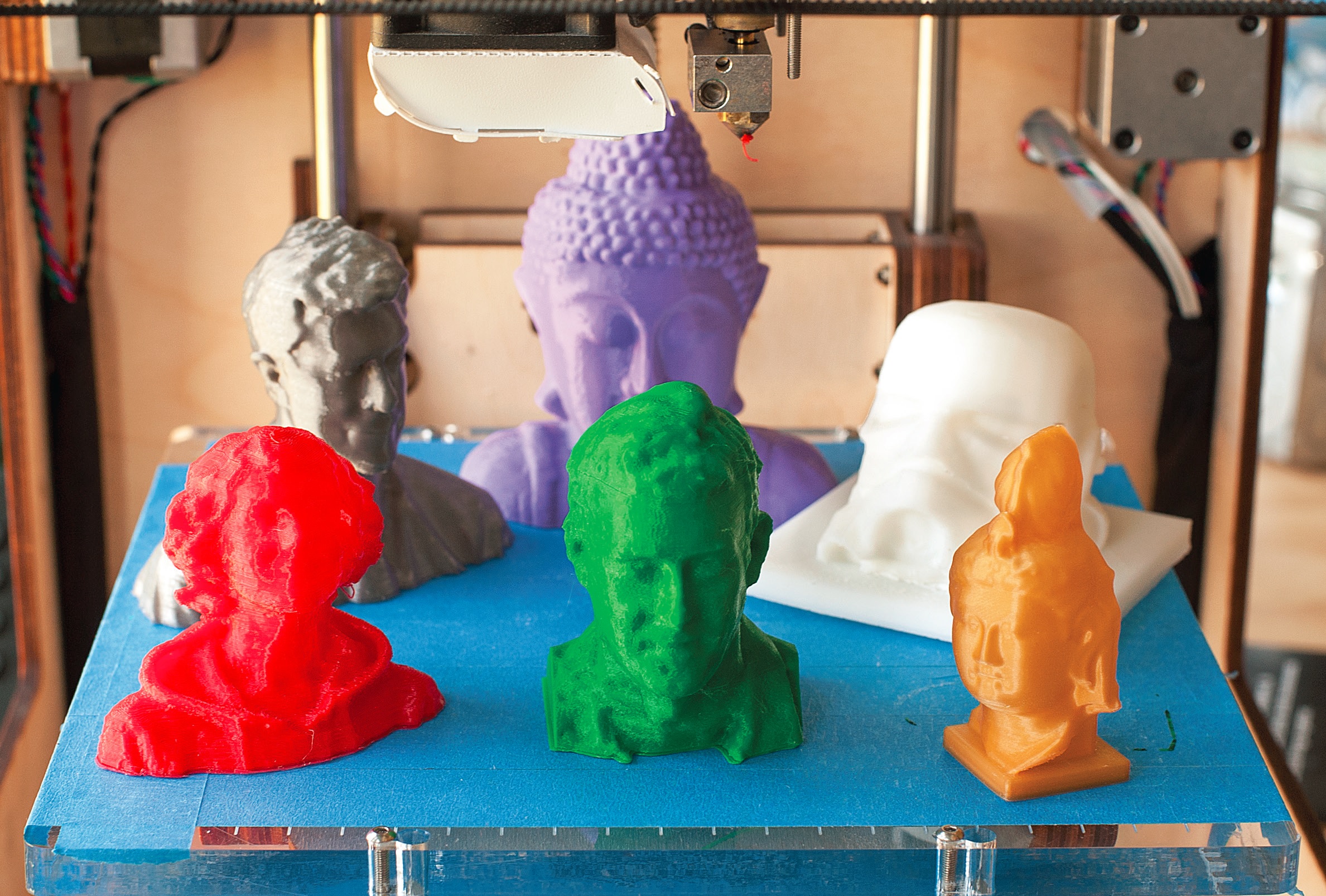
Here’s a great project to get you started in 3D printing — create a 3D model of your own head and then print it out in solid plastic!

A 3D printer makes an object by squirting out a tiny filament of hot plastic, adding one layer at a time. That’s why it’s called additive manufacturing. You send the printer a computer file that’s a 3D model of something — an iPod case, a bike part, your head — then it prints out the object for you. These machines are becoming affordable for schools, labs, libraries, and families, and there’s lots of software out there for creating 3D files to print.

We chose Autodesk 123D software for this project because it’s free, a lot of it is web-based so you can use it from any computer, and amazingly, it lets you create a 3D model directly from digital photos. That way, you can do it all from home, and you don’t have to go get yourself scanned by a laser scanner.

When you’re done making your 3D model, you can take it to a makerspace where they have a 3D printer, or you can send it out to a service and they’ll print it and mail it right to your home. We printed our heads on a MakerBot Thing-O-Matic printer, using ReplicatorG as the printer software. It was easy!

Imagine what else you could 3D-print with these tools. Instead of your head, why not action figures of your whole self, dressed as a hobbit or vampire or Imperial stormtrooper? Or make models of your pets, the family car — almost anything you can capture in photos.

Steps

Step #1: Register with Autodesk 123D.

Next
Print Your Head in 3D
  • Go to http://123dapp.com and create a free account. For this project, we’ll use the web apps for 123D Catch and 123D Sculpt.
  • If you want to send your finished 3D model out to be 3D-printed for you, you can just use the web app of 123D Catch. But if you want to download your model so you can 3D-print it yourself, you’ll need to use the desktop version of 123D Catch (free, for PCs only).

Step #2: Take digital photos of your head.

Next
Print Your Head in 3DPrint Your Head in 3DPrint Your Head in 3DPrint Your Head in 3D
  • You’ll want a friend’s help with this part. You can use a cellphone camera or a nice DSLR — the better the camera, the better 123D Catch will work. Shooting in full shade works best.
  • Sit still while your friend snaps 30 or 40 photos of your head, in 2 separate loops moving completely around you — one lower loop, and one higher loop where the top of your head is seen clearly. This will prevent unwanted holes in your head where the software is missing part of the scene. For best results, make sure your head fills most of the frame.
  • If you’re going to stick out your tongue or make a face, ask your friend to work fast so you can hold your expression. But remember to keep the camera still and focused when snapping each photo, because blurry images may confuse the software and cause weird horns on your head.

Step #3: Create a new capture.

Next
Print Your Head in 3D
  • In 123D Catch (web or desktop), upload all your head photos. You can select Standard quality for your 3D model.
  • Autodesk’s computers will automatically stitch all your photos together to make a 3D model, and then put the model in your My Corner section (or email it to you if you’re using the desktop version).

Step #4: Open your 3D model.

Next
Print Your Head in 3D
  • You’re looking at yourself as a 3D model! It’s got a realistic texture, like your original photos. You can Dolly, Pan, and Orbit to move your view around, by using those 3 buttons on the toolbar.
  • Click the globe icon (or the cube icon in the desktop version) to see the 3D mesh underneath the texture. Cool!

Step #5: Edit your 3D model.

Next
Print Your Head in 3DPrint Your Head in 3DPrint Your Head in 3D
  • In my first model, I had a crazy horn on the back of my head, probably because we took some photos that were blurry or too far away. It’s easy to remove unwanted features — just click the Lasso button, then lasso and delete them. But be careful! You can’t undo this.
  • Trim your model to size and save it under a new name.

Step #6: Make it

Next
Print Your Head in 3DPrint Your Head in 3DPrint Your Head in 3D
  • In My Corner, open your 3D model and click the Sculpt It button at the top of the window. Now you’re in the 123D Sculpt web app. Use the Lasso or Paint tools to select bits you’d like to delete, then click the eraser icon (Discard Selection) to delete them.
  • Now click the Inspector tool to automatically repair any holes. The big hole at the bottom of your neck might now be an extended blob. Use the Lasso or Paint tools to highlight the unwanted blob, then click the eraser, then click Inspector again. This should cut it down to size. Re-save your model to My Corner.
  • If you’re printing your own head, export your model from 123D Catch (desktop) as an OBJ file, or do this same process in MeshMixer software instead (free from http://meshmixer.com).

Step #7: Put it on a pedestal (optional).

Next
Print Your Head in 3D
  • For best results on the 3D printer, your model should be flat on the bottom. You don’t absolutely need to do this step (a 3D printer’s software can prop your head up for printing), but it makes a much nicer permanent object. (If you’re sending your head out to be printed by Autodesk, you can skip this step.)
  • In MeshMixer, use the Select tool to slice off the bottom of your model, then choose the Extrude tool. In the Tool Properties bar on the right, set the EndType to Flat. Then just click and drag the bottom surface of your model to extend it, creating a simple pedestal that’s perfectly flat!
  • You can also use MeshMixer to merge your head with a fancy pedestal. Select the whole mesh, choose Edit → Convert to Part, and click Accept. Look at the Parts bar on the left: your head is now a “part” that you can merge with other parts.
  • Go to Thingiverse (thingiverse.com) and grab an STL file of a pedestal. Open the pedestal in MeshMixer, then drag your head onto it to merge the two. If it doesn’t work the first time, try “remeshing” both parts by selecting Edit → Remesh. Save your merged model as a new STL file.
  • You can do lots more with MeshMixer. Put an arrow through your head, or stick octopus tentacles on it, or make yourself a two-headed monster. Or put your head on a Pez candy dispenser!

Step #8: Share your model (optional).

Next
Print Your Head in 3D
  • In the web app: When your model is done, click on Publish to Gallery. Now anyone can open it in a web browser and play with it.
  • In the desktop version: Make a video animation and send it straight to YouTube!

Step #9: Save your final model as a printable file (optional).

Next
Print Your Head in 3D
  • To print your own head, you need a copy of your 3D model in a format that 3D printers can understand. Export your model from MeshMixer as an STL file. (Fun fact: STL stands for stereolithography, which is a different type of 3D printing.)
  • If you’re sending your head out to be printed by Autodesk, you can skip this step.

Step #10: 3D-print your head!

Print Your Head in 3DPrint Your Head in 3DPrint Your Head in 3D
  • Find the nearest makerspace, hackerspace, or other place where you can use a 3D printer (see directories at http://makerspace.com and http://hackerspace.org). Bring your STL file on a thumb drive.
  • We printed our heads on a MakerBot Thing-O-Matic, which we like because it automatically prints objects one after the other — and because you can buy it as a kit and build it yourself.
  • First, you’ll open your STL file in the 3D printer’s software, which tells the printer exactly where to make trails with the hot plastic to build up your object. If your printer uses ReplicatorG software, import your STL file, center the model and put it on the platform, then scale it to your desired size. Next, click Generate GCode, select the default print profile, and check the Use Print-O-Matic checkbox. Now hit Print.
  • Watch in amazement as your head materializes before your eyes!
  • If there’s no 3D printer close by, that’s OK — there are lots of service companies that will print out your 3D model for you. In My Corner, click Fabricate Online to send your file to Autodesk’s digital fabrication service and receive your 3D-printed plastic head in your mailbox. It costs only about $10 for a 3"-tall head.
  • Or try sending your file to Shapeways (http://shapeways.com) or Ponoko (http://ponoko.com), or in Europe, try Sculpteo or i.materalise. Some of these services will even print your head out in ceramic, glass, steel, silver, gold, or titanium!
  • 123D tutorial videos from Autodesk: http://youtube.com/123d and http://123dapp.com/catch/learn

Conclusion

This project first appeared in MAKE's School's Out! special issue, page 72.

One Response to Print Your Head in 3D

  1. Don´t consider every nice comment as spam, its not – but here my two cents. It´s all about fitness mates! Or what do you think? I like this data and it has presented me some sort of inspiration to have success for some reason, so keep up the good work. Furthermore I´m definitely thinking about writing these facts in my own blog

Leave a Reply

Fill in your details below or click an icon to log in:

WordPress.com Logo

You are commenting using your WordPress.com account. Log Out / Change )

Twitter picture

You are commenting using your Twitter account. Log Out / Change )

Facebook photo

You are commenting using your Facebook account. Log Out / Change )

Connecting to %s

%d bloggers like this: