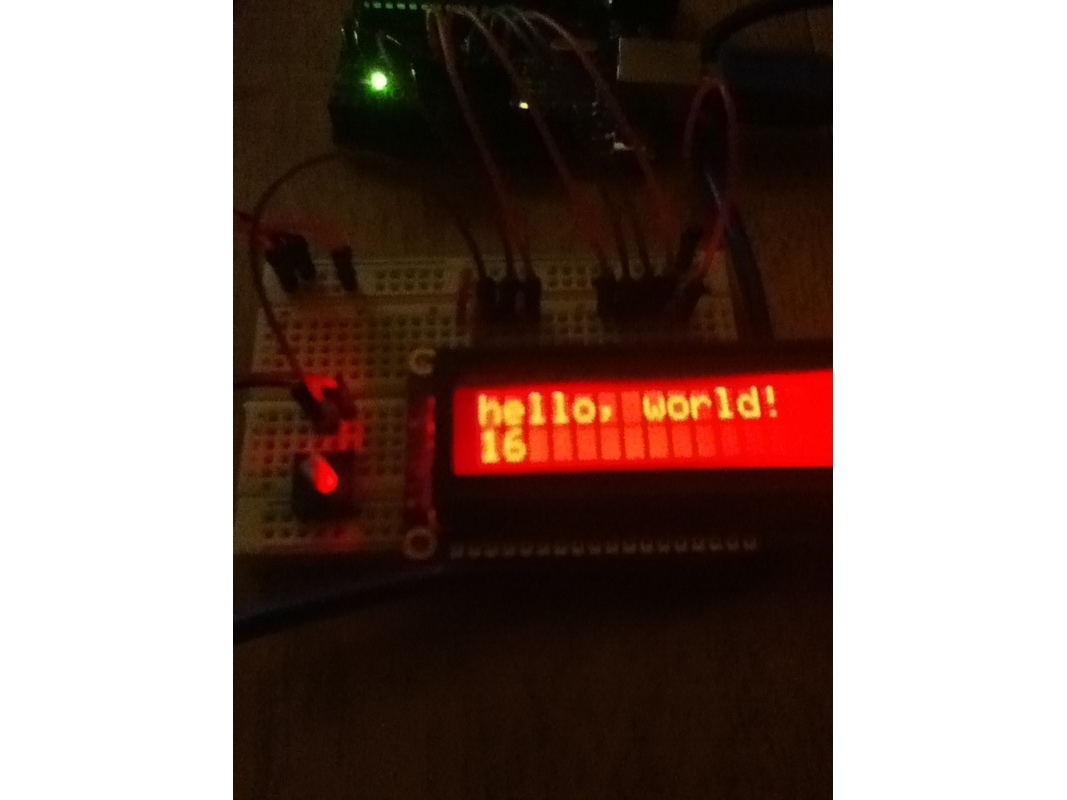
This is something that almost every maker that is interested in easy electronics should know how to do. It is great for decorating or just experimenting for starters.
I am doing this tutorial because I had bought an RGB display from the Maker Shed and it was hard to track down the instructions. First I will teach you how to connect it to the Arduino and then I will show you the code required.
This isn’t my very own tutorial; I am just making the information easily accessible for everyone.
Like this:
Like Loading...
Step #1:
Next


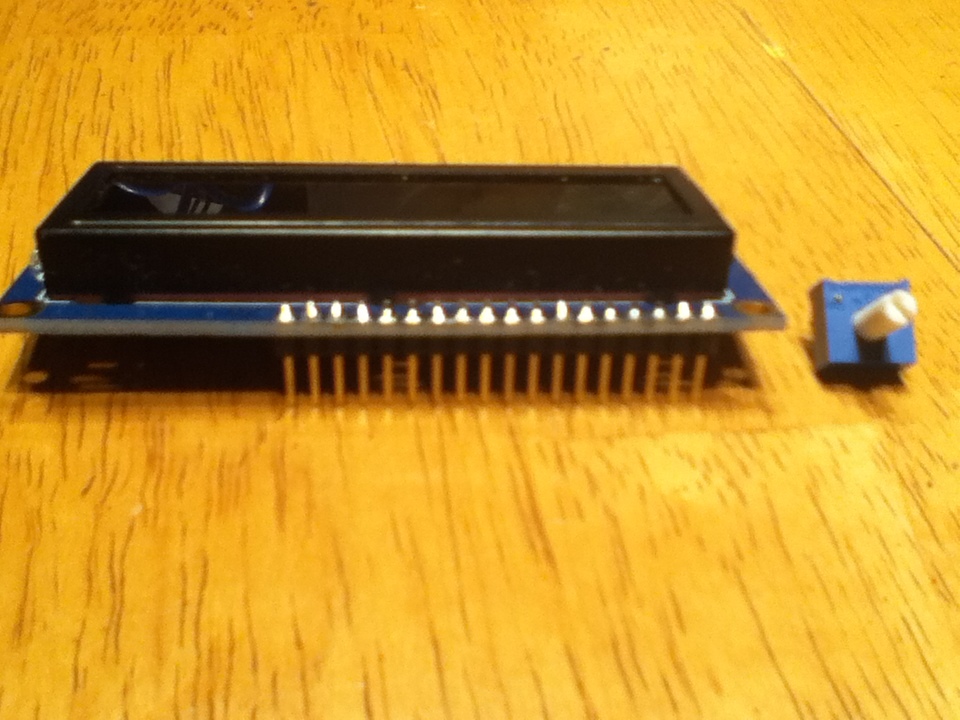
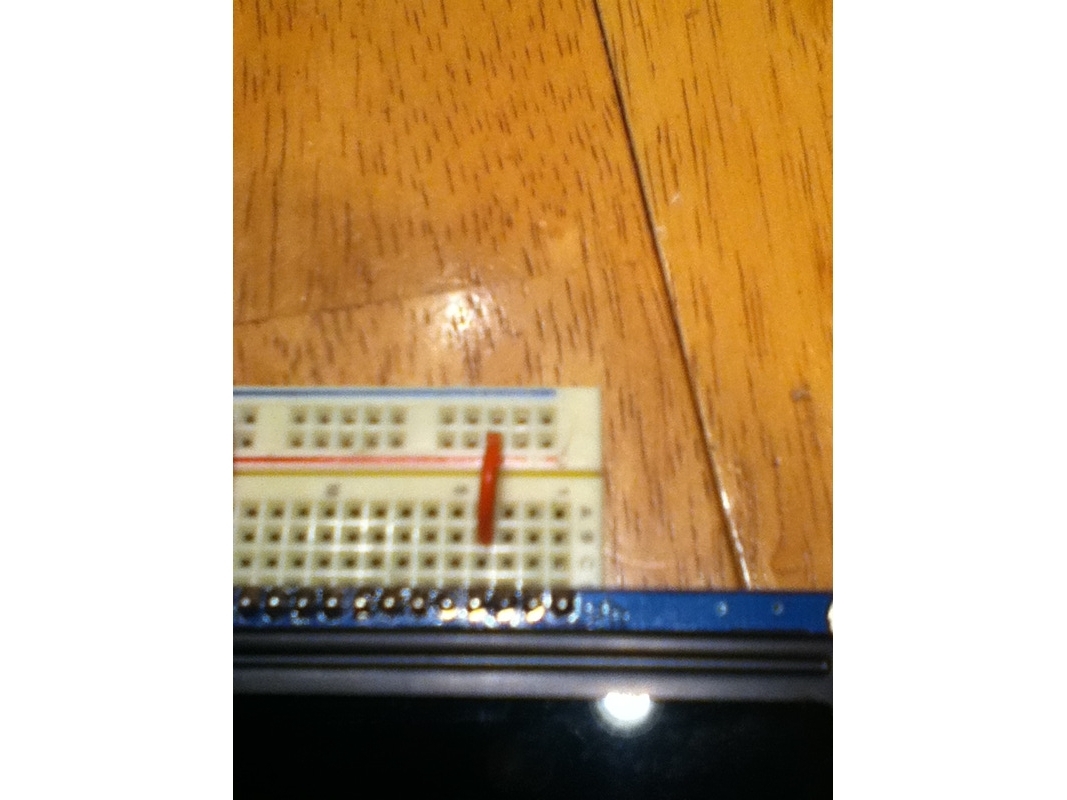
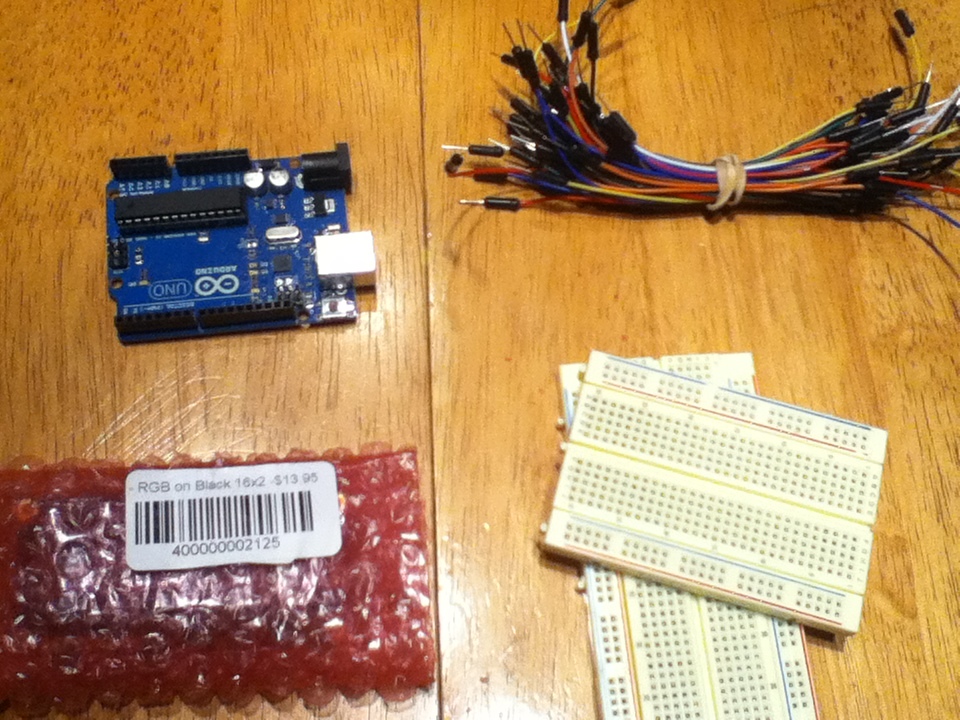
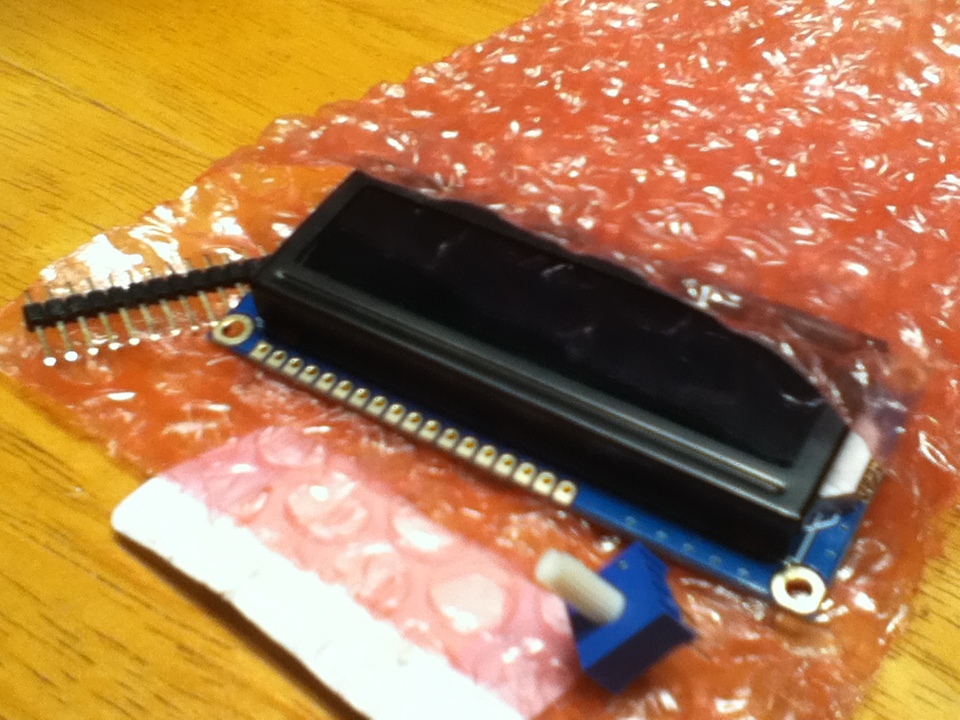
- We will start off by gathering all of the parts together. Then open the package. Inside, you will find the display, contrast pot, and header pins. Solder the header pins on the same side that I did.
Step #2:
Next


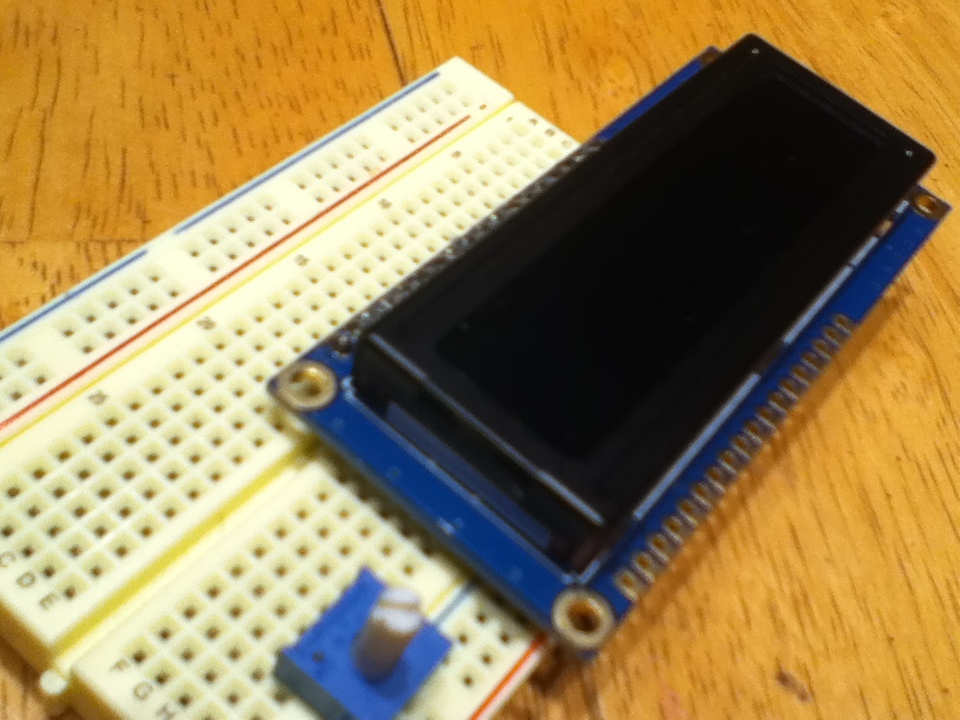
- Now we will prepare everything to start connecting to the Arduino. Insert the display into the breadboard with the pot next to it. Then connect 5V and GND to the breadboard rails as I have done. Good.
Step #3:
Next


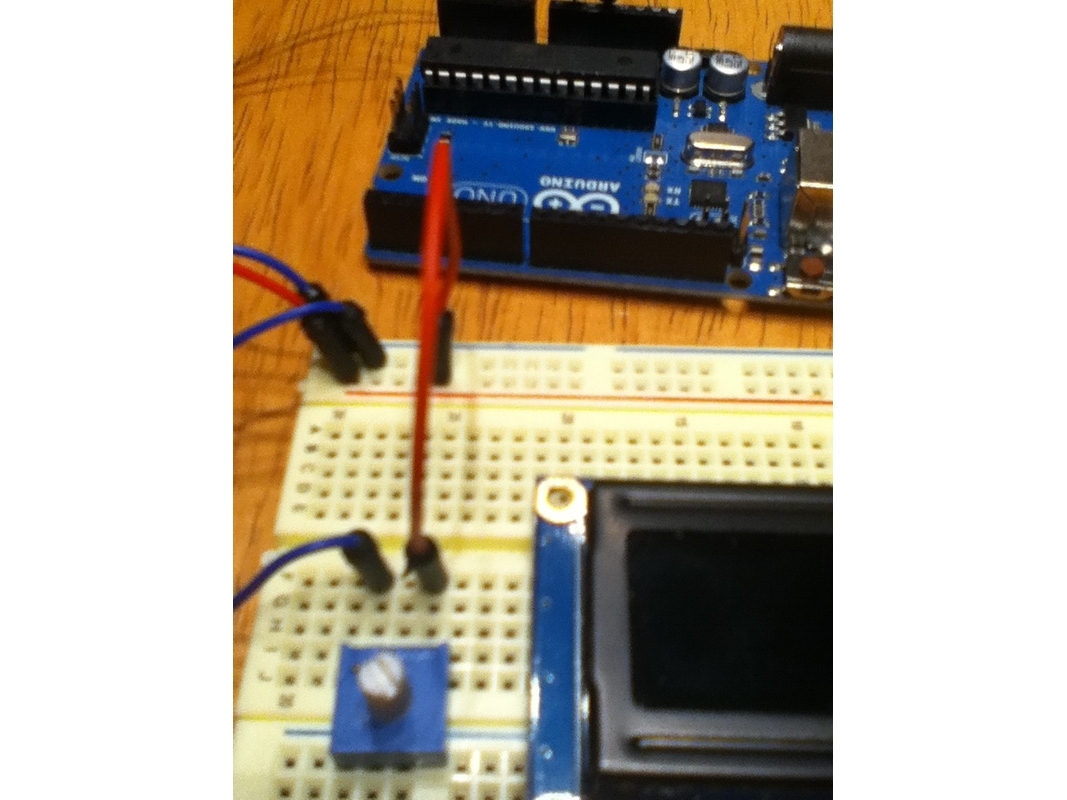
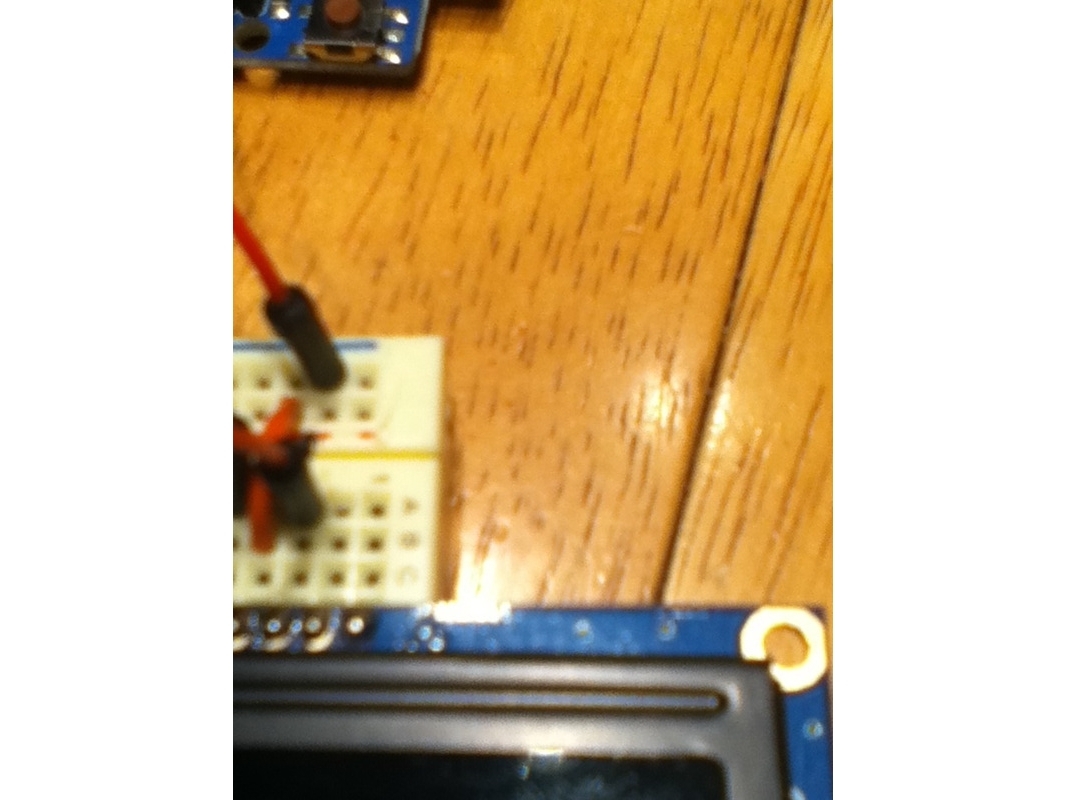
- Now we will hook up the contrast pot. Connect one side of the pot to GND and the other to 5V. Then hook the middle of the pot to pin 3 on the display.
Step #4:
Next


- Connect pin 1 of the display to GND, pin 2 to 5V, and pin 5 to GND.
Step #5:
Next


- Connect pin 15 to 5V and then connect either pin 16, 17, or 18 to GND depending on what color you want for your backlight. I picked pin 16 which will make it light up red.
Step #6:
Next


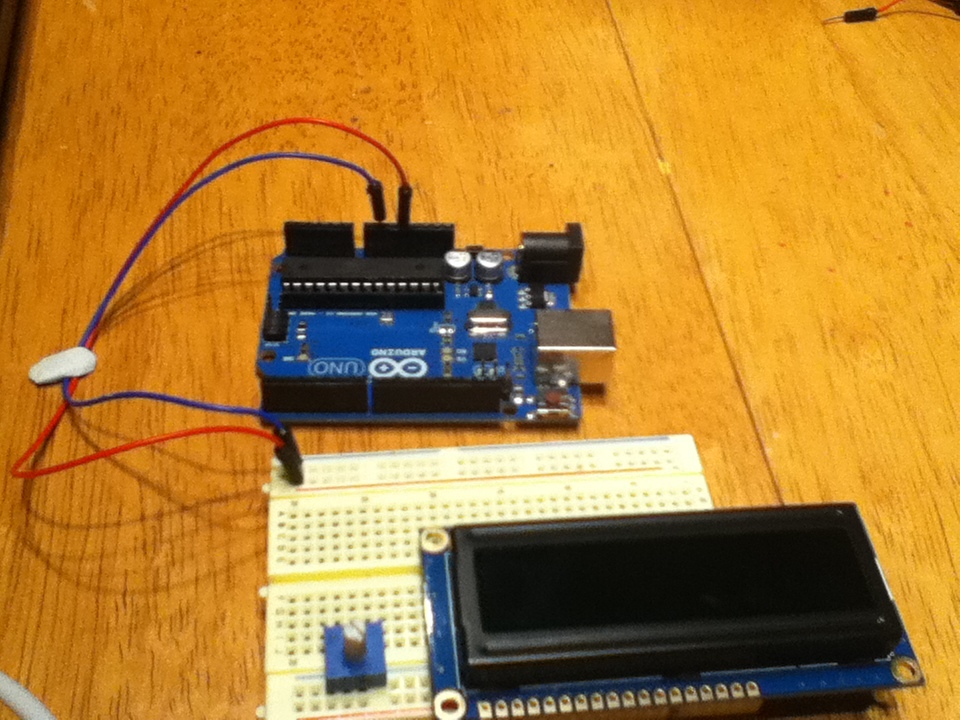
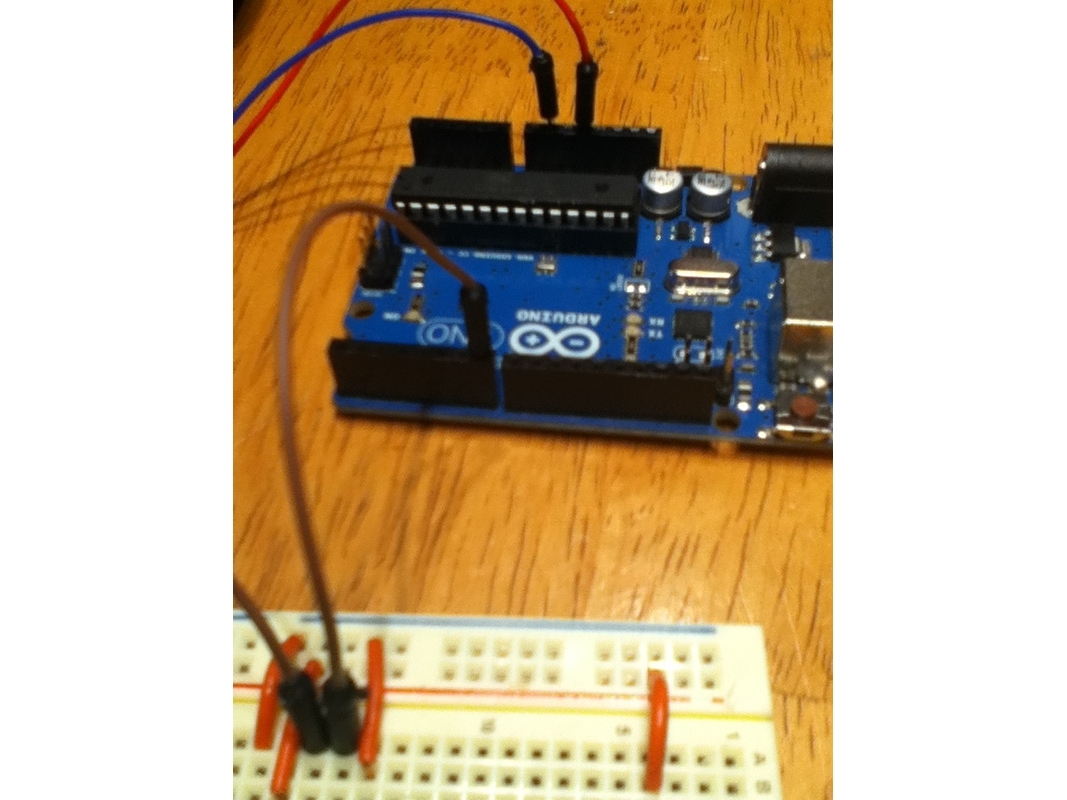
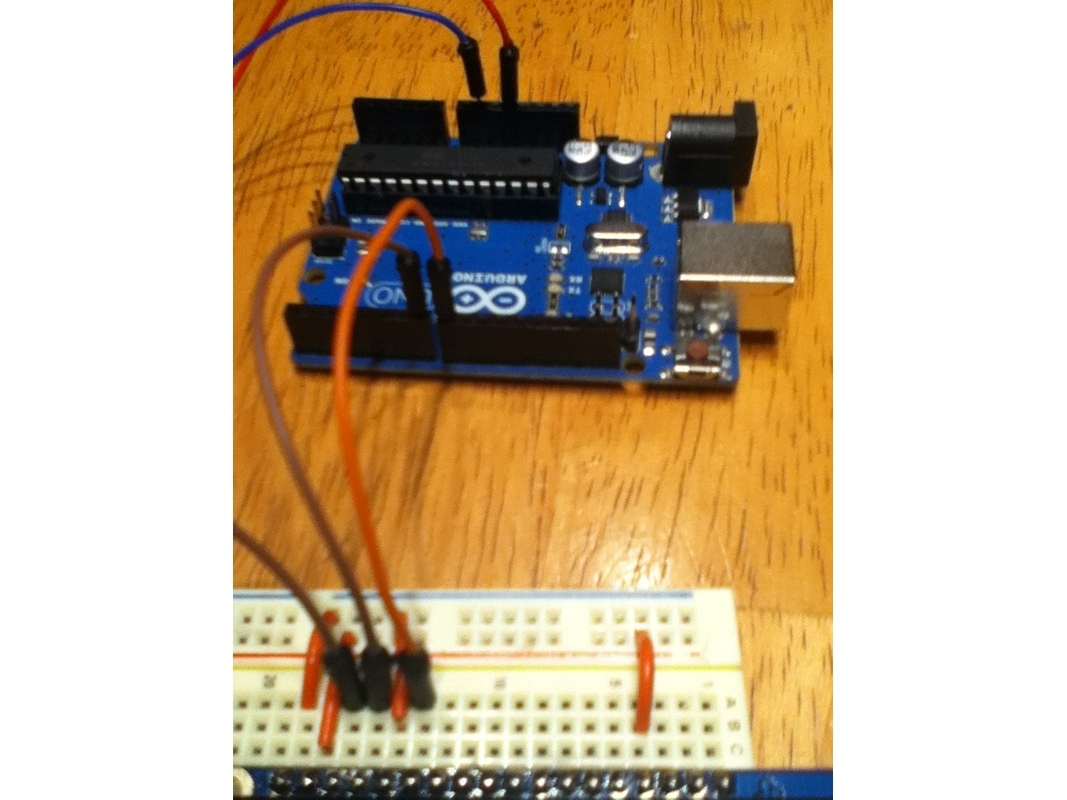
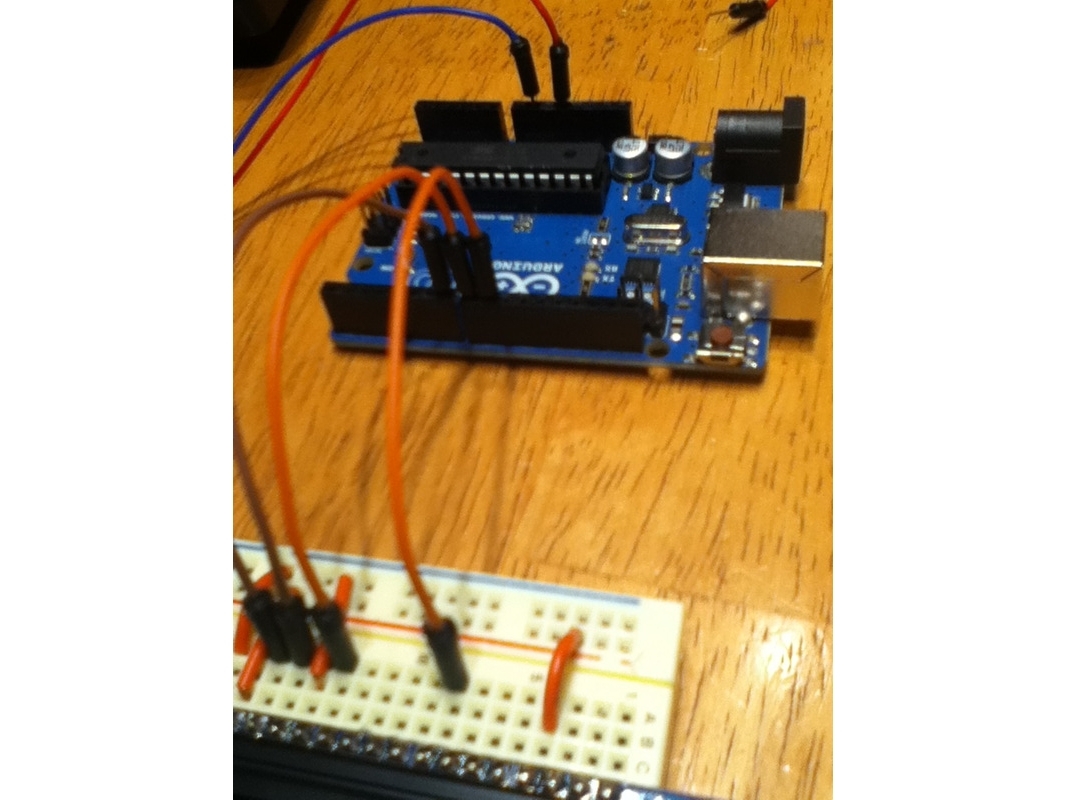
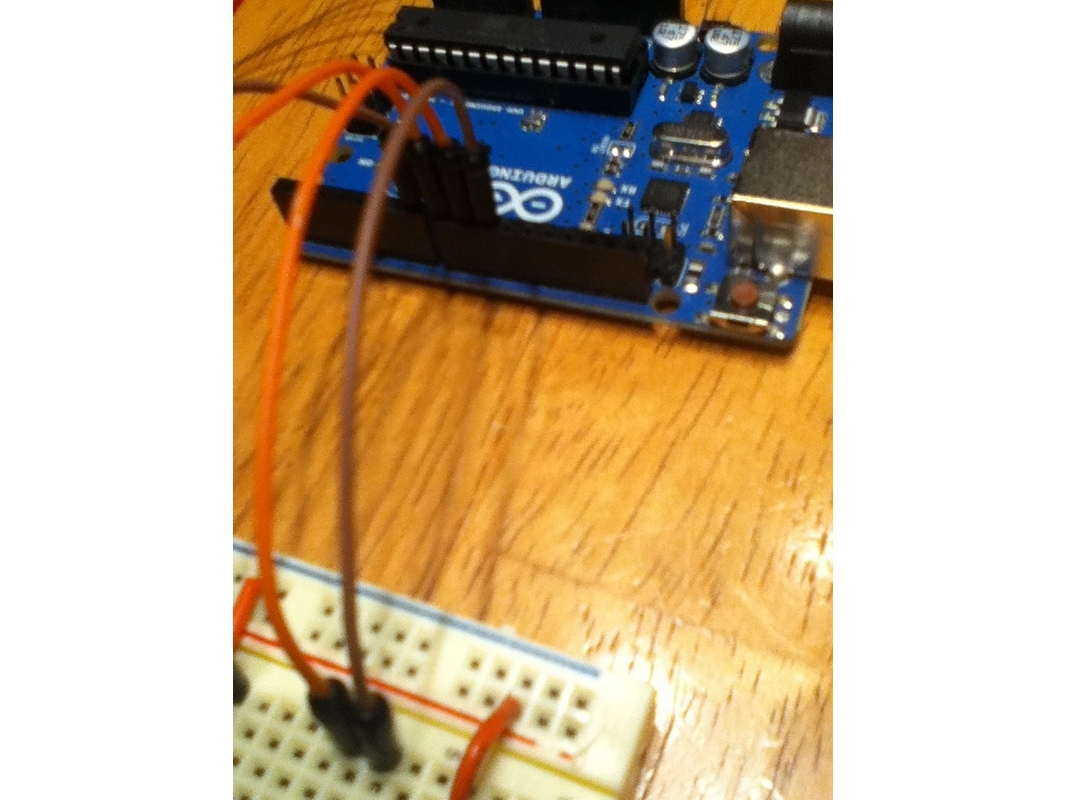
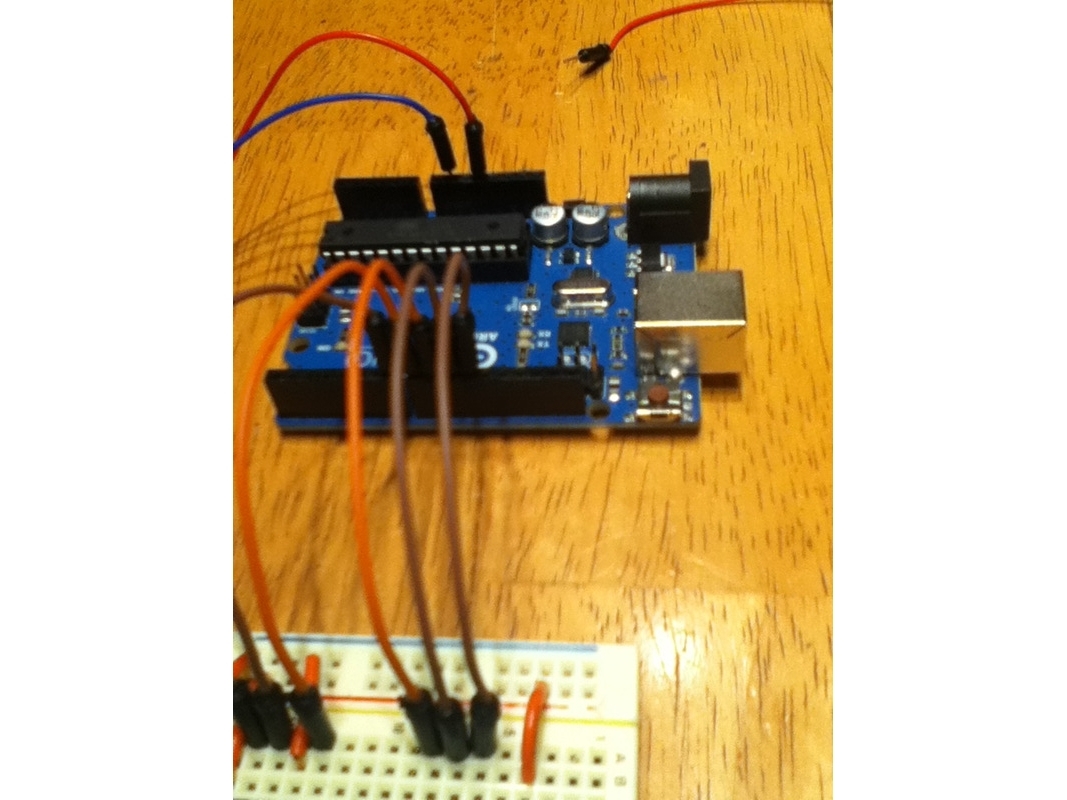
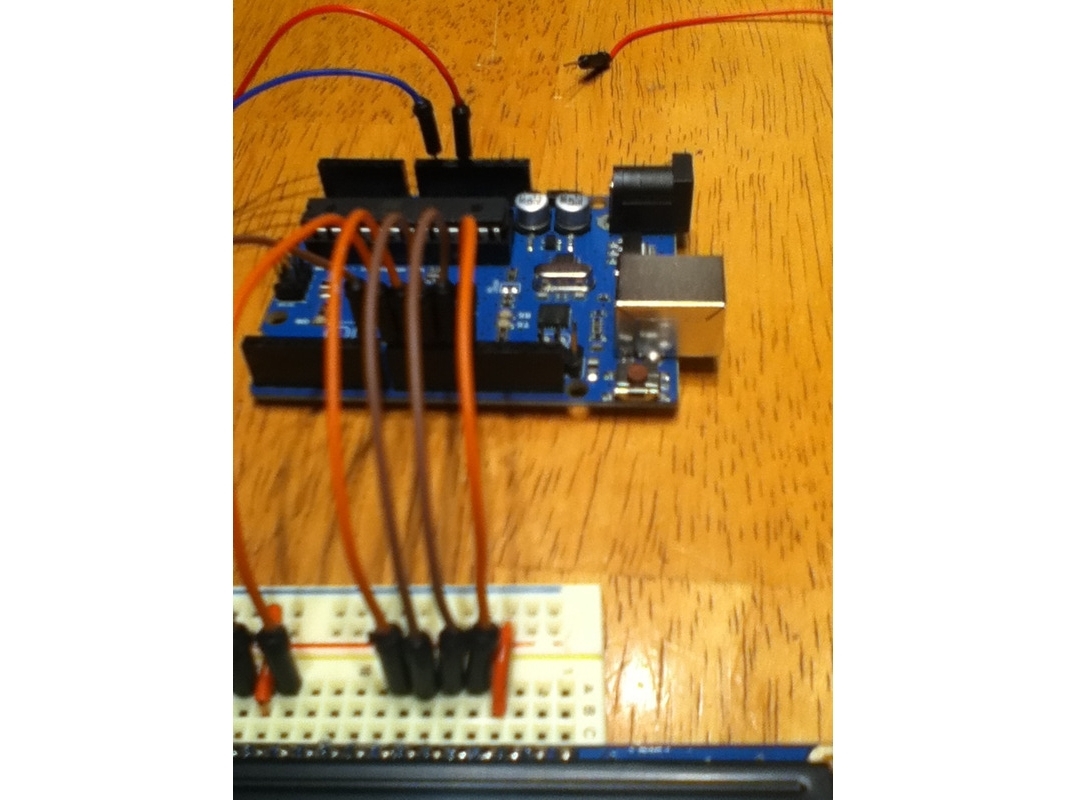
- Now we will start connecting the Arduino to the display. Connect pin 4 of the display to pin 7 on the Arduino; pin 6 to pin 8; pin 11 to 9; 12 to 10; 13 to 11; and pin 14 on the display to pin 12 on the Arduino.
Step #7:
Next


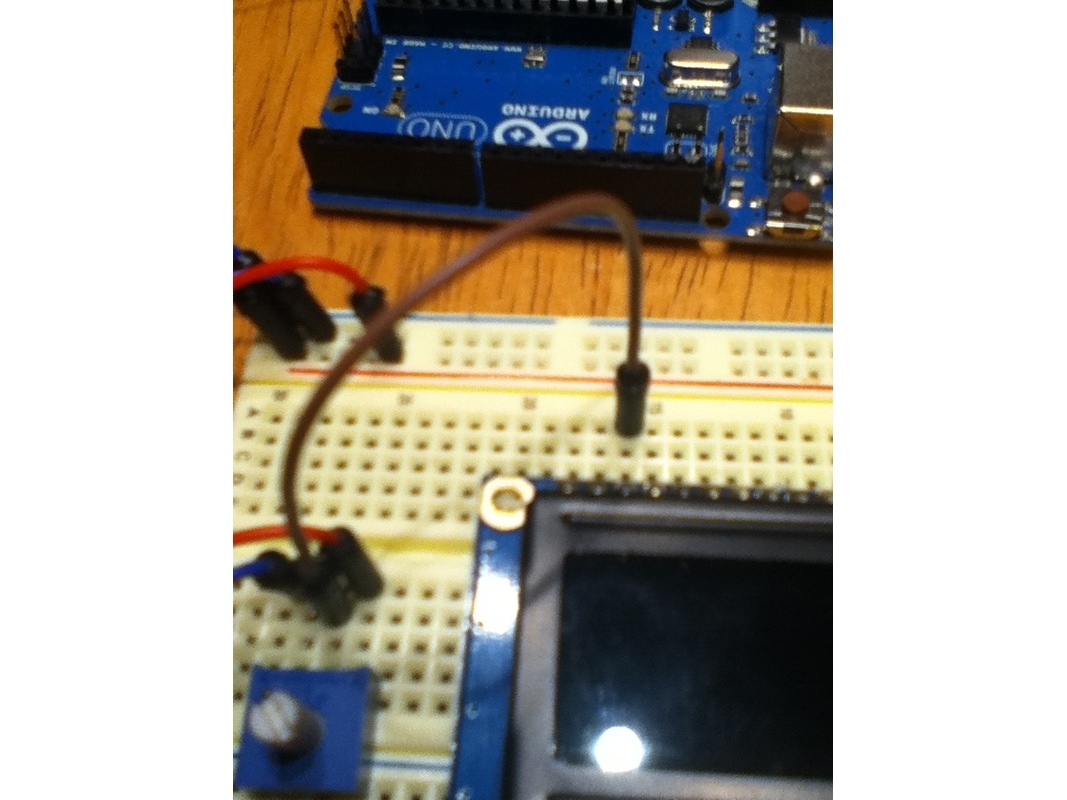
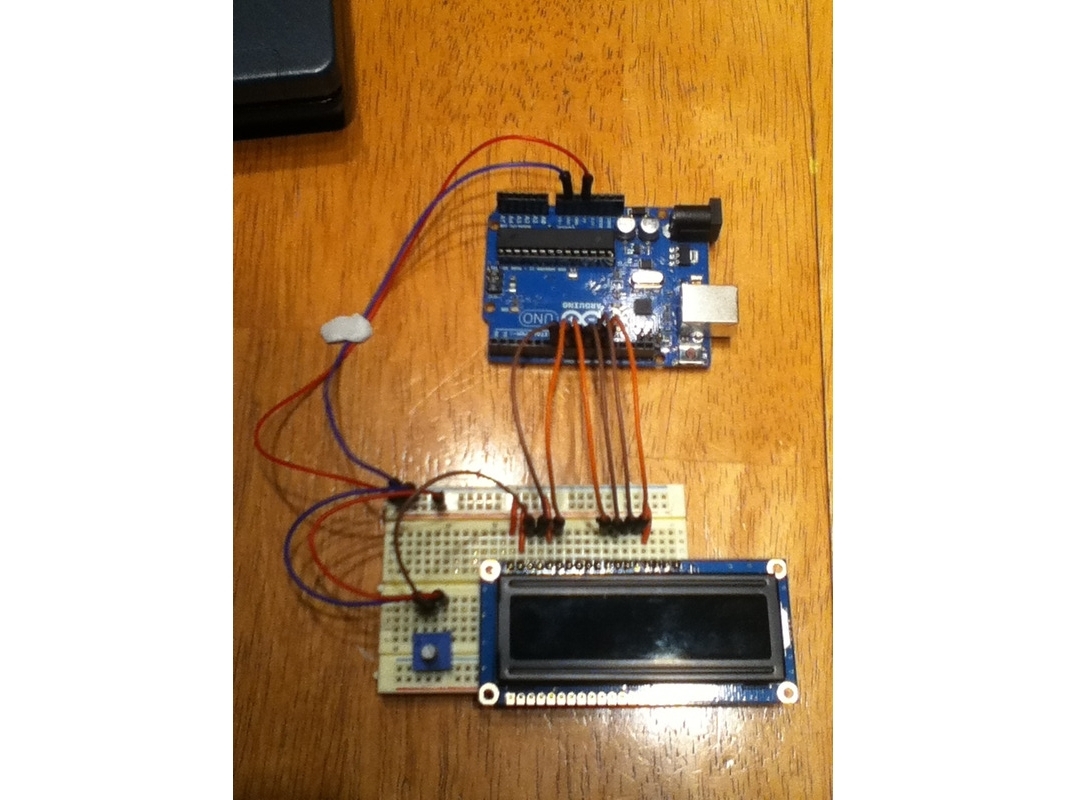
- The setup should look something like this.
Step #8:
Next


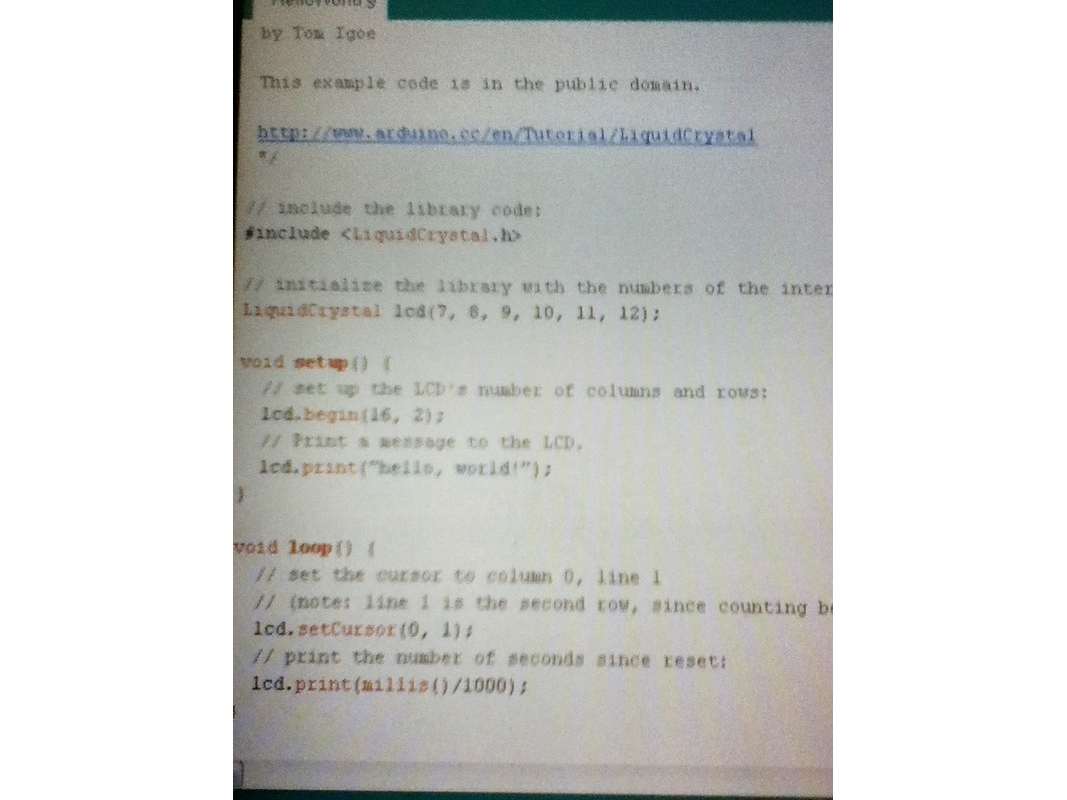
- Now you have connected the display to the Arduino. For the code, navigate in the Arduino environment to Examples→Liquid crystal→Hello world. Change the line of code that says: LiquidCrystal lcd(12, 11, 5, 4, 3, 2); to LiquidCrystal lcd(7, 8, 9, 10, 11, 12);.
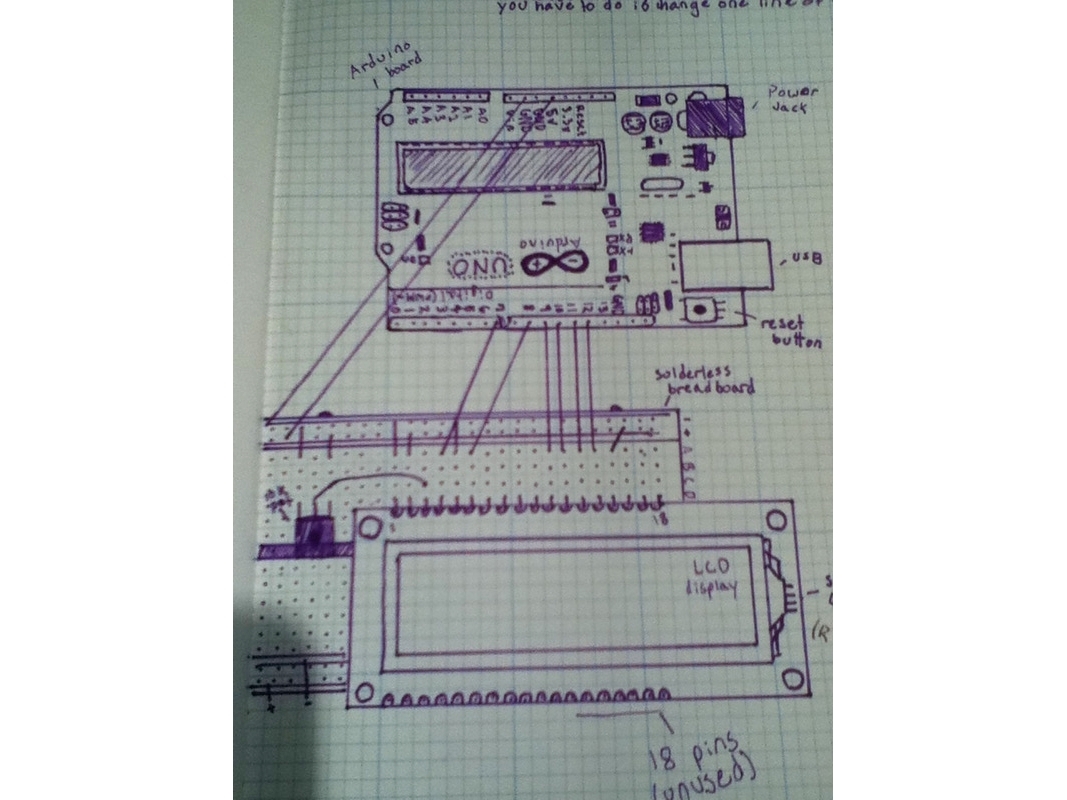
- A wiring diagram is included here.
Step #9:


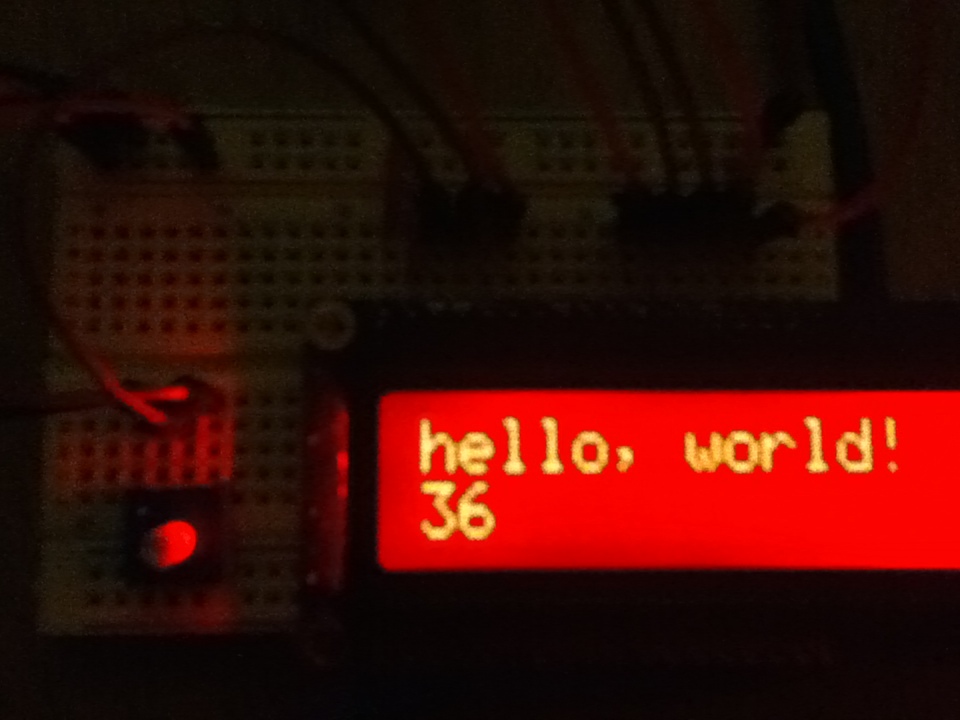
- If you got everything right, this is how it should look.
Conclusion
You have now just set up a liquid crystal display!
Is there a way to enlarge the thumbnails? None of the images are “clickable” It doesn’t help if you reference an image & a reader can’t see the details.
no i dont think there is a way to enlarge them. i think its a problem with
the new make: projects. you could enlarge them on the old one.
yes, you can enlarge the thumbnails. First click the “all” button to show all project steps.
then click on the thumbnail and it will show enlarged. I’m on firefox 19
Is soldering really required for this project
yes, soldering is required but it is very minimal. u only have to solder the
header pins to the liquid crystal display.
Thanks for the tutorial. I am new to Arduino, then I would try adding a temperature display on my project. just so happens that I have the parts
// What's Trending
Raspberry Pi Design Contest
Ten Tips for Adhesive Tape
Lost PLA Casting from 3D Prints
Seventeen Sneaky Secret Hides
I Have a (Puzzling) Dream
10 Things to Connect to Your Raspberry Pi
47 Raspberry Pi Projects to Inspire Your Next Build
Maker Pro: How Much Should I Charge?
// What's Shared
A better way to slice a pumpkin
DIY Nerf Darts
100 Dollar Store Organization Ideas for Craft Rooms and Beyond
In the Maker Shed: Minty Boost USB Charger
Mad’s Mouse House
Lace Princess Crowns
I Have a (Puzzling) Dream
Play the Rings of a Tree Trunk Like a Record
// Most Commented
DIY Hacks & How To’s: Get Emergency Power from a Phone Line
Resin Casting: Going from CAD to Engineering-Grade Plastic Parts
Ten Tips for Screws and Screwdrivers
Ten Tips for Better Measurement
Makers on TV: Big Brain Theory
Is it a Hackerspace, Makerspace, TechShop, or FabLab?
Arduino Announces New Wireless Linux Board
Grow: A Portable CNC Router System
Trending Topics
Get our Newsletters
About Maker Media
Subscribe
to MAKE!
Get the print and digital versions when you subscribe