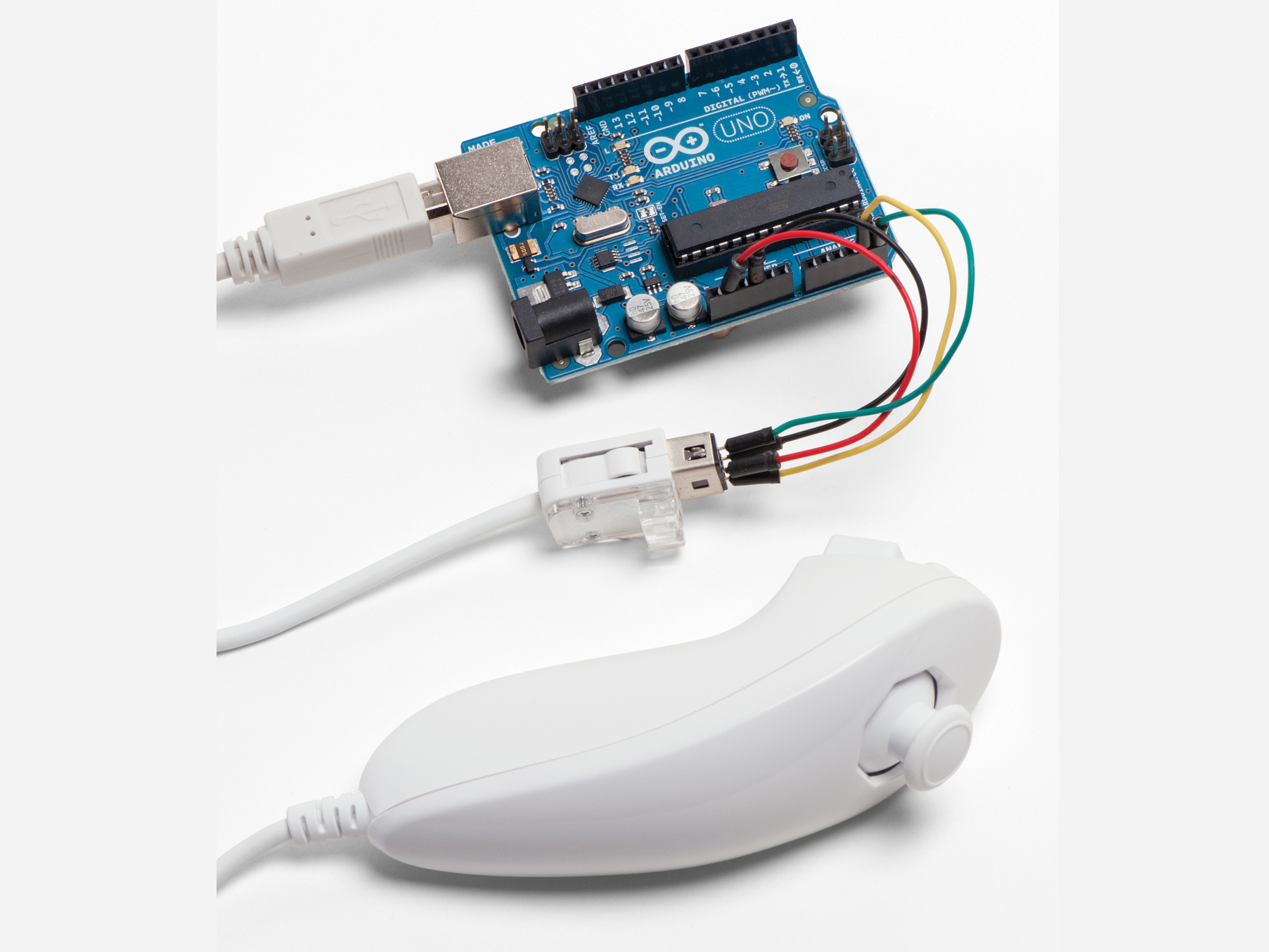
Today, more and more devices are using motion control. From tablets to cellphones to game consoles, people are getting used to interacting with electronics using gestures. Personal computers, however, have lagged behind a bit. Unable to find a suitable gestural controller for my Windows PC on the consumer market, I set out to build my own.
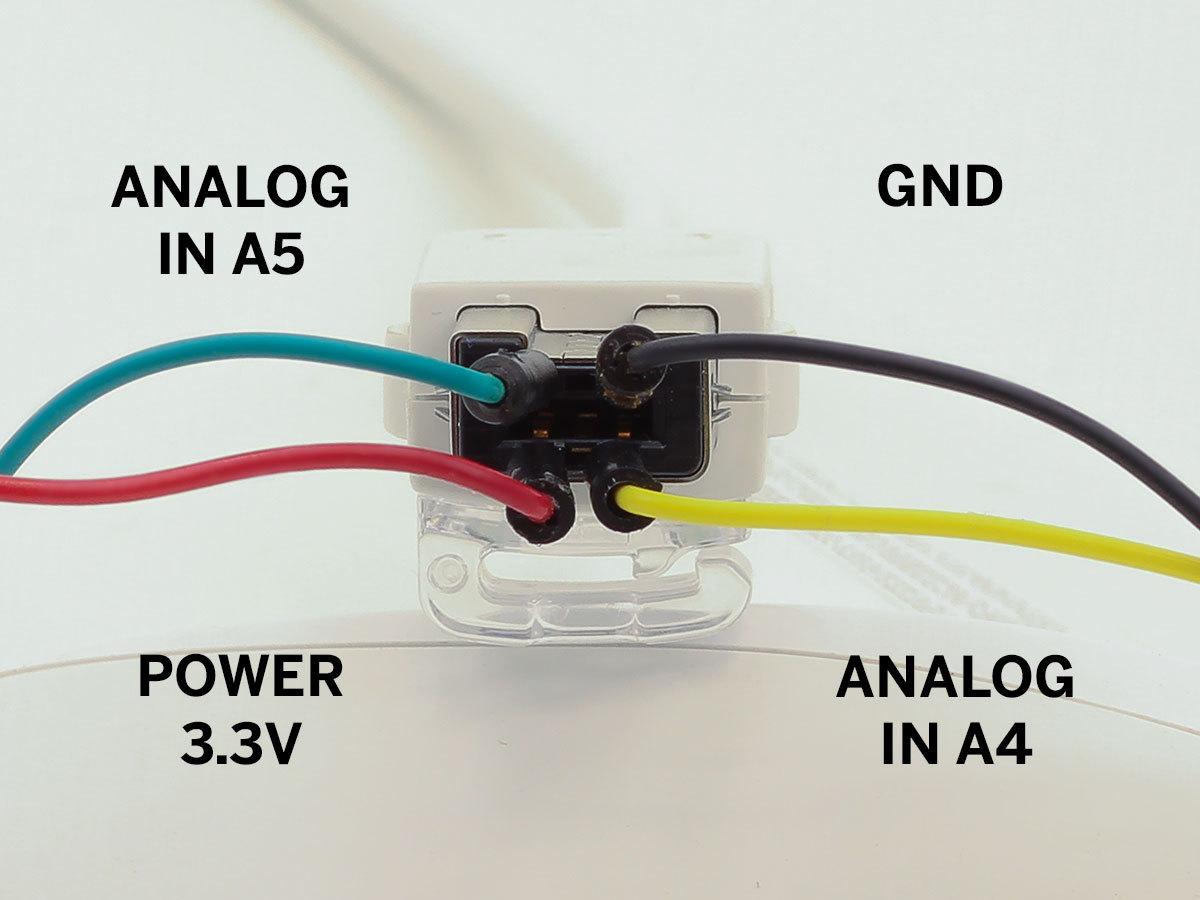
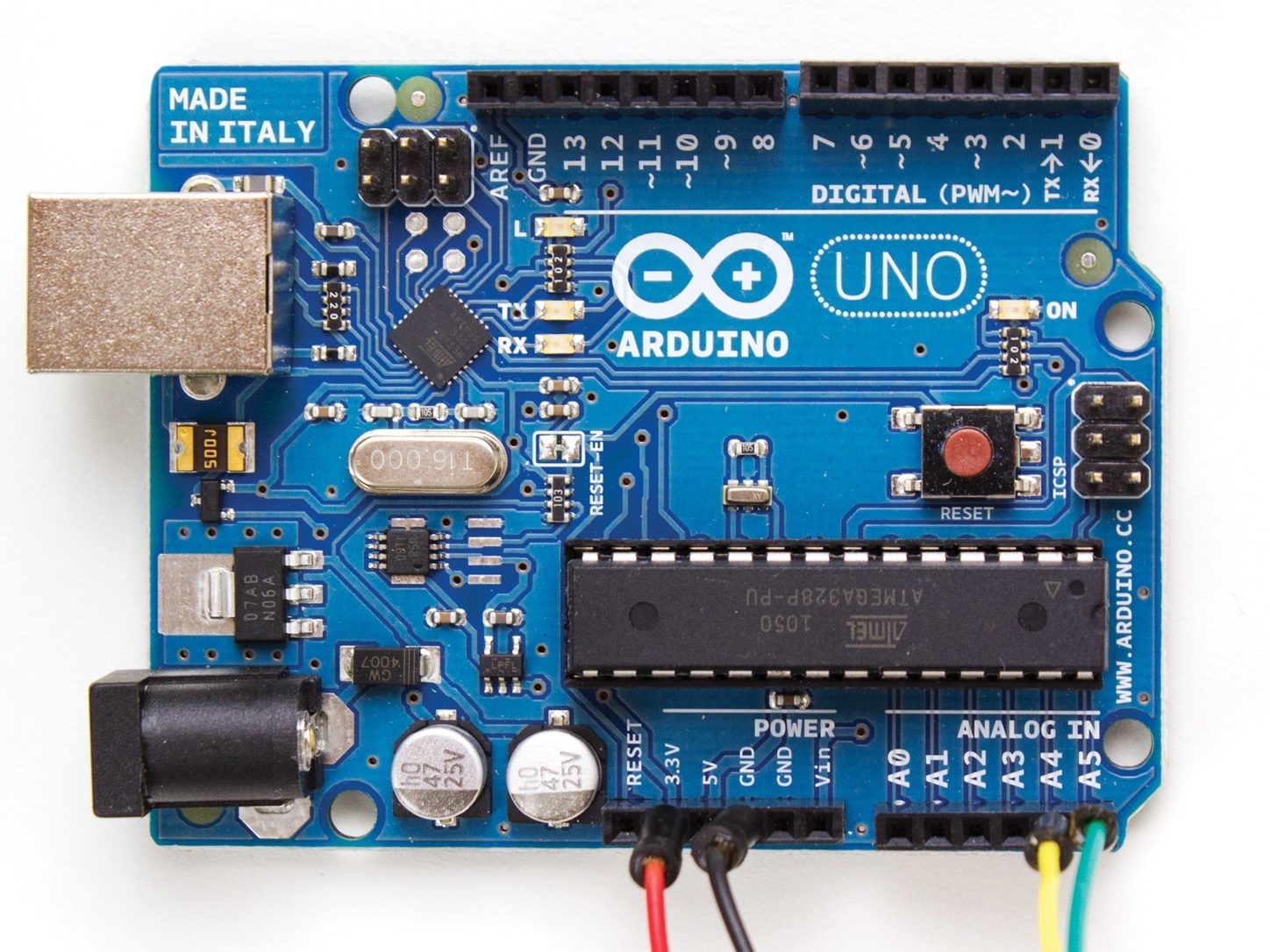
I based my design on the Wii Nunchuk controller for several reasons. First, it’s a versatile, comfortable, well-designed controller; second, it‘s cheap and easy to find; and third, its native I2C serial protocol is easy to interface with Arduino. As a bonus, the connector will accept standard jumper wires, so there’s no need to cut up the cable or use a dedicated adapter.
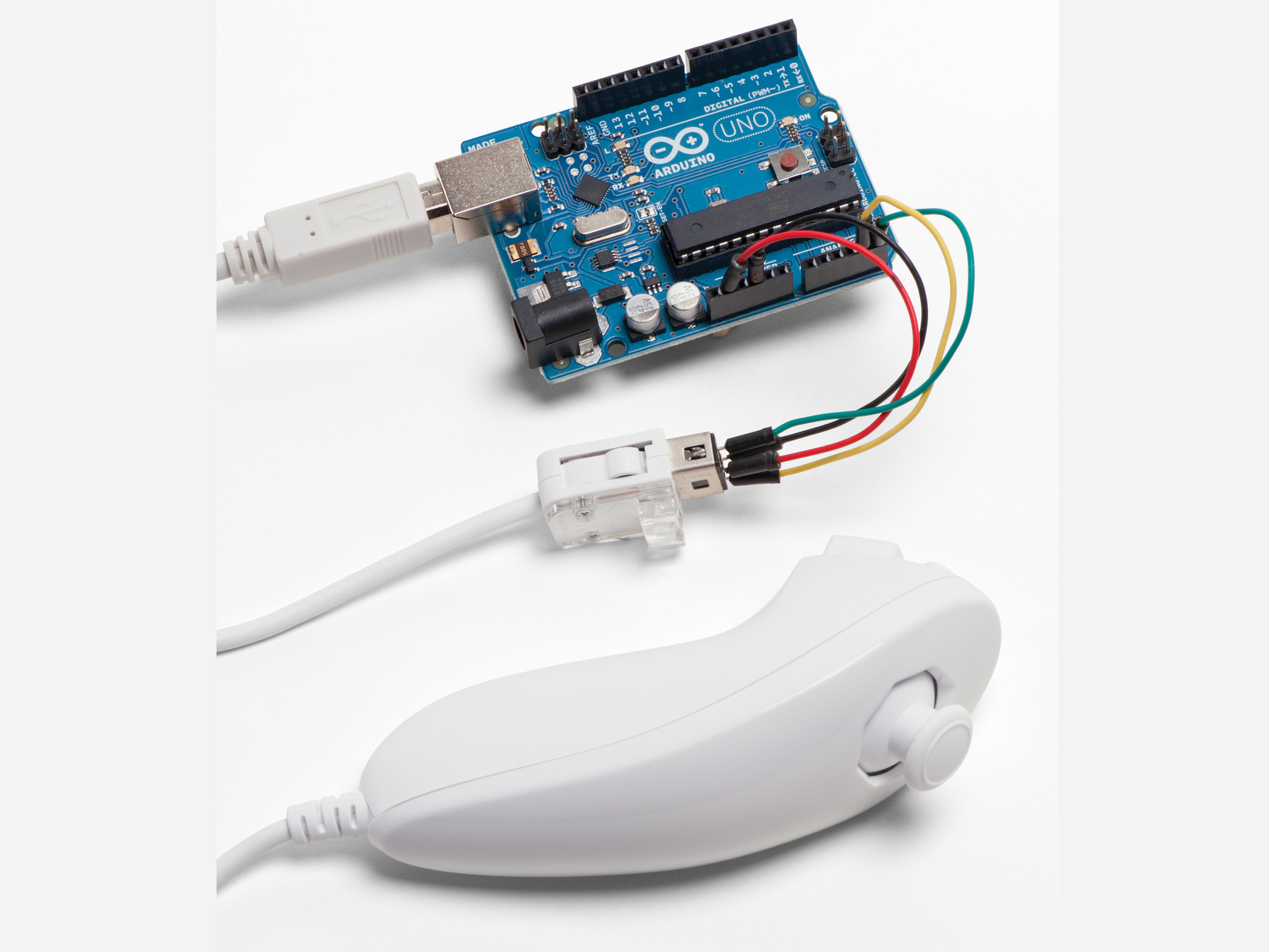
The Arduino runs a sketch that reads data from the controller and prints to the computer’s serial port. The computer runs a Python script, which receives serial data and emulates a mouse.
Steps
Step #1: Install the Software
Next
- Download the Arduino IDE for Windows at http://arduino.cc/en/Main/Software. Extract the arduino-1.0 folder to your hard drive. Inside this folder you’ll find arduino.exe.
- Download the Arduino Nunchuk library at http://github.com/GabrielBianconi/Arduin.... Extract the ArduinoNunchuk folder to your hard drive.
- Open theArduino IDE and select File → Preferences. Note the folder under Sketchbook folder and open it in Windows Explorer. Look for a folder named libraries. If there isn’t one, you should create it. Move the ArduinoNunchuk folder into libraries.
- Download Python 2.7.2 for Windows at http://python.org/ftp/python/2.7.2/pytho... and run the installer. You can find IDLE, the Python IDE, atStart → Python 2.7 or launch it at C:Python27Libidlelibidle.pyw.
- You should not download Python 3. The script used in this project won’t work with this version.
- Download the pyserialmodule at http://pypi.python.org/pypi/pyserial. Extract the pyserial-2.6 folder to C:. Launch the command prompt window at Start → Accessories → Command Prompt. Type cd /d c:pyserial-2.6 and hit enter. Now type c: Python27python setup.py install and hit enter again.
- Download pywin32 at http://makezine.com/go/pywin32 and run the installer.
Conclusion
This project first appeared in MAKE Volume 33, page 118.


the download link for the python script wont work is there a alternative link?
Hello, where can I get those jumper wires?
You can get them from ebay. Get a big cheap pack from China.
No they’re better from the maker shed. the delux jumper wire kit. they really work well.
The download worked for me. I have mirrored the script over on Github:
https://gist.github.com/whyisjake/5340827
Can’t get the pyserialmodule to work. any tips?
// What's Trending
Raspberry Pi Design Contest
Lost PLA Casting from 3D Prints
Ten Tips for Adhesive Tape
Seventeen Sneaky Secret Hides
I Have a (Puzzling) Dream
10 Things to Connect to Your Raspberry Pi
Is it a Hackerspace, Makerspace, TechShop, or FabLab?
Teardrop Camper Trailer
// What's Shared
A better way to slice a pumpkin
DIY Nerf Darts
100 Dollar Store Organization Ideas for Craft Rooms and Beyond
In the Maker Shed: Minty Boost USB Charger
Mad’s Mouse House
Lace Princess Crowns
I Have a (Puzzling) Dream
Play the Rings of a Tree Trunk Like a Record
// Most Commented
DIY Hacks & How To’s: Get Emergency Power from a Phone Line
Resin Casting: Going from CAD to Engineering-Grade Plastic Parts
Ten Tips for Screws and Screwdrivers
Ten Tips for Better Measurement
Is it a Hackerspace, Makerspace, TechShop, or FabLab?
Makers on TV: Big Brain Theory
Arduino Announces New Wireless Linux Board
Grow: A Portable CNC Router System
Trending Topics
Get our Newsletters
About Maker Media
Subscribe
to MAKE!
Get the print and digital versions when you subscribe